Setting up APM for Data Loading

To use the APM data loading functionality, you must be running a server instance with a smart client. For more information, see “Managing Servers and Clients” in APM Installation Guide.
Note: In the APM Settings Editor, advanced Runtime settings, Customizations node, Disable Custom Events box must be set to “False” in order to allow importing.
After creating and testing your server instance and smart client, set up the server machine and instance to use the APMJob service provider.
Note: See APM Installation Prerequisites for the versions of Microsoft Excel that APM supports.
This topic explains how to set up a service provider for data loading.
Note: If you intend to use the Asset Characteristic Pivoted Values data loader, you will need to set up data loader sets in application settings. See Importing Asset Characteristics using Pivoted Values.

To Set up a Service Provider for Data Loading
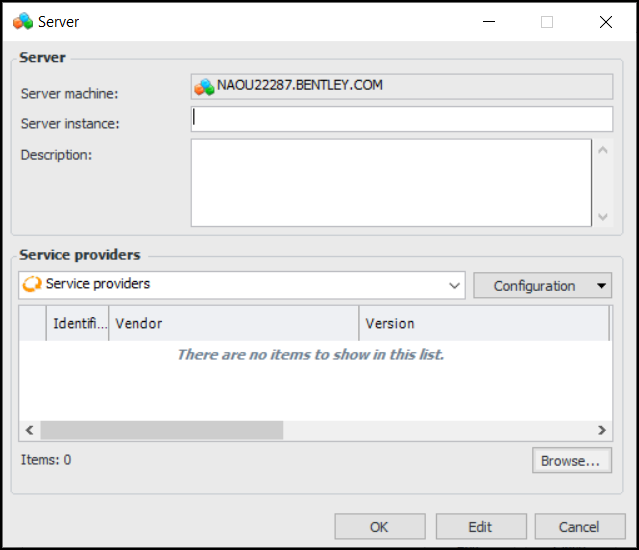
Note: When setting up the service provider, you will need to enter the name of the server instance.
1.
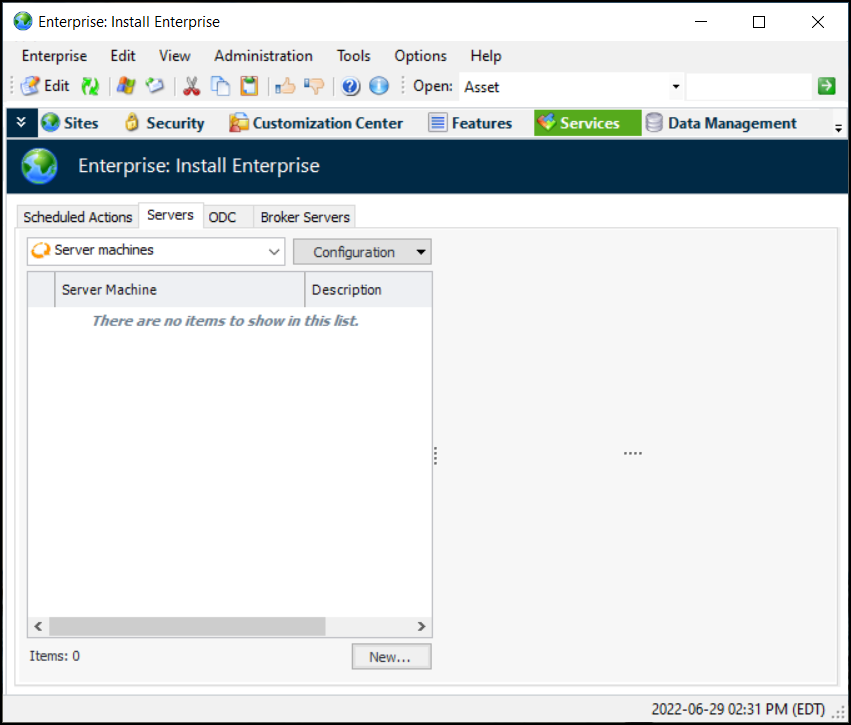
From the Enterprise window, click the Services view and the Servers tab.
2.
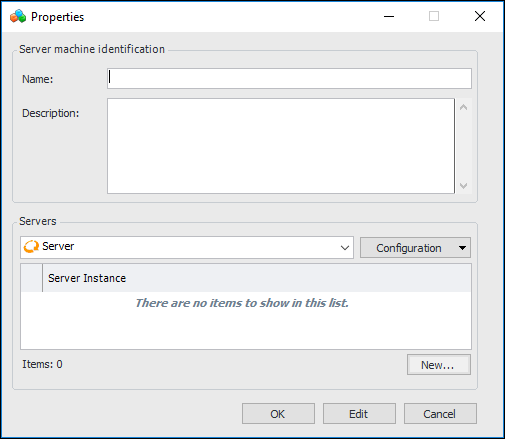
Click New at the bottom of the Server Machines table. The Properties dialog appears.
3.
Tip: Look in the computer properties for the computer name. Or from the command line prompt, type “hostname” and press Enter.
4.
Click New to add a server instance. The Server Properties dialog appears.
5.
6.
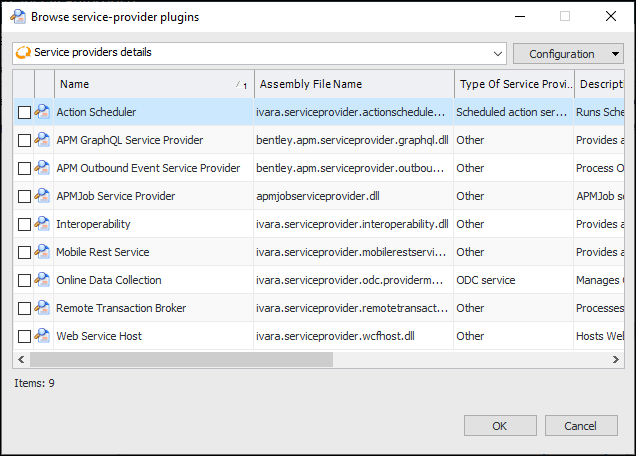
Click Browse to add a service provider. The Browse Service Provider Plugins dialog appears.
7.
Select APMJob Service Provider and click OK. The service provider is added to the table.
8.
Click OK in the Server Properties dialog to close it.
9.
Click OK in the Server Machine Properties dialog to close it.
You will need to restart the server instance at this point.