Working with Process Jobs

A process job identifies a staging class and parameters that are used to match data in a staging table against data in the APM database. During processing, APM validates the data and generates error messages if required. Valid records are added to the target APM site. Process jobs can be revised and reprocessed.
The process job provides a record of the import request and process statistics. The APM Process Job dialog also lists the objects, their attributes, statuses, and messages.
Process jobs can be created in these ways:
Multiple jobs can be included in a batch to be processed in a specified sequence and, if required, at regular intervals. For more information, see Creating Process Batches.
Tip: You can delete a process job by right-clicking it in the Process Jobs tab and clicking Delete. Click Yes in the confirmation message that appears.
This topic explains how:

To Work with Existing Process Jobs

1.
2.
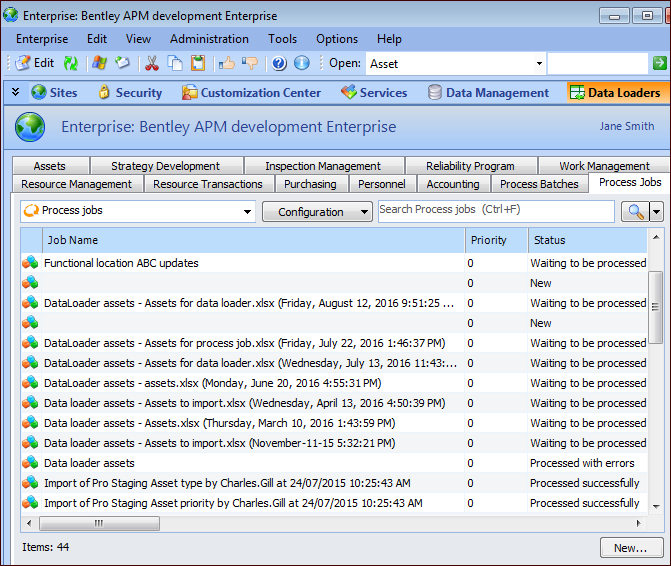
Select the Data Loaders view and then the Process Jobs tab. For example:
Tip: Click the refresh icon () to update the display.
The Status column shows whether the job has completed processing and whether it processed successfully or with errors. If processing has been deferred, the status is “New”.
3.
Tip: You can also open this dialog from one of the staging table tabs, for example, Assets. Scroll to the Job Name column and double-click the icon.
4.
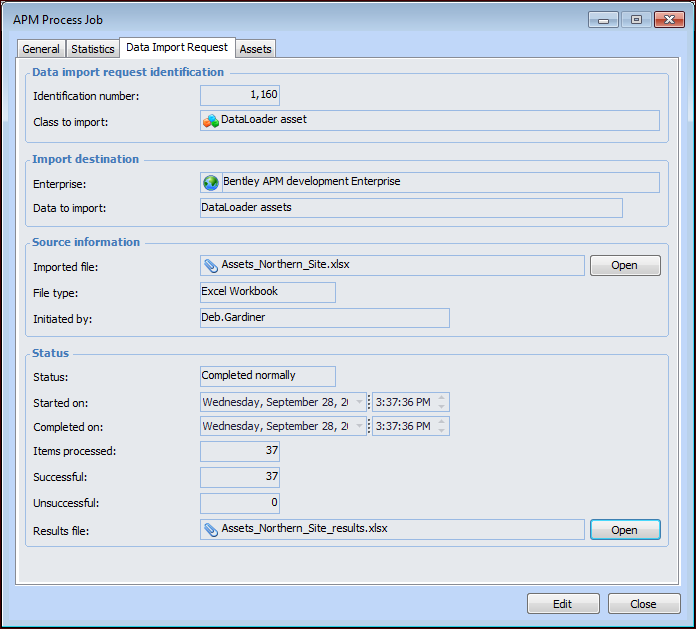
Select the Data Import Request tab for a summary and to open the imported file or results file. Here is an example for assets:
Note: APM stores the imported and results files in the C:\Users\User.Name\AppData\Local\Temp folder.
5.
Tip: In the staging table tab, select the “- Errors” configuration (for example, “Assets - Errors”) to view requests that processed with errors.
6.

To Create a Process Job

1.
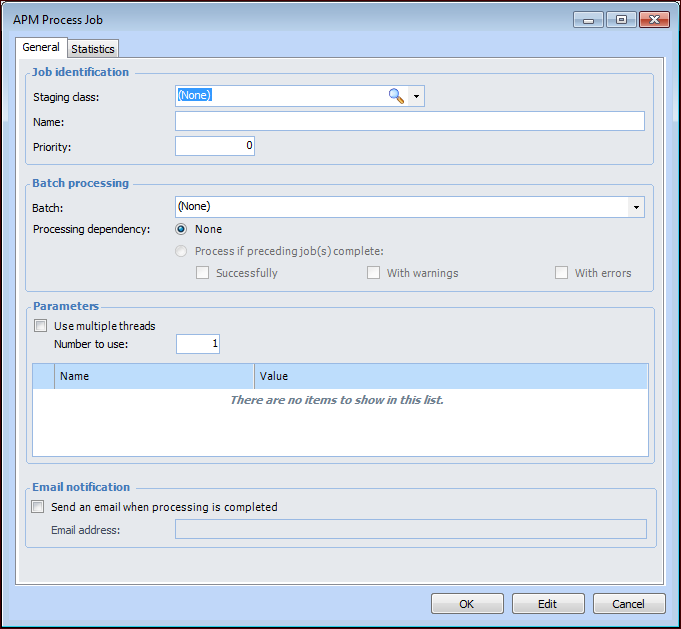
In the Process Jobs tab, click New. The APM Process Job dialog appears:
2.
3.
In the Name box, enter a descriptive name for the process job.
4.
Enter the Priority value for the process job.
Note: The larger the number, the higher the priority, with 0 being the lowest priority. If two or more jobs have the same priority, they are processed in sequential order.
5.
6.
In the Processing dependency area, select whether this process job is dependent on one or more preceding jobs completing. You can select whether the status of the preceding job(s) must have completed successfully, with warning, or with errors.
7.
You can turn on multiple concurrency by selecting Use multiple threads. Specify the maximum in the Number to use box. By default, the value is “1”, which means that the data is processed sequentially. You can increase this number to improve processing speed for large jobs on computers with the appropriate capacity.
Note: The recommended maximum is the number of CPU cores minus 1.
8.
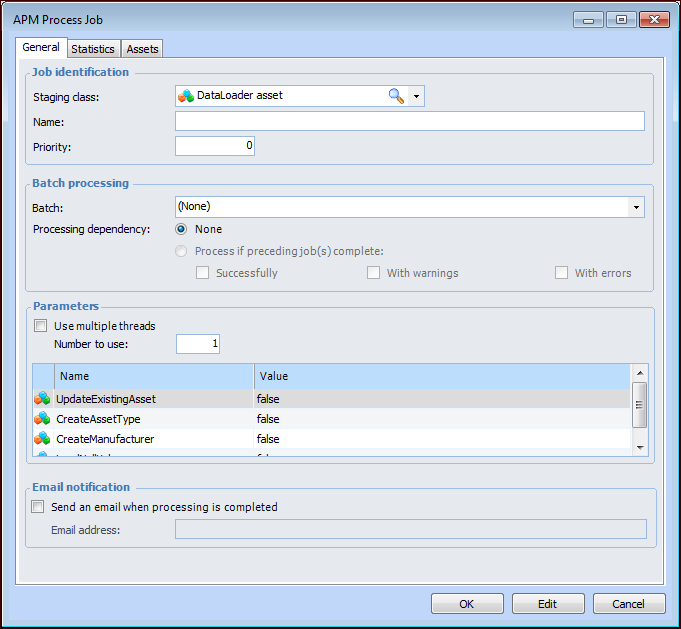
If the data loader class has parameters, you can set them in the Parameters table. To edit a parameter value, select the row and press F2 to make the cell editable. Enter the new value (for example, “true” or “false”) and press Enter.
9.
In the Email notification area, you can choose to have APM automatically send a notification when the process job completes. Enter a valid email address in the space provided.
Note: In order for APM to send automatic email notifications, the recipient’s employee record must record the email address and server email settings must include the SMTP host name. For more information, “Setting up Email” in APM Installation Guide.
10.
When you are finished, click OK to save the process job. The job appears in the list.
Tip: You can reopen the APM Project Job dialog to view processing statistics and records.

To Manually Process a Job

1.
In the Process Jobs tab, right-click the process job, click Mark As, and then either Ready for Validation or Ready to Process. The job is queued for validation or processing.
2.
When validation or processing is complete, the Status column indicates the result. You can open the APM Process Job dialog to review the records, their statistics, and messages.
3.
4.