Creating Process Batches

A process batch contains one or more jobs. It can be set to automatically process imported data at regular intervals.
You can create a batch to process existing jobs, for example, the jobs that are created by the Import Data wizard with deferred processing. In this case, define the batch and then reference it on the individual process jobs.
You can also create a batch to process records in the staging table that are not assigned to a process job, for example, data that has been added to the staging table using another interface or process. In this case, when creating the batch, and add one or more new jobs that identify the staging classes.
In either case, you can specify job dependencies, set the order in which jobs are processed, and set up a recurrence pattern for scheduled processing.

To Create a Process Batch

1.
2.
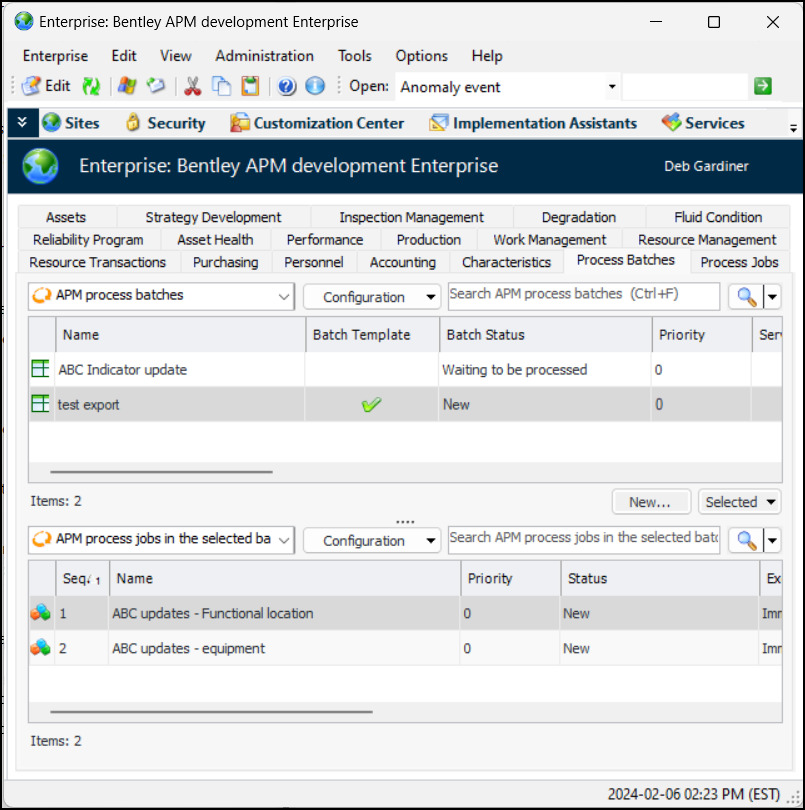
Select the Data Loaders view and the Process Batches tab. For example:
Select a batch in the top table to view a list of its jobs in the bottom table.
3.
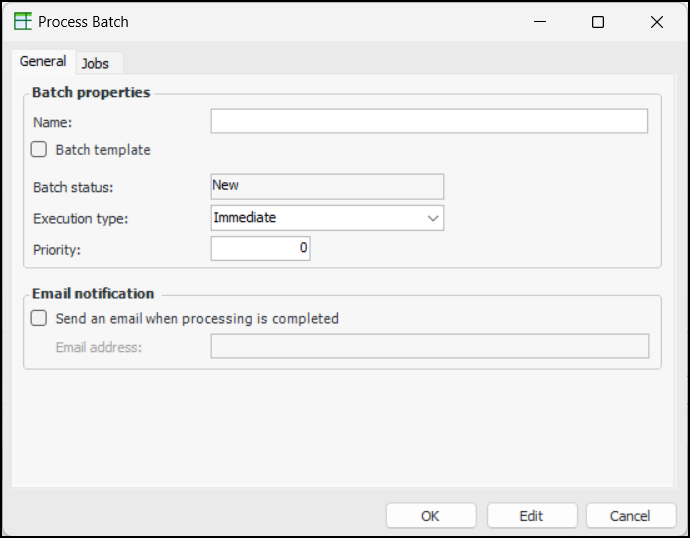
Click New. The Process Batch dialog appears. For example:
4.
On the General tab, provide a name to identify the process batch.
5.
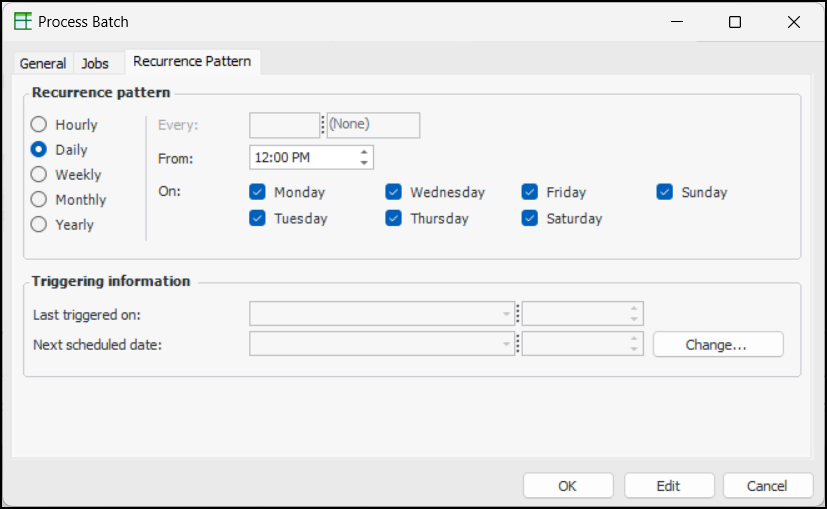
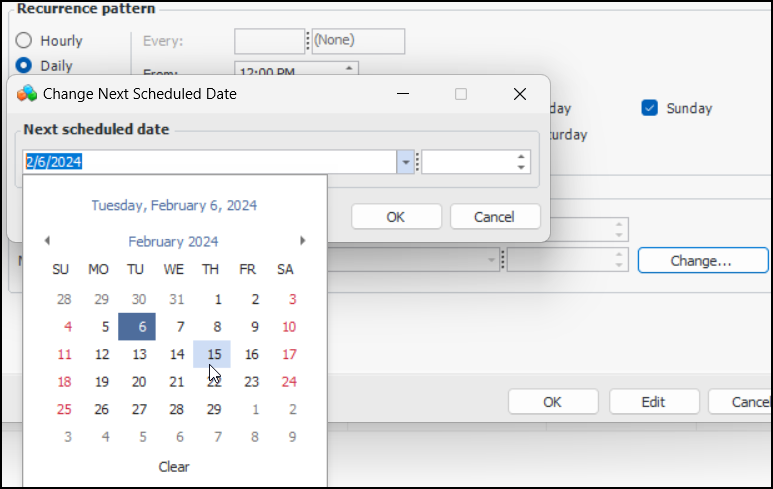
Select Batch template if the batch is to be processed at regular intervals. The Recurrence Pattern tab is added to the dialog.
6.
Select the Execution type. If the batch is to have a recurrence pattern, select “Immediate” so that batch processing begins on the start date and time.
Note: A deferred batch can be started manually by marking it as “Ready to Process”.
7.
Enter a Priority for processing the batch.
Note: The larger the number, the higher the priority. If two or more batches have the same priority, they are processed in sequential order.
8.
In the Email notification area, you can choose to have APM send a notification when the batch completes. Enter a valid email address in the box provided.
9.
10.
11.
12.
Select the Jobs tab and click New to create a process job assigned to the batch. You cannot use this method to assign existing process jobs to a batch.
For more information, see Working with Process Jobs.
Tip: Use the Move Up and Move Down buttons to change the order in which jobs are processed. However, job dependencies take precedence over sequence order.
13.
When you are finished, click OK to save the process batch. The batch appears in the list.
14.
You can trigger processing for a non-template batches by right-clicking it, clicking Mark As, and then Ready for Validation or Ready to Process. The batch is queued for validation or processing.
Tip: You can pause batch processing by right-clicking the batch in the list and clicking Pause. The batch’s status changes to “Paused”. To resume processing, right-click the batch and click Resume.
15.
When validation or processing is complete, the Status column indicates the result. You can open individual APM Process Job dialogs to review the records, their statuses, and messages.
16.