|
Importing Standard Task Indicators
Processing Options
While using the Import Data wizard, you can set an option to process data immediately. If no errors are found in the imported data, the data is added to the specified APM site. If you do not select Process Immediately, the job remains in the process jobs queue until processing is initiated.After the information has been processed, an entry appears in the Data Import Requests tab on the Data Management view. The import worksheet and a results worksheet that includes each record’s import status and error, if any, are attached to the import request.Data Imported
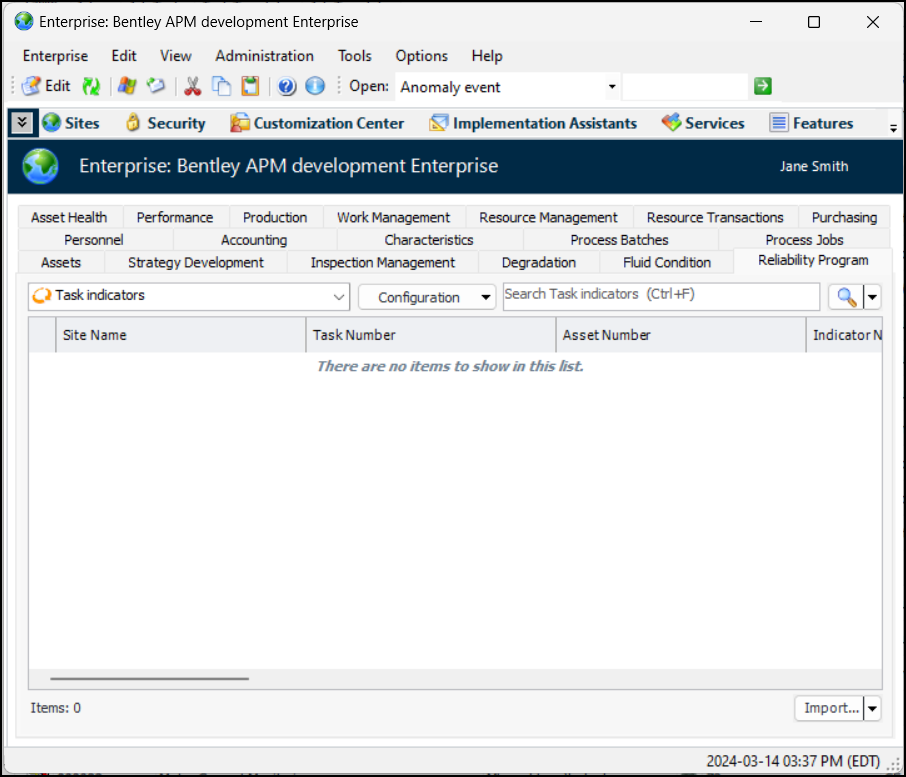
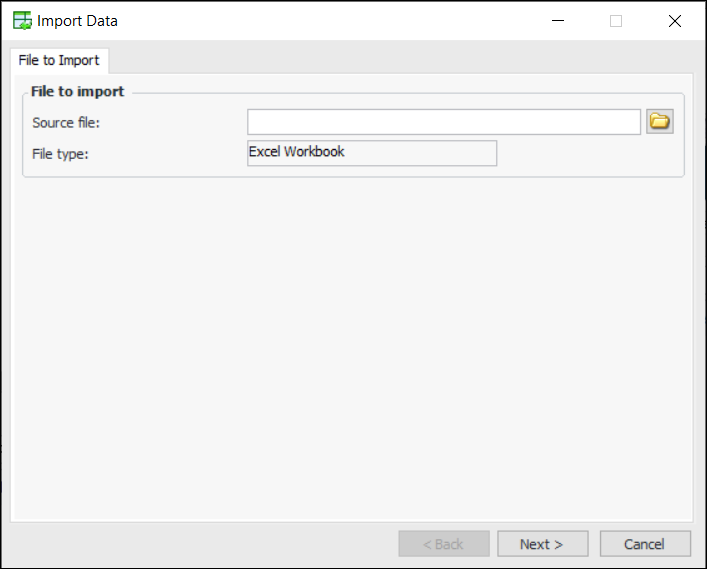
This topic explains how to import indicators and indicator templates from a Microsoft Excel spreadsheet.Importing Standard Task Indicators
2.
4.
6.
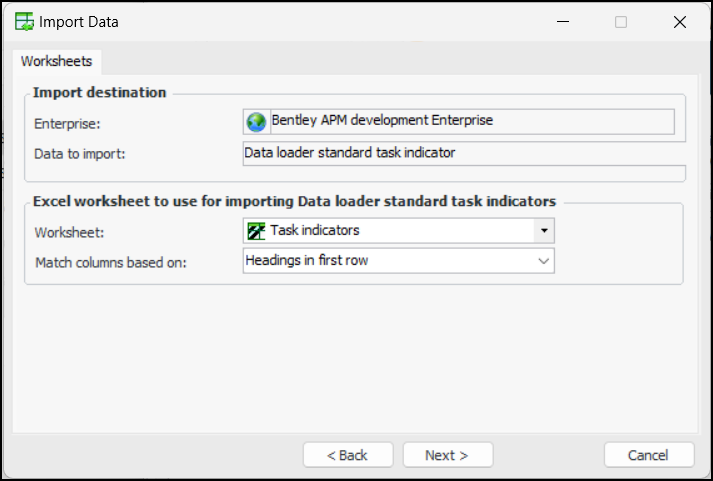
• Headings in the first row of the file – Each column heading in the first sheet of the workbook is matched with the property that has the same name. The match is not case-sensitive
• Column sequence – Columns on the first sheet of the workbook are matched to properties based on column and property sequence numbers. For example, the first column (Column A) is matched to the Site Name property (sequence number 1). The first row of the worksheet must be populated with values for all of the supported columns.
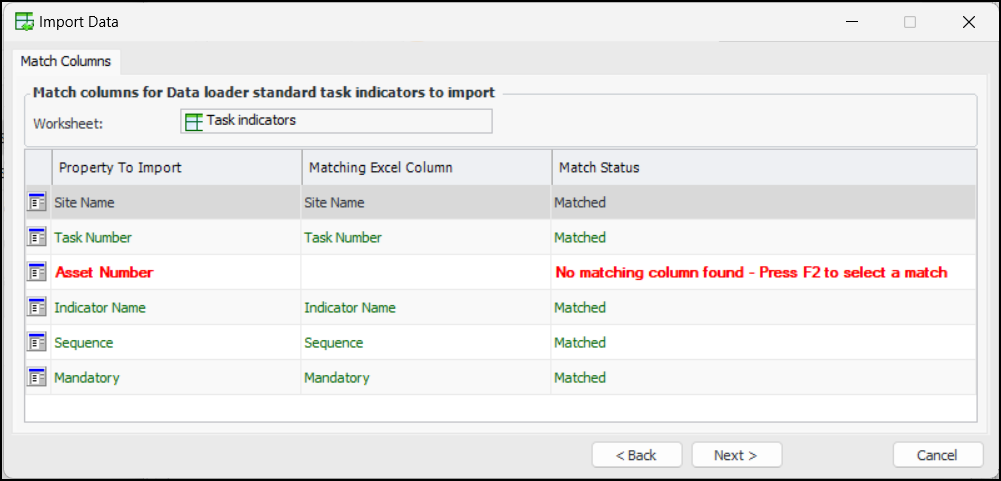
8. Click Next. The Match Columns page lists the properties to import, the columns in the Excel file, and their match statuses. If a column does not match, the row appears in red, and the Match Status column indicates the reason for the error. For example:Tip: In an error row, you can click the Matching Excel Column cell and press F2 to make the cell editable. Then select a column from the import file to match.
9.
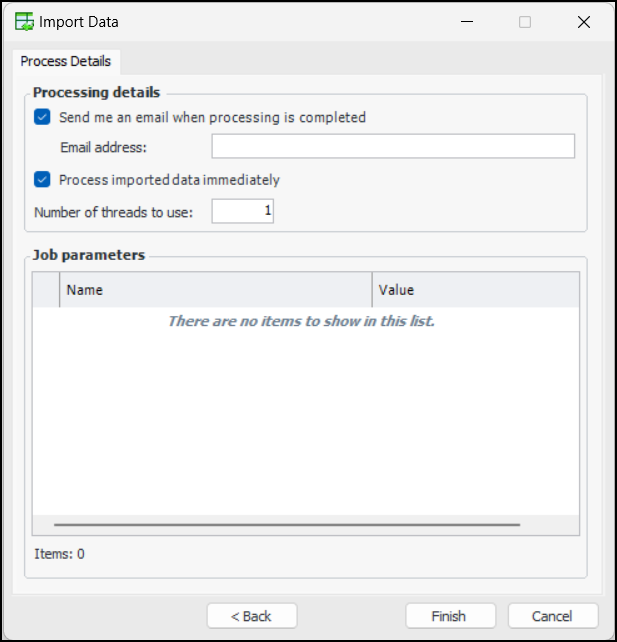
10. Send an email when this job finishes is selected by default. If you would like an email notification to be sent to you or another employee, enter a valid email address in the Email address box.Note: In order for APM to send automatic email notifications, the recipient’s employee record must record the email address and server email settings must include the SMTP host name. For more information, “Setting up Email” in APM Installation Guide.
11. Process imported data immediately is selected by default so that the data is validated and processed as soon as it is imported. If this option is not selected, the data remains in the staging table until processing has been initiated.
12. You can specify the maximum concurrency in the Number of threads to use box. By default, the value is “1”, which means that the data is processed sequentially. You can increase this number to improve processing speed for large jobs on computers with the appropriate capacity.
13. Click Finish. A confirmation message appears.
14. Click Yes. An informational message appears to let you know that the import request is queued for processing. Click OK.