Importing Maintenance Action Plan Corrective Tasks

Using this data loader, you can import corrective standard tasks and corrective solution packages linked to action plans. Corrective tasks can be loaded for failure modes on the following types of analysis:
Note: The corrective task data loader is a “generally available” product feature. You must first enable feature 88 to use the functionality in APM. In the Enterprise window, select the Features view and the Enabled Features tab. Click Browse, select “Maintenance action plan corrective task data loader” and click OK. If APM is running as a smart client, click Refresh Enabled Features on the server. Then restart the client to use the functionality.
Note: For information about creating the Excel file, see Creating Import Templates.
This topic explains:

Processing Options

While using the Import Data wizard, you can set an option to process data immediately. If no errors are found in the imported data, the data is added to the specified APM site. If you do not select Process Immediately, the job remains in the process jobs queue until processing is initiated.
Processing includes validating the data and generating error messages if warranted. For example, if a mandatory field does not have a value, the error is shown in the staging table. The missing value must be supplied before the item can be added to APM. You can correct a row in the staging table tab and then mark the row as “Ready to Reprocess”. Be sure to mark the process job as “Ready to Process”.
If the process job is not to be processed immediately, it can be validated and processed in separate steps. The job can also be added to a process batch. After validation, it can be revised and reprocessed, if required.
After the information has been processed, an entry appears in the Data Import Requests tab on the Data Management view. The import worksheet and a results worksheet that includes each record’s import status and error, if any, are attached to the import request.

Data Imported

The following table lists the data in the order it is imported from the Excel file.

Importing Maintenance Action Plan Corrective Tasks

1.
2.
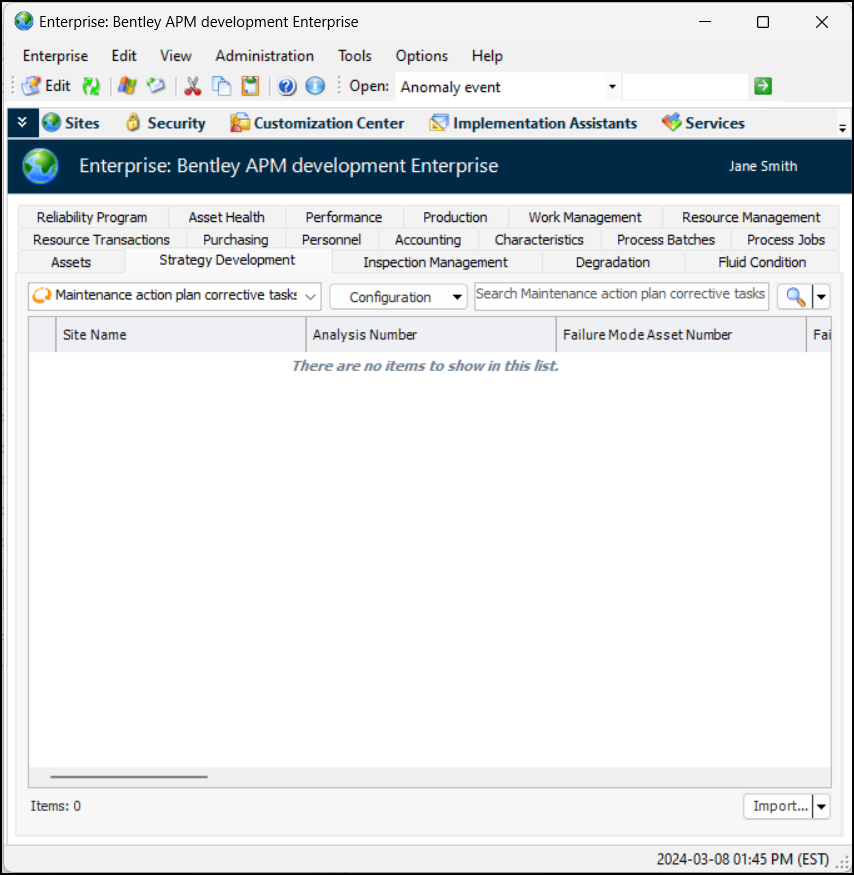
Select the Data Loaders view and then the Strategy Development tab.
3.
4.
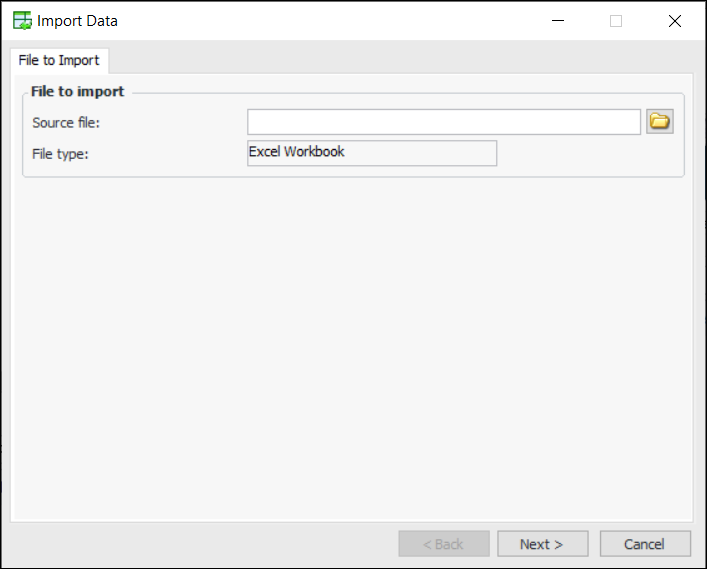
Click Import. The Import Data wizard appears, showing the File to Import page:
5.
6.
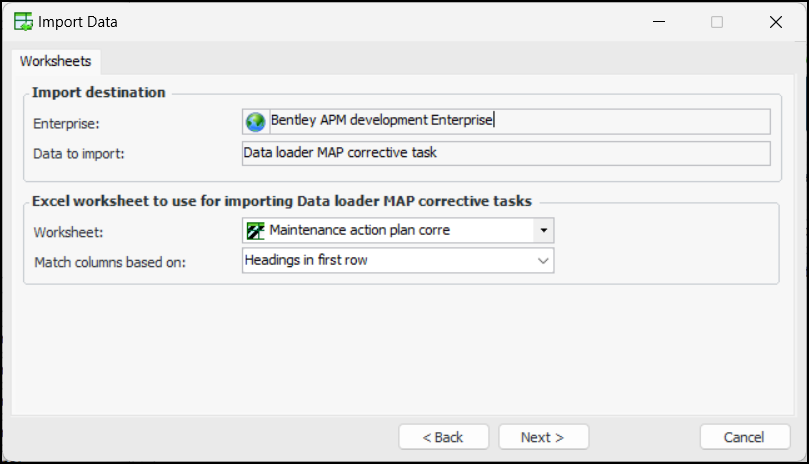
Click Next. The Worksheets page appears. For example:
7.
Headings in the first row of the file – Each column heading in the first sheet of the workbook is matched with the property that has the same name. The match is not case-sensitive
Column sequence – Columns on the first sheet of the workbook are matched to properties based on column and property sequence numbers. For example, the first column (Column A) is matched to the Site Name property (sequence number 1). The first row of the worksheet must be populated with values for all of the supported columns.
Note: If you choose to match import worksheet columns based on column sequence, you must confirm that data fields appear in the order expected by the staging table.
8.
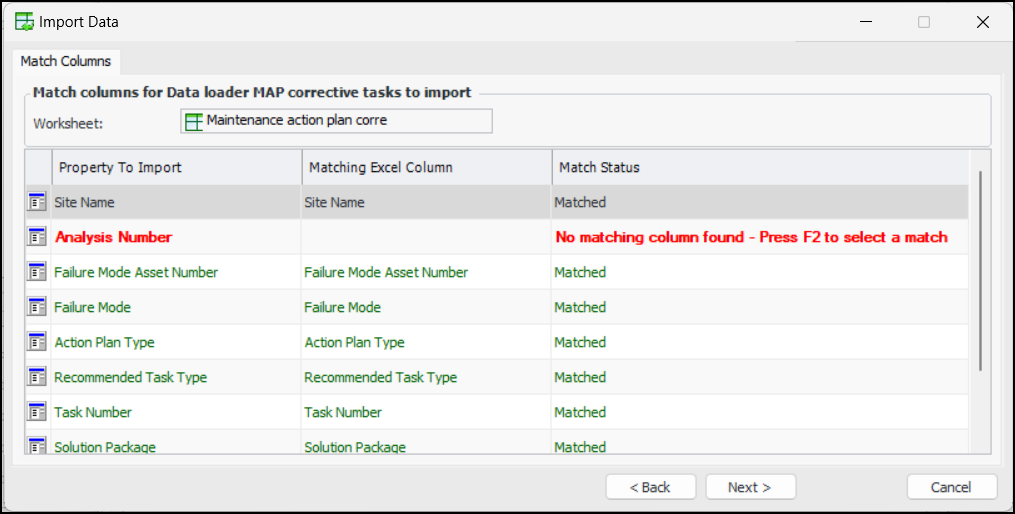
Click Next. The Match Columns page lists the properties to import, the columns in the Excel file, and their match statuses. If the matching criteria is “Headings in first row” and a column does not match, the row appears in red. The Match Status column indicates the reason for the error. For example:
Tip: In an error row, you can click the Matching Excel Column cell and press F2 to make the cell editable. Then select a column from the import file to match.
9.
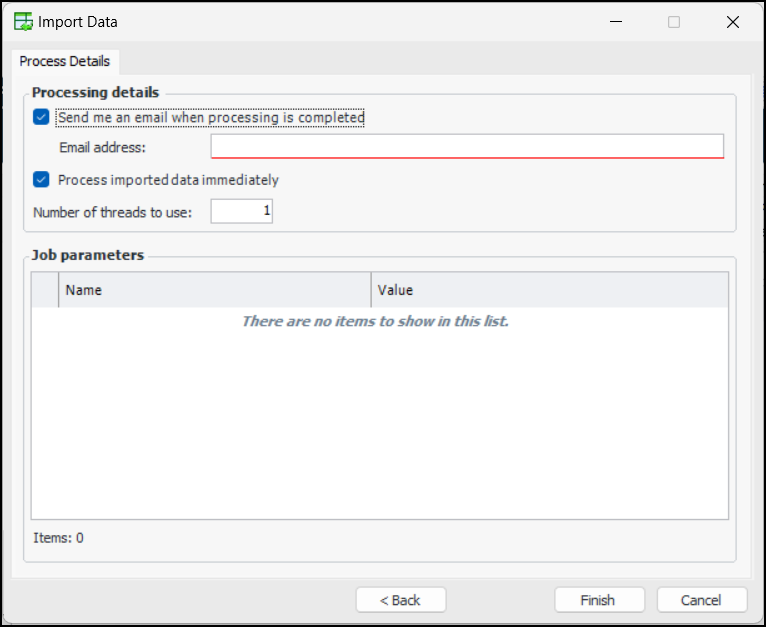
When you are finished, click Next. The Process Details page appears.
10.
Send an email when this job finishes is selected by default. If you would like an email notification to be sent to you or another employee, enter a valid email address in the Email address box.
Note: In order for APM to send automatic email notifications, the recipient’s employee record must record the email address and server email settings must include the SMTP host name. For more information, “Setting up Email” in APM Installation Guide.
11.
Process imported data immediately is selected by default so that the data is validated and processed as soon as it is imported. If this option is not selected, the data remains in the staging table until processing has been initiated.
12.
You can specify the maximum concurrency in the Number of threads to use box. By default, the value is “1”, which means that the data is processed sequentially. You can increase this number to improve processing speed for large jobs on computers with the appropriate capacity.
Note: The recommended maximum is the number of CPU cores minus 1.
13.
Click Finish. A confirmation message appears.
14.
Click Yes. An informational message appears to let you know that the import request is queued for processing. Click OK.
For information about monitoring processing, validating errors, and so on, see Working with Process Jobs.