|
Customizing the Font Used in Text Fields
To change the font in a field, you will need to customize the view in which the field is displayed. For example, if you wish to customize the Description field in the Asset Properties view, create a custom Asset Properties view.To Customize the Font in a Text Field
2. Navigate to the window or dialog that you want to customize. For example, to customize the font in the asset’s Description field, open an asset to the Properties view.
3. From the View menu, select Edit View. The Forms Editor opens, allowing you to customize the view or dialog.
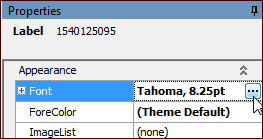
4. In the Layout panel, find the text field that you want to edit and click it. The Properties panel displays the properties of the field you selected.
5. If the view you want to edit is a panel, you will have to right-click the panel and select Design this panel from the menu options that appear. The panel can then be edited.
6.
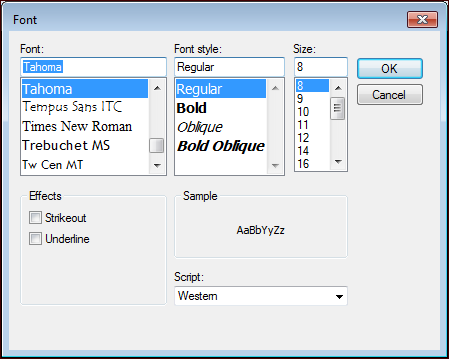
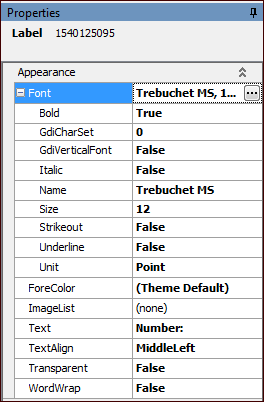
7. Make your changes and click OK. Expand the Font list to view the attributes you changed and to edit others:
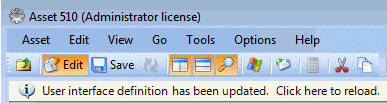
9. Reload the user interface to see the font changes. Click the User interface definition has been updated message that appears on the window or dialog.