Creating Graphic Push Buttons

You can customize push buttons to appear as an icon, instead of a button with text. Using this feature can assist with best use of screen real estate, and for purposes in which a graphic is self-explanatory. For example, you can use a paper clip graphic as an attachment button that invokes the Attachment dialog.
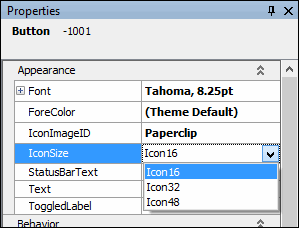
By default, the PushButton control displays text on a button. To change the button to be represented by an icon, you need to customize the view in which the field is displayed, via the Forms Editor. If you enter a value in the IconImageID property, the button is displayed as an icon, otherwise, if you leave it blank, it remains as a button with text. You can alter the size of the button, by entering a value in the IconSize property.
Note: You must be logged in as an APM administrator, in order to access the Forms Editor.
This topic describes how to create a push button to appear as an icon.

To Create a Graphic Push Button

1.
2.
3.
From the View menu, select Edit View. The Forms Editor opens, allowing you to customize the view or dialog.
4.
If the view you want to edit is a panel, you will have to right-click the panel and select Design this panel from the menu options that appear. The panel can then be edited.
5.
In the Methods panel, select Apply to add a PushButton control.
6.
In the Properties panel, Appearance section, click the box beside IconImageID, and select a pre-defined icon to represent your button. The button automatically resizes to fit the image.
7.
Click the box beside IconSize, and enter a value that represents the size of the icon, for example Icon32 creates a 32 pixel x 32 pixel icon.
Note: Icons automatically include an 8 pixel padding on all sides of the icon, for example, with Icon32, the total size of the icon is 40 x 40 pixels.
o
8.
When you are finished, click OK. The button appears.
9.
10.
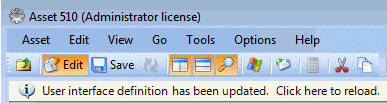
Reload the user interface to see the font changes. Click the User interface definition has been updated message that appears on the window or dialog.
Other users will see the customization the next time they connect to the database and open the object.