|
Customizing Work Order Tasks, Standard Tasks, and Activity Reports
Working with Formatting Options
Select this option to include the Planning tab on work order tasks and standard tasks using this work type. This tab allows you to add start and end dates, labor requirements, materials, tools and services for the task, as well as other planning details.When this tab is hidden, users will not be able to add trade, materials, tool, or service requirements to the task. The Create Pick List and Create Purchase Order options will also not be available.
Select this option to include the Documents tab on work order tasks and standard tasks using this work type. This tab allows you to add procedures, instructions, and other types of documents to the work order task.
Select this option to include the Inspection tab on standard tasks and work order tasks using this work type. This tab allows you to plan a list of indicators to read for the task and, on work order tasks, to view any indicator snapshots taken during the task’s life cycle.
Select this option to include the Component Activity tab on work order tasks using this work type. On work order tasks, this tab allows you to plan component swaps and repairs.
Select this option to include the Asset Status Change tab on work order tasks and standard tasks using this work type. This tab allows you to set a new status for the asset being worked on when the work order is completed. You can also select whether a new asset life will be started, whether triggering counters will be reset, and whether the asset’s manufacturer information should be changed when the work is completed.
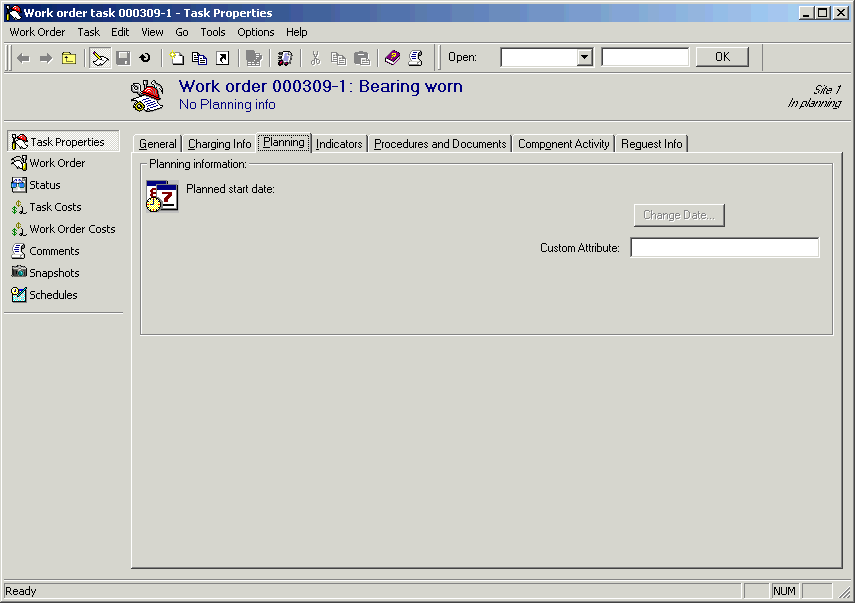
Select this option to include the Dependencies tab on work order tasks using this work type. On work order tasks, this tab allows you to plan scheduling dependencies and lags.The work order format options rely on the APM-defined user interface in order to work properly. Each of the formatting options corresponds to a tab in the work order task or standard task. The tabs are hidden or shown depending on which formatting options are selected on the work type. Each formatting option corresponds to a group of attributes, relationships, and methods that all appear on the same page in the APM user interface. However, only the tabs on the work order task Properties and standard task Properties views are affected.For example, you may want to add a custom attribute to the Planning tab. However, doing this will mean that the Planning tab will always be visible even for work types for which “planning information” has been disabled. In this situation, your custom attribute would be the only editable control on an otherwise blank page. This is because the custom attribute is not considered to be part of planning information (since it is not on the APM’s version of the Planning tab).Customers who have customized the work order task Properties view or the standard task Properties view in a previous release may experience similar problems.Working Around the Formatting Options
• Add your custom fields or move existing fields onto tabs not controlled by formatting options (General, Charging Info, and Request Info).Adding Custom Attributes and Relationships to the Follow-up Work Tab
When a follow-up work order is created via an activity report, the system uses the information contained in a class called Work Document Creation Info to create the new work order. If you need to customize the Follow-up Work tab on activity reports, you will need to add your custom attributes or relationships to this class.Work Document Creation Info Class and Mandatory Properties