Editing an APM View or Panel

You can add, copy, and edit views and panels in any class within APM. When you edit an existing view or panel, you are creating another version of the APM base view or panel. You can select whether your custom view or panel will replace the base view or panel when APM is running or if it will be used in addition to the base view or panel. In either case, the base view or panel will still exist, and you can return to it at any time.
Tip: If you are logged in as an administrator, you can press Ctrl + Shift + click from within a view or panel to display the Control Properties dialog. On this dialog you can determine if the view or panel is original or customized; for example, customized classes are part of the CustomerData system. If you click Customize, the view opens for editing in the Forms Editor. For more information, see Customizing UI Controls from the User Interface.
This topic explains how to customize an APM base view or panel in an existing custom class.

To Customize an APM View or Panel

1.
1.
2.
Select the Customization Center view.
3.
On the Classes tab, select the Custom tab and click Lock for Customization.
4.
Note: If a custom class does not yet exist, you will need to create it. To customize an existing APM class, click the New Custom Class list and then Based on APM Class. In the Customize a Class dialog, select the APM class and click OK. The Class window opens. To create a class from scratch, see Adding a New Custom Class.
5.
In the Class window, select the User Interface view. Click the Views tab and then the second Views tab.
6.
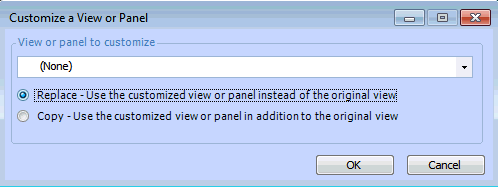
Click Customize. The Customize a View or Panel dialog appears.
7.
8.
Select Replace - Use the customized view or panel instead of the original.
Note: If you choose to replace the view, only the custom view will be available to users.
9.
Click OK. The Forms Editor appears.
10.
11.
12.
In the Customization Center view, Classes tab, Custom tab, click Unlock System.
13.
To view the changes in APM, you might need to generate the schema and cache files. Click the Generate list and then Schema. Click the Generate list and then Cache Files.
14.