|
Creating a View
This topic explains how to add a new view to a custom class. The custom class must already exist before you can create the view. To create a custom class, see Adding a New Custom Class.To Create a View
2. Select the Customization Center view.
3. Note: If a custom class does not yet exist, you will need to create it. To customize an existing APM class, click the New Custom Class list and then Based on APM Class. In the Customize a Class dialog, select the APM class and click OK. The Class window opens. To create a class from scratch, see Adding a New Custom Class.
5.
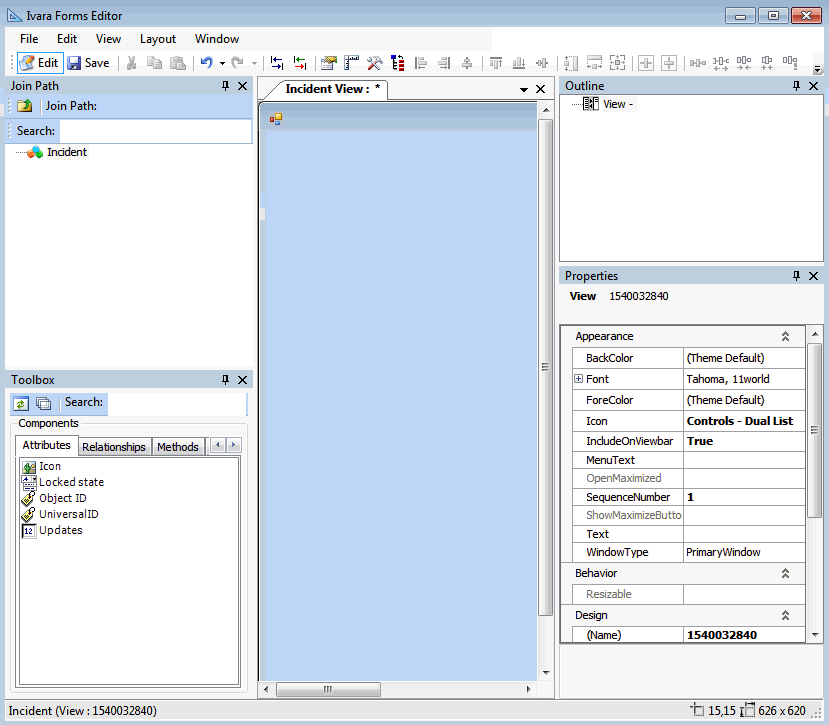
6. Click New View. The APM Forms Editor appears.
7.
8. In the Window type box, select the type of view that you want to create:
• Primary Window: This is usually the main window created for an object. This type of window usually has menus, toolbars, and a view bar.
• Dialog Box: This is usually a smaller window used for entering information or selecting from various options. This type of window does not have menus, toolbars, or view bars.
• Selector Dialog: This is a special dialog used for browsing a list of objects and then selecting one or more. This type of window does not have menus, toolbars, or view bars.
9.
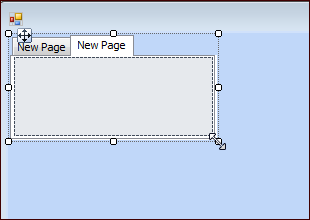
10. You can add more pages to the view by right-clicking the tab control on the layout panel and selecting Add Page. Then, click each page and, in the Properties panel, set the page properties. Enter the title for the tab and the page number to identify the sequence number in which you want the tab to appear.Tip: You can also change the sequence of the page numbers directly on the tab control on the layout panel. Right-click the control and select Sequence Pages.
11. Now you can begin adding controls to the view. Attributes, enumerated lists, and relationships all appear in the Toolbox panel. Note that unless you override the default name for a custom relationship, it will appear in the palette using the relationship type (for example, References One) followed by the name of the linked class.
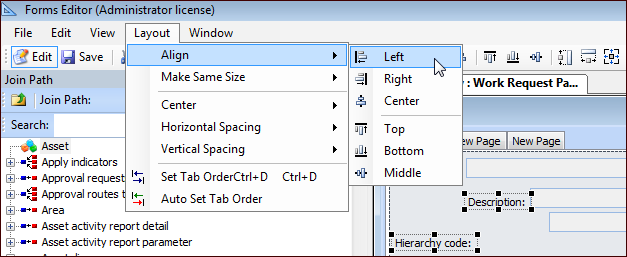
12. You can add controls from other related classes by expanding the hierarchy in the Join Path panel, following the join path, and selecting the appropriate class. The attributes, methods, relationships, and panels for the join path appear in the Toolbox panel.Once you have found the element that you want, drag it from the Toolbox onto your view.Tip: To quickly arrange fields and/or labels in a window, you can use the Layout menu options. Select two or more items in the window, and then select a layout option from the menu.
14. You can use the items on the Accessories tab to add labels and lines to organize the fields on the view.For example, you can add a Group Box to the view to surround and group fields by dragging it from the Toolbox onto the view.Set the group box properties, including a title, and then drag items from the Layout panel into the group box.
16.
17. To view the changes in APM, you might need to generate the schema and cache files. Click the Generate list and then Schema. Click the Generate list and then Cache Files.