
|
|


Creating Custom Messages
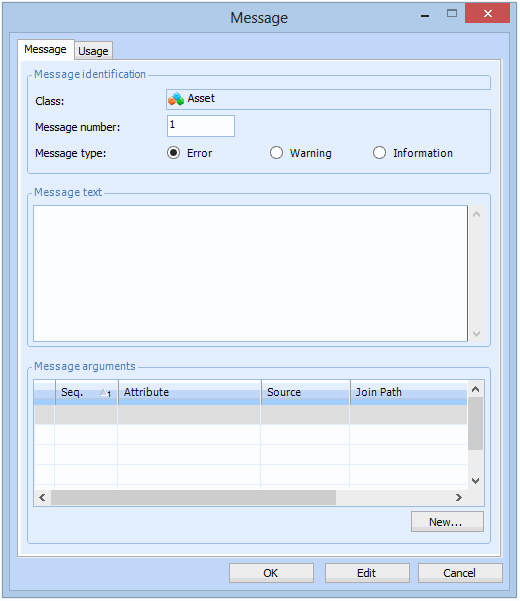
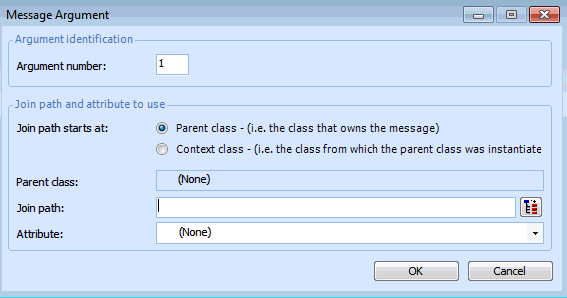
You can create custom messages to be displayed when custom validation rules are applied. Messages can include message arguments that display values contained in attributes from a context object. For example, to insert an employee’s name into the message, create a message argument that references the Employee name attribute from an employee.If you have created a custom Indicator class and added a relationship that supports mass updates, you must also create an informational message on the related custom class. The message displays the value that will appear in the Values to Copy window of the Indicator Mass Update wizard. Use one or more message arguments to substitute the data from the related class. For example, the Indicator class’ Owns Many relationship with the Calculation Input class uses the message 22 - &1 - &2 (&3). This informational message is on the Calculation Input class. The message arguments reference the Input Name (&1), Input Description (&2), and Input Type (&3). In the Indicator Mass Update wizard, the value to be copied might appear as “Input1 - Last Reading of Indicator A (Based on readings)”.You can create custom messages on the States and Validation view of a custom class, or while creating the validation rule. This topic explains how to create a message from the States and Validation view.To Create a Custom Message
 . Select the relationship that you need, and click