|
Adding a New Custom Class
To Add a Custom Class
2. Select the Customization Center view.
3. Click Lock for Customization.
4.
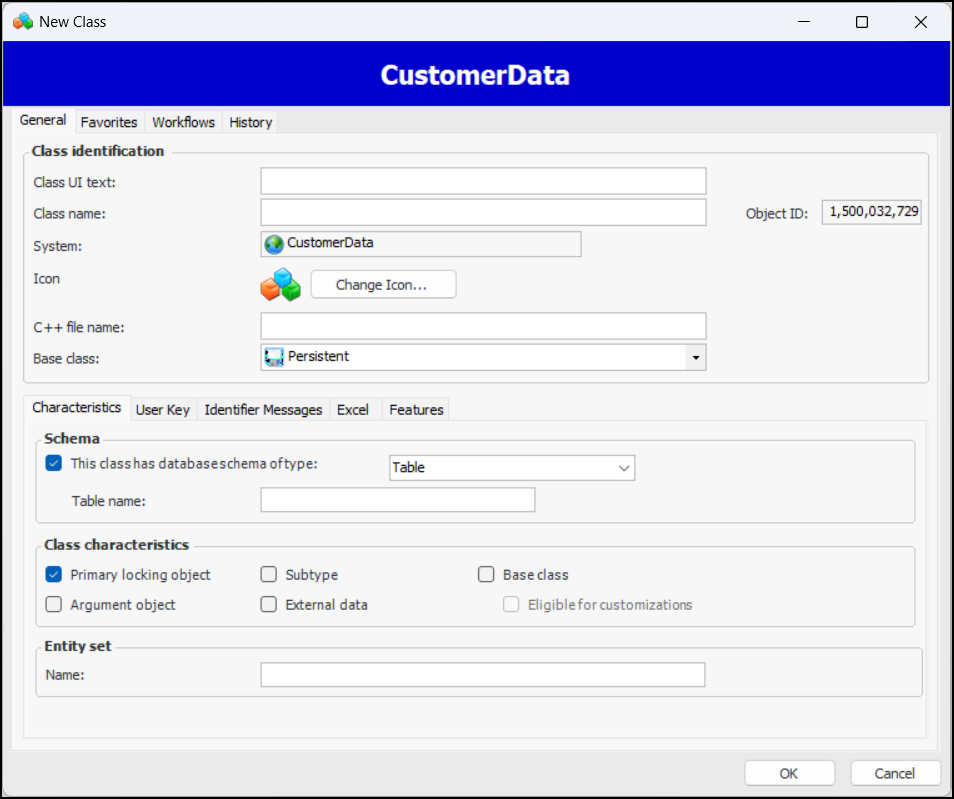
5. In the Class UI text box, enter a name for the class. Leave the Class name and Source file name boxes at the default settings.
6.
7. Select Base class if the class is a base class, then select Eligible for use in customizations if this class will be used as a base class for custom classes.
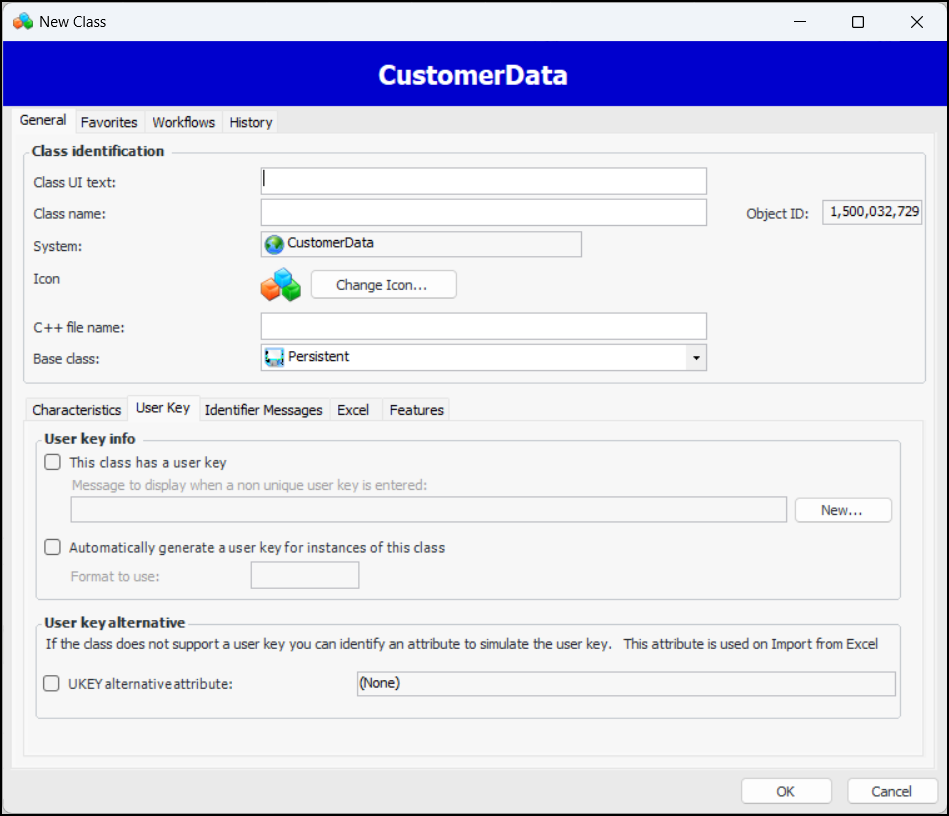
8. Select the User Key tab and then select This class has a user key and Automatically generate the user key for instances of this class.You are not required to enter a value in the Format to use field.Tip: For more information about these options, press F1 on any field.
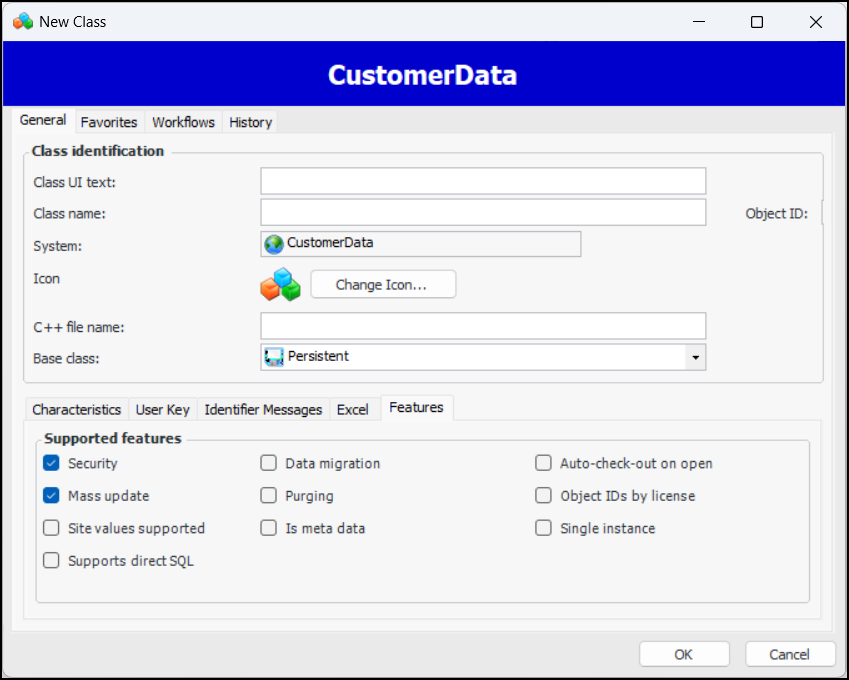
9. Select the Features tab.
10. Select each of the additional features you want to support, such as Mass update, Data migration, purging, auto-check-out-on open, and security.
11. Click OK. The new class is added to the list of custom classes in the Customization Center.Note: All custom classes have as a data member a join path to the top parent class (the Site class). This means that relationships specified in the join path must be mandatory (null behavior is set to Error). Setting this join path ensures that date and time data is converted to the appropriate time zone, the correct site is selected when site security profiles are enforced, and that the correct currency is always selected for currency conversions (EAM module only). To set the join path to site, see Setting the Join Path to Site.
13. If you want to enable auditing for this class, you can do so from the Auditing tab. For more information, see Enabling Auditing for a Custom Class.