Copying an APM View or Panel

You can add, copy, and edit views and panels in any class within APM. When you copy a view or panel, you are creating another version of an existing custom view or panel, saving the new view or panel with a different name. Copying is useful if you want to create a view or panel similar to an existing one, but you want to keep the original as well.
You can create copies of any view in the system, except for selector dialogs. Each class can only have one selector dialog. Therefore, if you customize a selector dialog, it must replace the original APM dialog.
This topic explains how to create a copy of an APM view or panel in an existing custom class. To create a custom class, see Adding a New Custom Class.

To Copy an APM View or Panel

1.
In the Customization Center, open the custom class for which you want to create the view or panel.
2.
In the Class window select the User Interface view and the Views tabs.
3.
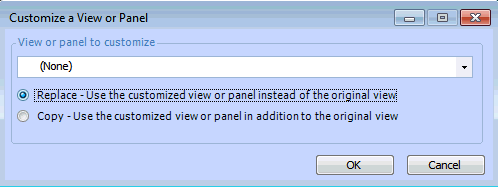
Click Customize. The Customize a View or Panel dialog appears.
4.
5.
Select the Copy - Use the customized view or panel in addition to the original view.
6.
Click OK. The Forms Editor appears.
7.
8.
9.