|
Adding a View to Site
To Add a Custom View to Site
2.
3. Note: If the Site class is not yet customized, in the New Custom Class list, select Based on APM Class. Select the Site class and then click OK. The Site Class window appears.
5.
6.
7.
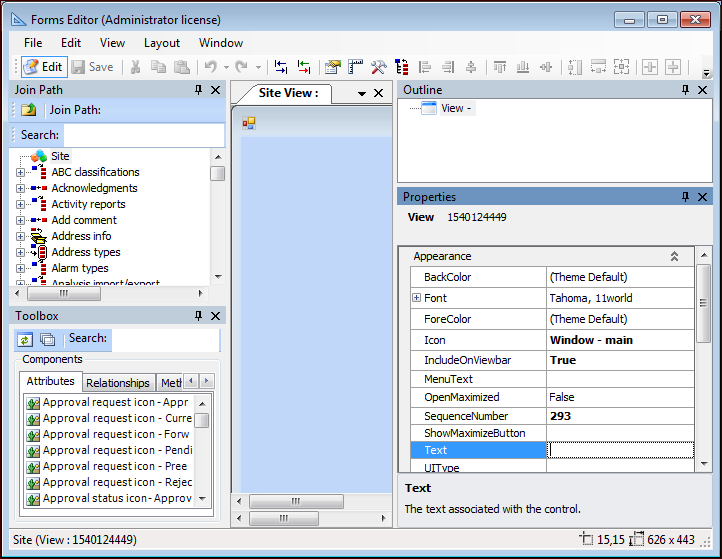
8. By default, the view will be a Single-page format. If the view will be in a Multi-page format (with tabs), right-click View in the Outline panel, and select Convert to Multi-Page.
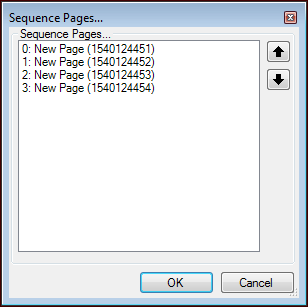
9. If your view will have multiple pages, you can add more pages by right-clicking the view on the Layout panel and then selecting Add Page. Right-click the view again and select Sequence Pages. A Sequence Pages dialog appears. Click a page and use the up and down arrows to set the sequence.
10. When you are finished, click OK. The dialog closes.
12. Now you can begin adding controls to the view. Attributes, enumerated lists, methods, and relationships all appear in the Toolbox. Note that unless you override the default name for a custom relationship, it will appear in the layout using the relationship type (for example, References One) followed by the name of the linked class. You can add items from other related classes by opening the Class field in the Join Path panel, following the join path, and selecting the appropriate class.Find the attributes or relationships that you want in the Toolbox, and drag the elements onto your view.Note: If you add a relationship that references multiple objects (such as references many, or scopes), a table control (MCLB) will be used. When you add a table, you will probably want to modify the default table configuration for the view. To do this, see Adding a Table Configuration to a View.
14.
15. To view the changes in APM, you might need to generate the schema and cache files. Click the Generate list and then Schema. Click the Generate list and then Cache Files.