|
Creating Deletion Rules for Relationships
•
•
•
•To Set Default Deletion Behavior for a Custom Relationship
2. Select the Customization Center view.
3. Click Lock for Customization. The APM icon in your Task bar now has a key on it:
6.
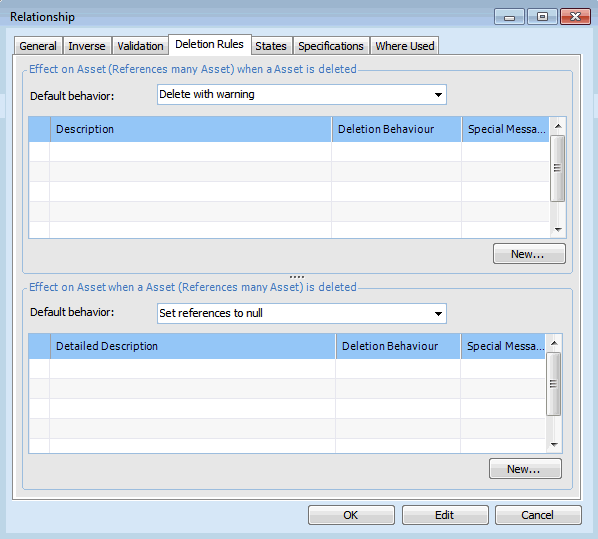
8. Select the Deletion Rules tab.
9.
• Delete: Deletes the related object without warning the user
• Delete with warning: Deletes the related object, but warns the user. The user can cancel the deletion.
• Do not delete: Neither object is deleted. An information message appears.
• Do nothing: Nothing happens to the related object. (Not available for Scopes, Scoped by, References many, Referenced by many, or Referenced by relationship types.)
• Set references to null: The reference to the related object is set to null (blank)
10.To Enter Rules for Exceptional Behavior
2. Select the Deletion Rules tab.
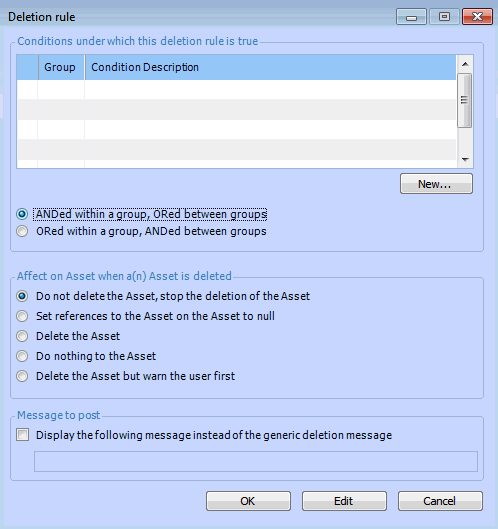
3. To add exceptions to the default behavior, click New. The Deletion rule dialog appears.
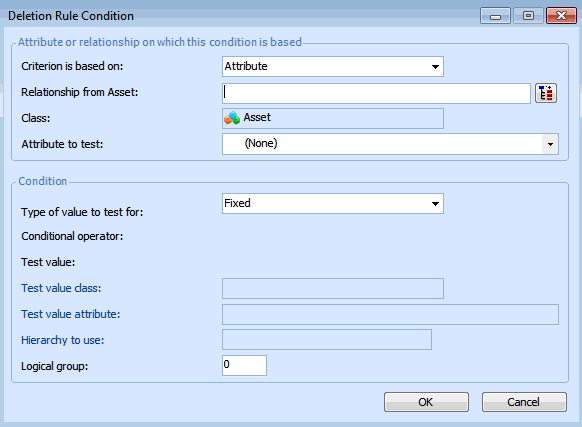
4. Create one or more conditions under which the exception behavior is applied. To add a condition, click New. The Deletion Rule Condition dialog appears.
If you are basing the condition on an attribute in either the class being customized or a related class, select Attribute. For example, Classification is an attribute of the Asset class.However, if the condition is to be based on the content of a relationship, select the Relationship option. For example, Asset Type (along with other value lists) is a separate class that is related to the Asset class.
•
• Criterion type: Based on an attribute
• Relationship from Asset: ContractorInfo
• Attribute to test: Contractor
6. Select the Type of value to test for:
• Fixed: Select this option to test the condition based on a specific value that you enter.
• Variable: Select this option to test a condition using a relative value. The value used in the filter is only determined at the time the filter is used by looking up the current value of the selected attribute or relationship. You can use any attribute or relationship that can be reached through a join path starting from the class that you are customizing. A specific value cannot be selected.
For example, when the attribute is a date and time, the list contains conditions such as Last week, Next week, In the last, and so on.
Select a Test value. If are testing a fixed value, enter the specific value that you are testing for.
For example, when the attribute is a date and time, the list contains conditions such as Last week, Next week, In the last, and so on.
Select the attribute that contains the value to be tested. For example, if you are testing a value in the Asset class, you might select the Classification attribute. This setting does not apply to fixed filter value types.
9. Click OK to save the condition.
• ANDed within a group, ORed between groups: items within the same group are evaluated with ANDs; items in different groups are evaluated with ORs.
• ORed within a group, ANDed between groups: items within the same group are evaluated with ORs; items in different groups are evaluated with ANDs.For example, you might choose Do nothing when the condition “employee is a contractor” is met.
13. If you have selected either the Do not delete or Delete with warning option, you can specify a custom message to display when the conditions are met. Select Display the following message instead of the generic deletion message, and then select the appropriate message from the list.
15.Testing the Rules