Creating Indicator Subtypes

The APM Install database comes with several subtypes for indicator types that support multiple measurement points. When you select a subtype for an indicator record, the panel is added to the indicator reading window. This panel contains the subtype’s attributes, which can be filled in to record information about the indicator.
You can enable auditing for a custom subtype and set up its Audit Info tab so that the actions performed on the subtype are displayed in the indicator’s History view.
This topic explains how to create custom indicator subtypes for APM. You can also customize the indicator subtypes supplied with APM. For more information about customizing indicator subtypes, see Customizing Indicator Subtypes.
These are the main steps to creating and using custom indicator subtypes:
Note: You must be logged in as an APM administrator, to perform these functions.

To Create Indicator Subtypes

1.
2.
Select the Customization Center view.
3.
Select the Classes tab, then the Custom tab.
4.
Click Lock for Customization.
5.
Note: If a custom Measurement Point Reading class does not yet exist, you will need to create it first. Click New Custom Class and Based on APM Class. Select the Measurement Point Reading class and then click OK.
The Class Measurement Point Reading window appears.

Create the Subtype Class

Note: You can customize an existing APM measurement point reading subtype by creating a prime version of the APM base subtype class. You can then add custom attributes to the custom subtype.
6.
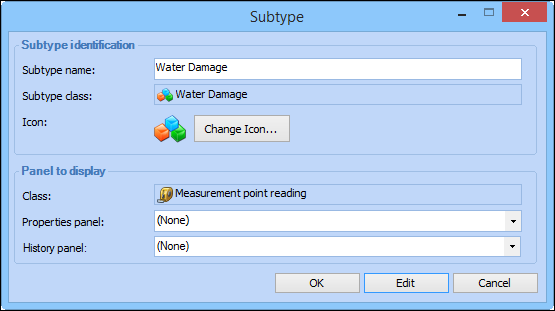
In the Class Measurement Point Reading window, click the Tools menu and then New Subtype. The Subtype dialog appears.
7.
In the Subtype box, enter the name of your subtype and then click OK. For example, you might create a subtype called “Water damage”. The Class window for the subtype appears.
8.

Add Attributes to the Subtype

9.
Select the Custom Attributes tab.
10.
For each attribute, click New. The Attribute dialog appears.
11.
Enter the information for the attribute and click OK. The custom attribute appears in the list.
For example, you might add attributes to record damage extent, such as length, width, and area.
For more information, see Adding an Attribute.

Enable Auditing for the Subtype (Optional)

12.
On the Properties view, select the Auditing tab.
13.
Select Audit Changes to instances of this class to enable auditing.
14.
Click Generate Audit Classes. APM creates the audit info and audit details classes that store auditing information for this class. These audit classes are also displayed in the list of customized classes.
Note: The audit info and audit details classes are not automatically deleted if their custom class is deleted.
15.
On the Data to Audit tab, click Browse to select each data element that you want to record for this class. Click OK to close the dialog. The elements appear in the list.
16.
On the Actions to Audit tab, click Browse to select each method that you want to record for this class and click OK. The actions appear in the list.

Create Panels for the Subtype

17.
In the subtype’s Class window, click the Add menu and then Panel. The Forms Editor appears.
18.
In the Toolbox panel, select the Attributes tab.
19.
20.
In the Properties panel, select the Text field and enter a name for the subtype’s specification panel.
21.
22.
If you have enabled auditing for the subtype, you must also include the audit data in the user interface in order to view the audit changes in the subtype’s History view. Add another panel and name it “subtype - Audit Info”, where subtype is the subtype name.
23.
Add a tab control with three tabs: By Event, By Data Element, and General. Design the pages according to APM standards for Audit Info panels.
Tip: Open an existing indicator subtype (for example, Damage) and use its Audit Info panel as an example.
24.

Associate the Subtype Panels to Measurement Point Reading Panels

25.
26.
In the Join Path panel, select the join path to the new subtype (for example, SubType - Water damage).
27.
In the Toolbox panel, select the Panels tab.
28.
29.
In the panel’s Properties panel, select the Text field and enter a name for the subtype panel.
30.
31.
If you enabled auditing for the subtype, add a panel to appear on the History view. Click the Add menu and then Panel. The Forms Editor appears.
32.
In the Join Path panel, select the join path to the new subtype (for example, SubType - Water damage).
33.
In the Toolbox panel, select the Panels tab.
34.
35.
In the Outline panel, select the top panel.
36.
In the Properties panel, select the Text field and enter a name for the Audit Info panel, for example “Water damage - Audit Info”.
37.
38.

Create Export to Excel Configurations

39.
40.
Select the View menu, then User Interface.
41.
If a panel exists that is similar to the format you want to create, you can select the Views tab, then the Views tab, and then click Customize. The Customize a View or Panel dialog appears.
Tip: You may otherwise click New Panel from the Views tabs, to create a new panel from scratch and insert all required columns from measurement point readings, reading survey, and the new subtype attributes.
42.
43.
Select the Copy option to use the customized panel as a basis for your new panel.
44.
Click OK. The Forms Editor appears.
45.
In the Properties panel, Appearance section, Text box, rename the configuration to reflect the subtype name.
46.
Right-click the configuration and select Open Default Configuration. The Configuration dialog appears.
47.
48.
49.
Select the Export to Excel tab and review and adjust the settings as needed.
50.
Tip: For more information about editing configuration columns, see Creating a Table Configuration.
51.
52.

Unlock the System

53.
The system displays a message stating that it will generate schema and cache files. Click OK. This could take a few minutes to complete.
Note: If the system does not automatically generate the schema and cache, click Generate and then Schema, and Generate and then Cache Files in the Customization Center.

Assign the Panels to the Indicator Subtype

54.
55.
Click the Administration menu and then Indicator Management Settings, and then Indicator Subtypes. The Indicator Subtype Settings dialog appears.
56.
Select the Subtypes tab.
57.
58.
In the Properties panel list, select the specifications panel that you created.
59.
In the History panel list, select the Audit Info panel that you created. Click OK.
60.
Click OK to close the Subtype dialog. Click OK to close the IndicatorSubtype Settings dialog.
61.
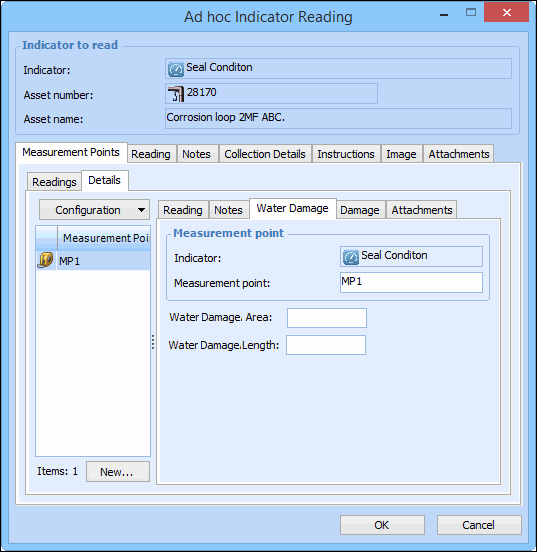
To test this, create an indicator type, and ensure that it supports multiple measurement points, and then select the Subtypes tab. Select each of the subtypes that are supported on this indicator type and in a Subtypes box, select your custom subtype. The custom panel that you created should now be available on an ad hoc Indicator Reading dialog, Details tab. For example:
62.
You can select the indicator’s History view and the subtype’s Audit Info tab to test it.