Creating Custom Validation Rules for Relationships

You can use custom validation rules that determine how lists are filtered and to enforce validation on attributes and relationships. For example, if you create a custom relationship from Asset to Employee to add a default planner reference, you could set up a validation rule to ensure that only employees who are planners can be selected in this field.
Rules can be defined using the object model and can take the form of complicated logical expressions. Rules can have conditions that must be met before the rule is applied (similar to an “If... Then” statement).
You can create validation rules for the following types of relationships:
You cannot create validation rules for these types of relationships:
Note: Validations for argument classes must be created on the Argument class.
You can select a custom message to be displayed when the conditions in the rule are not met. For example, you might create a message that says “<Employee name> is not a planner”.
This topic explains how to create validation rules for relationships. There are five main steps to creating validation rules:
Note: Creating validation rules is an advanced customization feature. Adding validation rules may change the flow of your business procedures. Rules must be thoroughly tested to ensure that they produce the expected behavior. This type of customization should only be attempted by advanced administrators with extensive knowledge of the APM object model.
The example used in this topic assumes that a custom references-one relationship exists between the Work Request and Warranty classes. To follow along with the example, you should create this relationship first (for more information see Adding a Relationship). The example sets up a validation rule that states:
For Warranties referenced on Work requests, the Duration Is greater than 1.00 month

To Create a Validation Rule for an Attribute

1.
2.
Select the Customization Center view.
3.
Click Lock for Customization. The APM icon in your Task bar now has a key on it:
4.
For this example, open the Work Request custom class.

Setting up the Validation Rule

5.
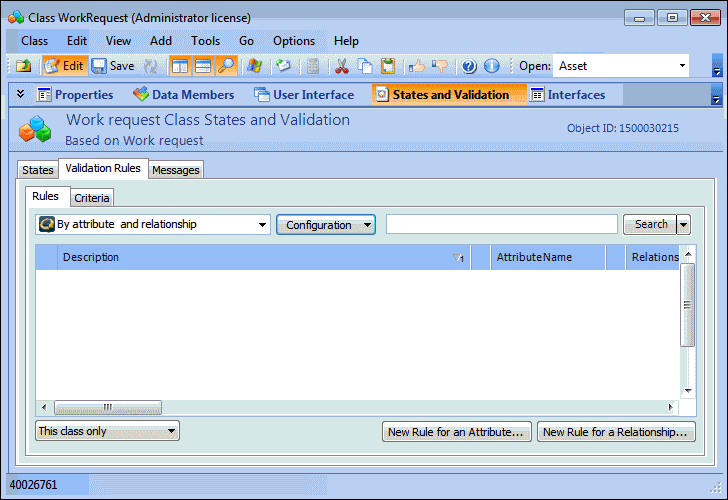
Select the States and Validation view, Validation Rules tab, and then the Rules tab.
6.
Select the By attribute and relationship configuration.
7.
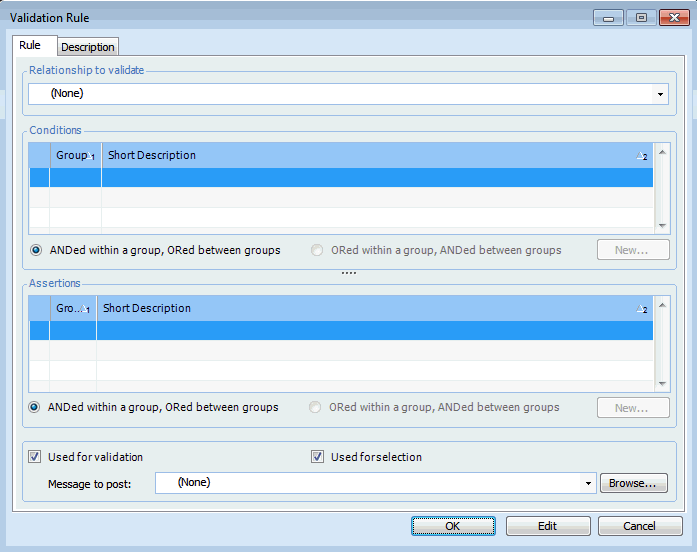
Click New Rule for a Relationship. The Validation Rule dialog appears.
8.
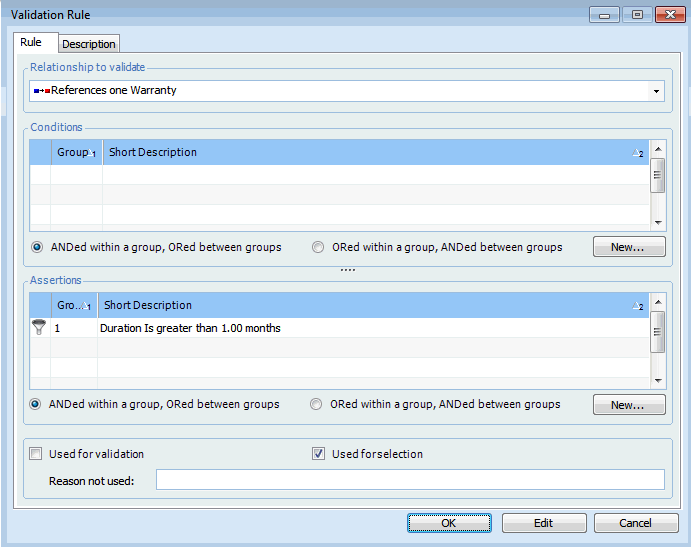
Select a Relationship to validate. You can select any relationship that is owned by the class that you are customizing and that is one of the allowed relationship types.
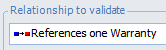
For this example, select the references one relationship to Warranty (“Applicable warranty”).
9.
For this example, clear Used for validation and select the Used for selection option.
Note: If you want, you can record a reason that you are not using the rule for validation in the Reason not used box.

Entering Conditions for the Rule (“If” statement)

10.
Note: For this example, you do not need to create any conditions. You can skip to step 17.
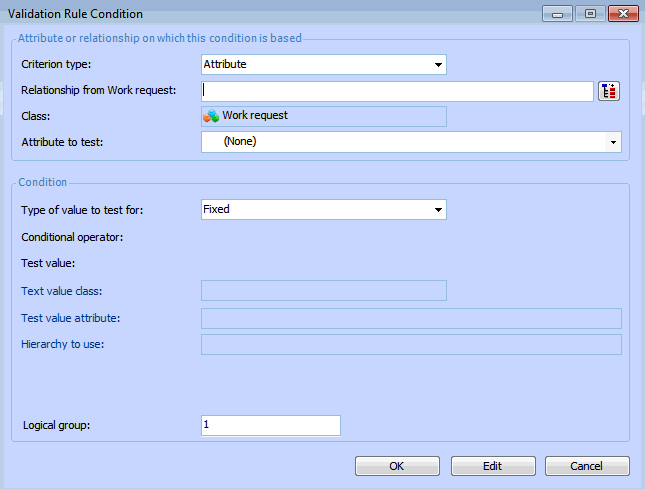
To create a new condition, click New. The Validation Rule Condition dialog appears.
11.
However, if the condition is to be based on the content of a relationship, select the Relationship option. For example, Asset Type (along with other value lists) is a separate class that is related to the Asset class.
12.
Select the Type of value to test for:
Fixed: Select this option to test the condition based on a specific value that you enter.
See Fixed Value Settings.
Variable: Select this option to test a condition using a relative value. The value used in the filter is only determined at the time the filter is used by looking up the current value of the selected attribute or relationship. You can use any attribute or relationship that can be reached through a join path starting from the class that you are customizing. A specific value cannot be selected.
For example, you may want to test that Classification attribute of the asset’s parent matches that of the current asset. To do this you would set the join path to Hierarchy1 (which represents the relationship to the parent asset), and select Classification as the Test value attribute.
To create a variable value filter, see Variable Value Settings.
13.

Fixed Value Settings

Select a Test value for the assertion. If are testing a fixed value, enter the specific value that you are testing for.

Variable Value Settings

14.
15.
Click OK to save the condition.
16.

Entering Rule Assertions (“Then” statement)

17.
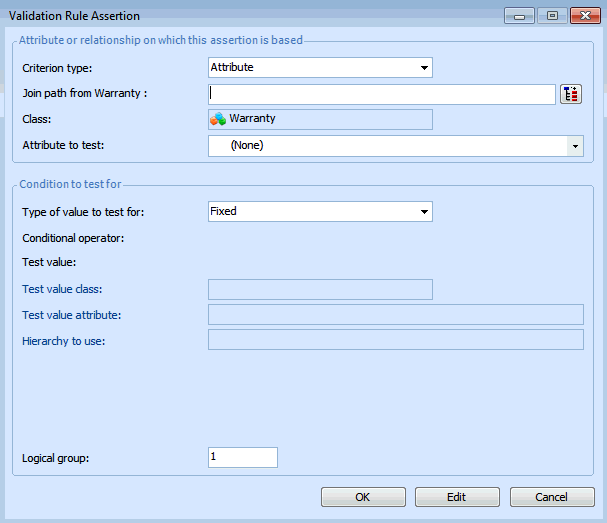
Enter one or more rule assertions. To create a new assertion, click New. The Validation Rule Assertion dialog appears.
18.
For this example, select Attribute.
19.
20.
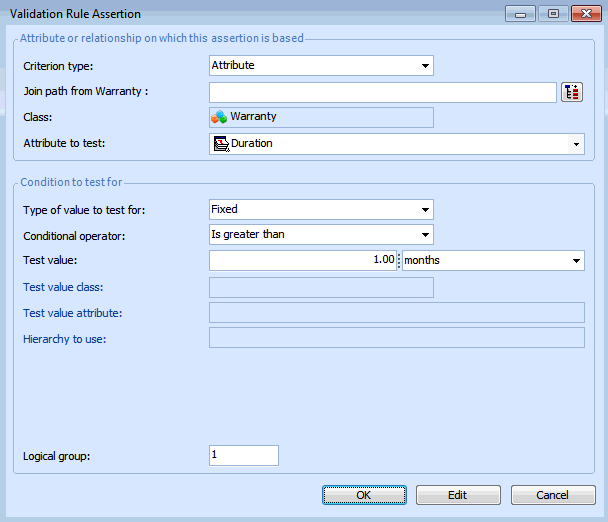
Select the Attribute to test. For this example, select Duration.
21.
Select the Type of value to test for:
Fixed: Select this option to test the condition based on a specific value that you enter.
For this example, select Fixed, and see Fixed Value Settings.
Variable: Select this option to test a condition using a relative value. The value used in the filter is only determined at the time the filter is used by looking up the current value of the selected attribute or relationship. You can use any attribute or relationship that can be reached through a join path starting from the class that you are customizing. A specific value cannot be selected.
For example, you may want to test that Classification attribute of the asset’s parent matches that of the current asset. To do this you would set the join path to Hierarchy1 (which represents the relationship to the parent asset), and select Classification as the Test value attribute.
To create a variable value filter, see Variable Value Settings.
22.

Fixed Value Settings

Select a Test value for the assertion. If are testing a fixed value, enter the specific value that you are testing for.

Variable Value Settings

For this example, enter the following settings:
Conditional operator: Is greater than
Test value: 1.00 month
23.
24.
25.
ANDed within a group, ORed between groups: items within the same group are evaluated with ANDs; items in different groups are evaluated with ORs.
ORed within a group, ANDed between groups: items within the same group are evaluated with ORs; items in different groups are evaluated with ANDs.
26.
On the Validation Rule dialog, select the Description tab. This tab shows a text description of the rule. For example:
Duration Is greater than 1.00 month
Note: If do not see a description, click Refresh.
27.

Selecting a Message to Display

28.
On the Rule tab, you can select a message to display when the rule is violated. For example, if a user tries to select an employee who is not a planner, you might display a warning message.
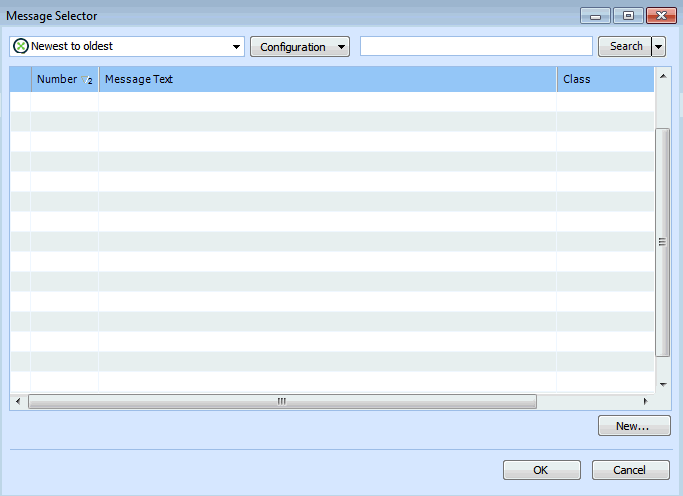
To select a message, select Used for Validation. Click Browse beside the Message to post field. The Message Selector dialog appears.
29.
Select a message and click OK. To create a new message, see Creating Custom Messages.
When you are finished creating the rule, it will look similar to the following:
30.

Testing the Rule

Note: You must perform a thorough test of your rule, to ensure that the system behaves as you expected.
31.
For example, create a work request and try selecting a warranty.