|
Creating Custom Validation Rules for Attributes
When created as described, this rule applies to both new and existing assets. Therefore, if you try to save an existing maintainable asset, the system validates the Hierarchy code field and shows an error or warning message if the code does not comply with the rule.To Create a Validation Rule for an Attribute
2. Select the Customization Center view.
3. Click Lock for Customization. The APM icon in your Task bar now has a key on it:For this example, open the Asset custom class. If the Asset class is not yet customized, click New Custom Class, then select Based on APM Class, select the Asset class from the MaintenanceManagement system, and click OK. The Class Asset window appears.Setting up the validation rule
5.
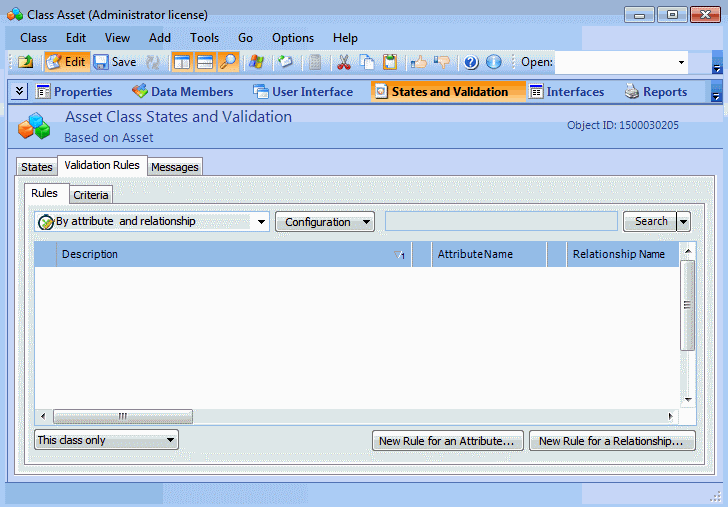
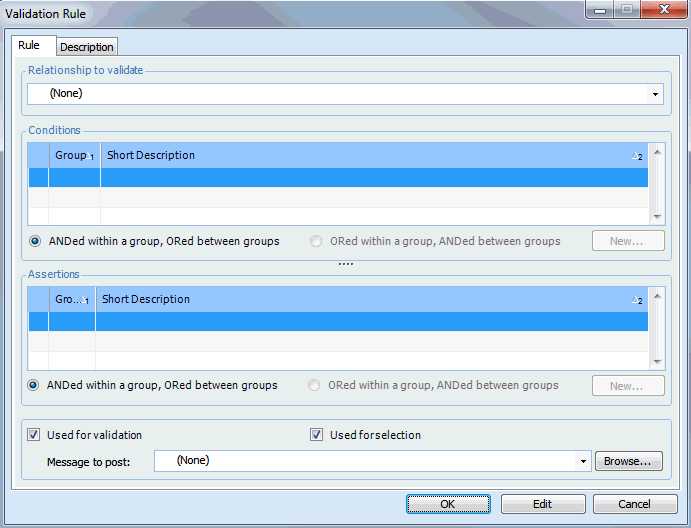
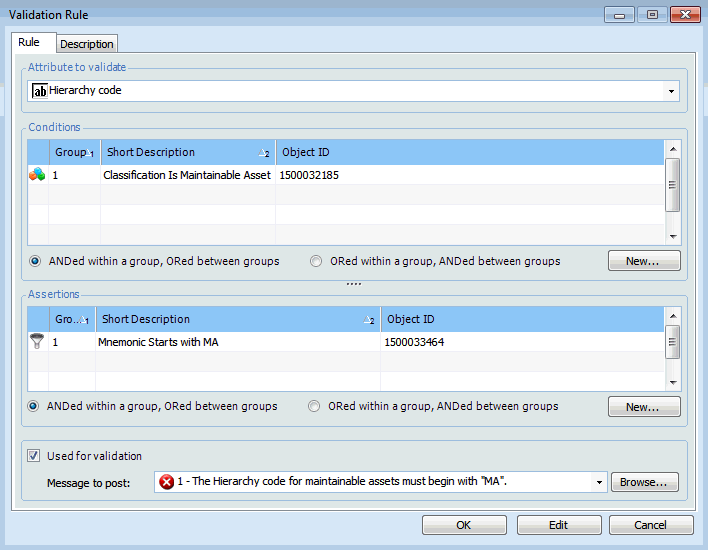
6. Click New Rule for an Attribute. The Validation Rule dialog appears.
7. Select an Attribute to validate. You can select any attribute that is owned by the class that you are customizing.Entering conditions for the rule (“If” statement)
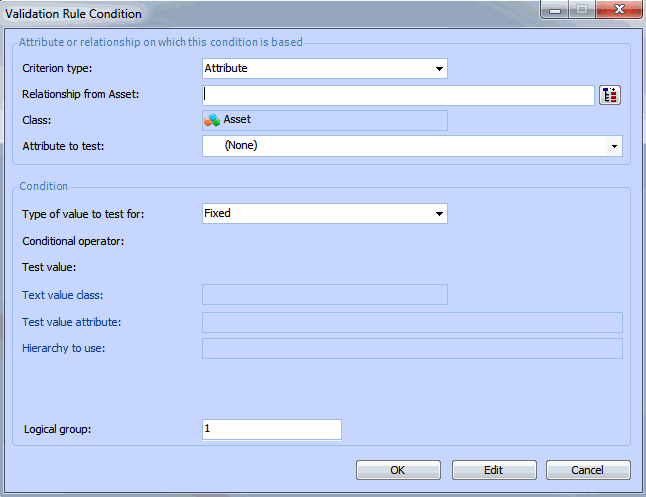
To create a new condition, click New. The Validation Rule Condition dialog appears.
If you are basing the condition on an attribute in either the class being customized or a related class, select Attribute. For example, Classification is an attribute of the Asset class.However, if the condition is to be based on the content of a relationship, select the Relationship option. For example, Asset Type (along with other value lists) is a separate class that is related to the Asset class.
•
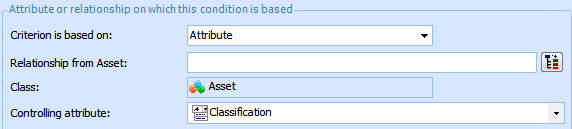
• Criterion type: Based on an attribute
• Relationship from Asset: blank
• Attribute to test: Classification
10. Select the Type of value to test for:
• Fixed: Select this option to test the condition based on a specific value that you enter.
• Variable: Select this option to test a condition using a relative value. The value used in the filter is only determined at the time the filter is used by looking up the current value of the selected attribute or relationship. You can use any attribute or relationship that can be reached through a join path starting from the class that you are customizing. A specific value cannot be selected.Fixed Value Settings
For example, when the attribute is a date and time, the list contains conditions such as Last week, Next week, In the last, and so on.
Select a Test value for the assertion. If are testing a fixed value, enter or select the specific value that you are testing for.Variable Value Settings
For example, when the attribute is a date and time, the list contains conditions such as Last week, Next week, In the last, and so on.
Select the attribute that contains the value to be tested. For example, if you are testing a value in the Asset class, you might select the Classification attribute. This setting does not apply to fixed filter value types.
• Type of value: Fixed
•
• Test value: Maintainable assetFor this example, leave the Logical group at its default setting.
13. Click OK to save the condition.Entering rule assertions (“Then” statement)
15. Enter one or more rule assertions. To create a new assertion, click New. The Validation Rule Assertion dialog appears.
16. Select the Type of value to test for:
• Fixed: Select this option to test the condition based on a specific value that you enter.
• Variable: Select this option to test a condition using a relative value. The value used in the filter is only determined at the time the filter is used by looking up the current value of the selected attribute or relationship. You can use any attribute or relationship that can be reached through a join path starting from the class that you are customizing. A specific value cannot be selected.Fixed Value Settings
For example, when the attribute is a date and time, the list contains conditions such as Last week, Next week, In the last, and so on.
Select a Test value for the assertion. If are testing a fixed value, enter the specific value that you are testing for.Variable Value Settings
For example, when the attribute is a date and time, the list contains conditions such as Last week, Next week, In the last, and so on.
Select the attribute that contains the value to be tested. For example, if you are testing a value in the Asset class, you might select the Classification attribute. This setting does not apply to fixed value types.
• Type of value: Fixed
• Conditional operator: Starts with
• Test value: MA
•
18.
• ANDed within a group, ORed between groups: items within the same group are evaluated with ANDs; items in different groups are evaluated with ORs.
• ORed within a group, ANDed between groups: items within the same group are evaluated with ORs; items in different groups are evaluated with ANDs.
21. On the Validation Rule dialog, select the Description tab. This tab shows a text description of the rule. For example:Note: If do not see a description, click Refresh.
22. You can make notes about the validation rule in the Notes section.Selecting a message to display
24.
25.Testing the rule