|
Adding an Attribute
To Add an Attribute to a Custom Class
2. Select the Customization Center view.
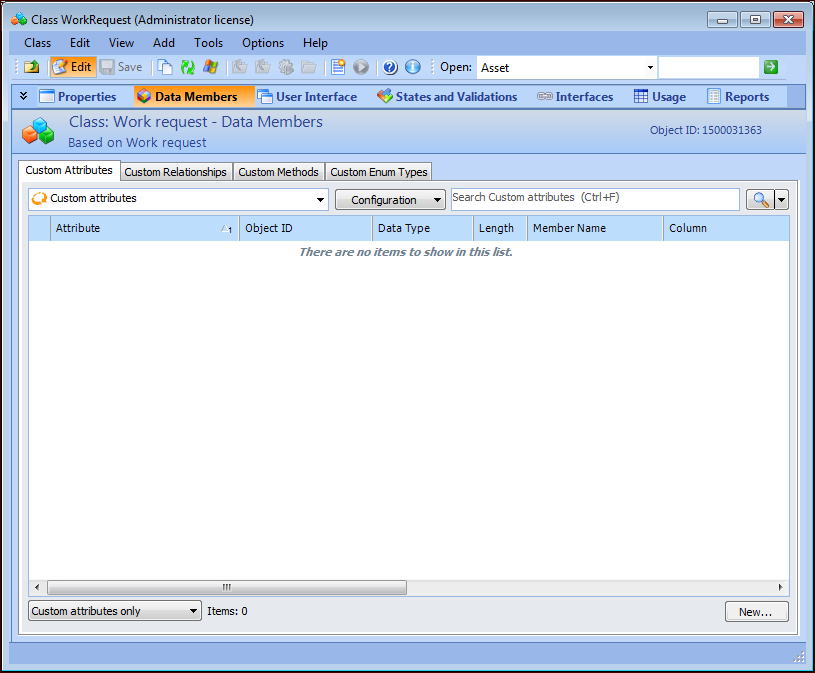
3. Click Lock for Customization. The APM icon in your system tray now has a key on it:For this example, open the Work Request custom class. If the Work Request class is not yet customized, click New Custom Class then Based on APM Class, select the Work Request class from the MaintenanceManagement system, and click OK. The Class Work Request window appears.
5.
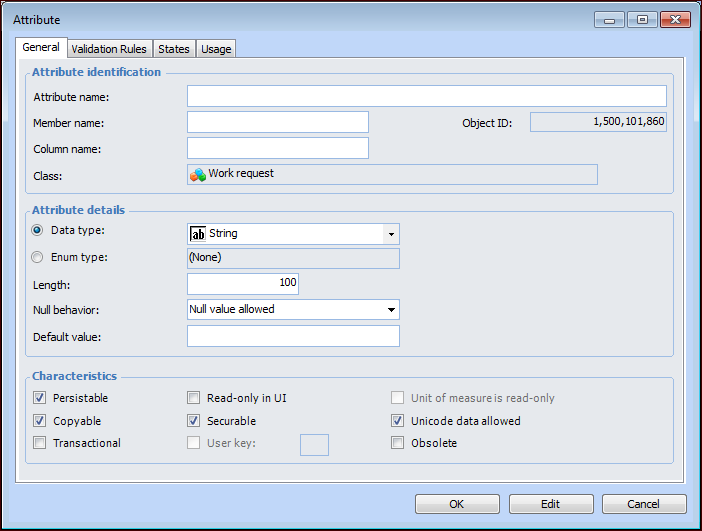
6. In the Attribute name box type the name of your new attribute. For example, enter “Operations Consequence”.
7. Select a Data type for the attribute. For this exercise, make sure that the Data type box is set to String.
8. In the Length box, enter the maximum number of characters that you want for the attribute.
• Mandatory: The field is marked as mandatory and an error message is displayed when the user attempts to save or close the object.
• Warning: The field is marked with a yellow line and a warning message appears when the user attempts to save or close the object.
• Null value allowed: A blank value is allowed.Note: You can also define custom validation rules and messages. For detailed instructions, see Creating Custom Validation Rules for Attributes.
10. You can enter a default value in the Default value box.
11. Ensure that the Persistable option selected.Note: On the States tab, you can review the state groups in which this relationship is included. To create custom states for the relationship, see Creating Custom States. To review the views where the attribute appears, click the Usage button.
12.Adding the Attribute to the UI
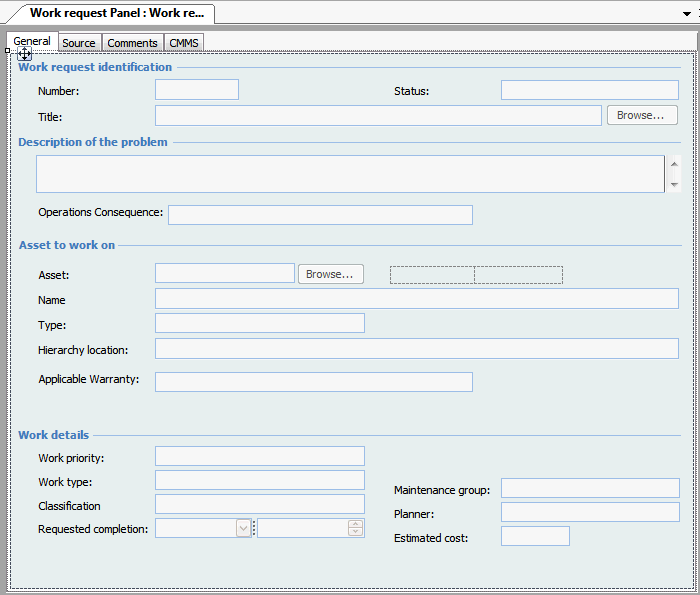
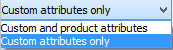
13. In the class in which you are working, select the User Interface view. Select the Views tab and then select the second Views tab.Tip: If the views are hidden, select the View menu, then User Interface.If the view has not yet been customized, click Customize. In the Customize a View or Panel dialog, select the view you want to customize, select a Customization type, and then click OK. For example, you can customize the New Work Request dialog.
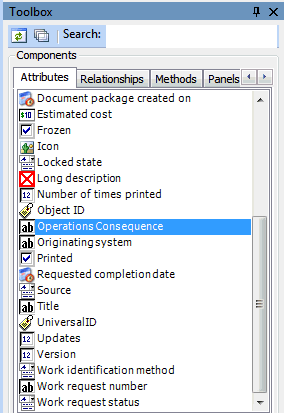
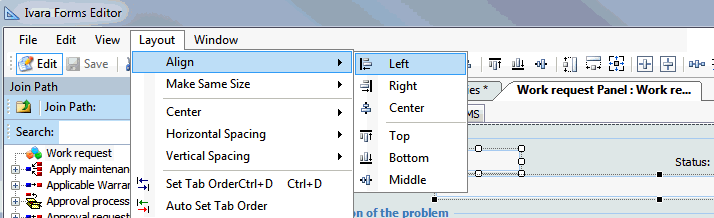
15. In the Toolbox panel, select the Attributes tab and then drag the attribute that you created from the Palette onto the Layout window.Tip: To quickly arrange fields and/or labels in a window, you can use the Layout options menu items. Select two or more items in the window, and then select a layout option from the menu.
19. In the Customization Center, click Unlock System. The system should automatically regenerate the schema and cache files. This could take a few minutes to complete.Note: If the system does not automatically generate the schema and cache, click Generate and then Schema, and Generate and then Cache Files in the Customization Center.Note: If you are testing customizations and will not be deploying them to other users, it is possible you do not have a Server path entered in your APM run-time (registry) settings. If this is the case, you may get the message “Your server cache files path is blank. Customizations will not be deployed.” Click OK and continue. In general, having a blank server path is recommended when you are developing customizations and are not yet ready to deploy to users.
20. Now you can test your customizations. Open the site and then navigate to your custom view. For example, select the site’s Work Request view and then click New. Your custom field should now appear on the New Work Request dialog.