Custom Indexes in APM

APM automatically adds several indexes to the database. These indexes get added or updated every time schema is generated during modeling. Schema is also generated and indexes updated when a database is upgraded and when customizations are transferred using the Environment Migration Wizard.
These indexes cannot simply be deleted because they will be recreated automatically by the processes mentioned above. However, you can use the OQ.CUSTOMINDEX table to drop a custom index permanently.
Custom indexes can also be added to improve performance for configurations, reports, or custom integration code.
This topic explains:

APM Default Indexes

APM ships the indexes for primary keys, foreign keys, and user keys.

Primary Keys

For each modeled database table, there is a primary key column with an index on it. This index always ends in “OI”. For example, FND.SITE has the primary key SITEOI.

Foreign Keys

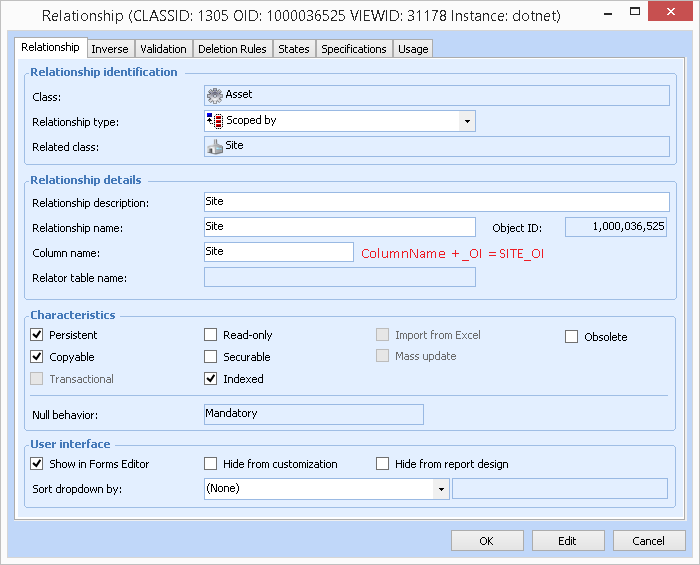
All modeled relationships that create reference columns create a foreign key. These column names always end in “_OI”. For example, Asset is scoped by Site:
MNT. ASSET has a SITE_OI column with a foreign key reference to FND.SITE.

User Keys

Many classes also have user keys. These can be a single column or multiple columns.
Often an attribute like a name or number is included as part of the key. The parenting relationship might also be automatically included as part of the user key. These user keys end up becoming unique indexes on the table.
The owned_by and scoped_by relationships always get added to a user key. For example:
MNT.ASSET has a unique index with SITE_OI and ASSETNUMBER. Asset is owned by Site and the designer has decided that the asset number must be unique (within each site).
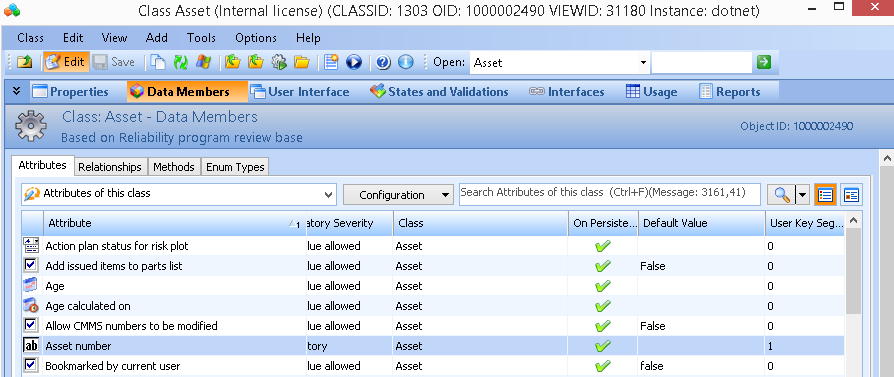
You can find attributes and relationships that are part of the user key by looking at the “User Key Segment” column for attributes and relationships and finding ones with non-zero number (see Asset number, below).

Structure of the OQ.CUSTOMINDEX Table

For example:
FND, MNT, OQ, …
Tip: You can run select * from oq.customindex to see several examples of custom indexes added by APM. Many examples deal with fetching an object by its UniversalID (UUID column).

Adding a Custom Index

Scenario: Customized Asset class. Added string CustomAssetNumber representing the asset number in an external system. Integration code tries to fetch assets by CustomAssetNumber using a slice and is slow.

To Add a Custom Index

1.
INSERT INTO oq.CustomIndex
(indexname
,tableowner
,tablename
,indexcollist
,OwnedByIvara
,Dropped
,AllowDup
,DBType
,Comm)
VALUES
('CUST_Asset_CustomAssetN'
,'MNT'
,'Asset'
,'CustomAssetN'
,0 -- owned by customer
,0 -- not dropped
,1 -- allow duplicates
,2 -- Database type 2 = both
,'Used for FetchAssetByCustomAssetNumber
integration code')
Note: This does not create the index. You must run the OQ.CREATECUSTOMINDEX stored procedure.
2.
ORACLE:
exec oq.createCustomIndex ();
SQL SERVER:
exec oq.createCustomIndex;
Sample output:
Executing DDL:CREATE INDEX CUST_Asset_CustomAssetN on MNT.Asset(CustomAssetN)

Testing a Custom Index

Note: It is important to test that the entire system performs well after the change. Adding an index can improve the performance of a particular query but degrade the performance of other queries. An experienced DBA will be able to help identify indexes to add or remove.
From Microsoft SQL Server Documentation:
“The selection of the right indexes for a database and its workload is a complex balancing act between query speed and update cost.”
Index design basics

Query Hints for MCLB Configurations

Adding query hints for MCLB configurations is another way to improve performance. For more information, see Adding Hints to a Table Configuration.