Creating a Supplier Resource

A supplier resource adds supplier information, such as price and delivery terms, and the part number or other identification that the supplier uses to identify the resource. Each resource that you purchase from a supplier must have an associated supplier resource. You can use the supplier resource whenever you create a purchase demand (requisition or purchase order) for the resource.
The resource and the supplier must exist in APM before you can create the supplier resource. You can create one supplier resource at a time or many supplier resources at once from the resource catalog.
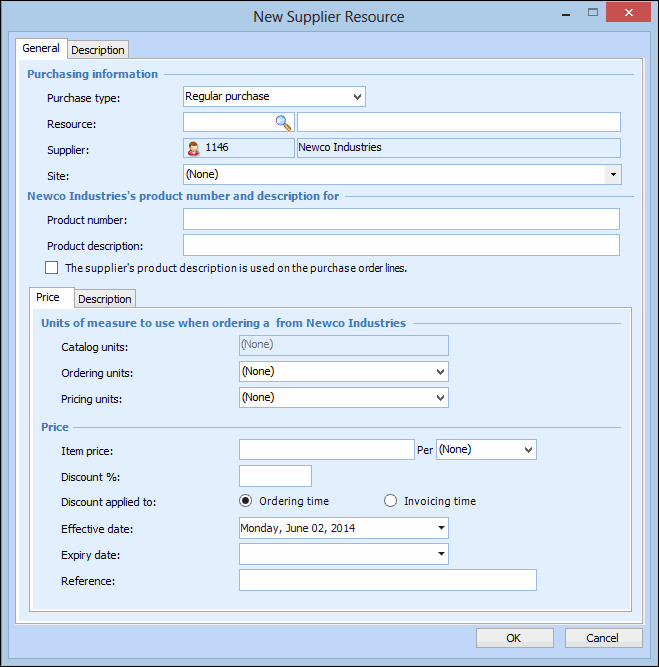
The supplier resource dialog allows you to define both the supplier resource and the supplier’s current price. After the supplier resource has been created, you can add more prices. See Adding Prices to a Supplier Resource.

To Create a Supplier Resource

1.
2.
Select the Resources view, and then the Resources tab. By default, this tab lists all supplied resources for the supplier.
3.
Click New. The New Supplier Resource dialog appears, open to the General tab.
4.
Select the Purchase type:
Regular purchase: This supplier provides this resource as a new material purchase.
Consignment purchase: The supplier provides this material resource on consignment.
Repair orders: This supplier can supply repairs for this resource.
Service order: This supplier provides this service-type resource.
Equipment rental: This supplier can provide this tool-type resource as an equipment rental.
5.
6.
7.
On the Price tab, in the Units of measure section, select the ordering and pricing units of measure:
8.
In the Price section, enter:
9.
Select the Details tab. Enter the following:
10.
If the resource is a material- or tool-type resource, you can select the Resource manufacturer for this supplier resource. Only existing resource manufacturers can be selected from the list. To add a manufacturer, right-click on the box and select New. For more details, please see Entering Manufacturer Information for a Supplier Resource.
11.
If applicable, you can select this supplier as the Preferred supplier for this resource. The supplier will have the “preferred supplier” designation during the effective period of this price.
12.
13.
14.
Select the Charges tab.
15.
16.
Select the Description tab. On this tab, you can enter a longer description of the resource.
17.
When you are finished entering information about the resource, click OK. The new supplier resource appears in the list.
18.