Creating a Standard Document

You can create standard documents on the site and from within the following objects:
Assets – Properties view, Documents tab
Checksheets – Readings view, Documents tab
Standard tasks – Properties view, Documents tab
Safety provision versions – Properties view, Documents tab
Work order tasks – Properties view, Documents tab
Maintenance action plans – Details view, Documents tab
You can also browse for existing standard documents to link to work order tasks, standard tasks, assets, resources, safety provision versions, and strategy development analyses.
You can add the following types of files to a standard document:
Microsoft® Word (*.doc or *.docx) files
Microsoft Excel® (*.xls or *.xlsx) files
Adobe® PDF (*.pdf) files
In addition, you can enter plain or rich text directly into the standard document. Text can be printed from within APM.
This topic explains how to create a standard document from the site’s Reliability Program view.

To Create a Standard Document

1.
Select the site’s Reliability Program view and the Documents tab.
2.
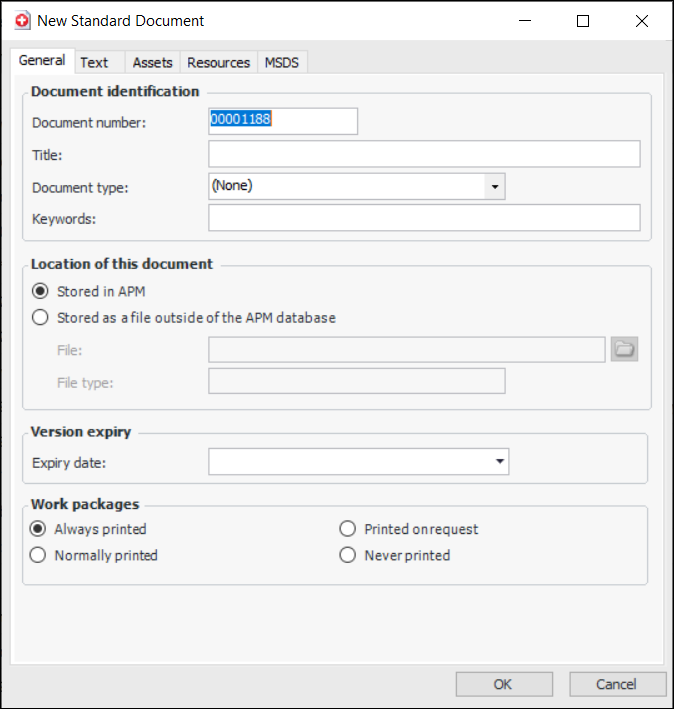
Click New. The New Standard Document dialog appears.
3.
On the General tab, you can change the document number, add a title for the procedure, and select the type of document it will be.
4.
Enter any Keywords that are related to this standard document.
5.
Stored in APM: You can store procedures directly in APM as plain or rich text.
Stored as a file outside of the APM database: You can use an external document that is stored in a document management system. If you select this option, click the folder icon to find the file for the document.
6.
If you selected Stored as a file, select the file for the standard document. To browse for the file, click the folder icon, navigate to the file, select it, and click Open. The File type box displays either the file type or “Other”.
Note: Other document types cannot be printed as part of a work package or directly from the standard document. Users must open the linked document in its native or associated program (for example, Microsoft Edge for HTML documents) and print it from within the external program. Documents that are linked from a URL (that is, links starting with “https”, “ftp”, or “www”) cannot be printed from within APM.
7.
If appropriate, enter an expiry date for the standard document in the Version expiry section. An expiry date might be mandatory for the document, depending on the document type that was selected.
8.
If the text is stored in APM, select the Text tab and enter the document text.
Tip: You can copy text from another application and paste it into the Text tab.
9.
On the Assets tab, click Browse to select the assets that the document applies to.
10.
On the Resources tab, click Browse to select the resources that the document applies to.
11.
If you are creating a Material Safety Data Sheet (MSDS), select the MSDS tab. Click Browse to select the resources for which this document is the required MSDS.
12.
When you have finished entering information, click OK. APM adds the new standard document to the Documents tab.