Creating Site Status Codes

The site status represents the operational state of the site (indicated by the “in operation” or “not in operation” settings). For example, you might create a Data Entry status to indicate that the site is currently being set up and is not yet ready to be used.
Although site statuses are defined using the Asset Status dialog, they are specific to sites and cannot be used for assets. Entering site statuses is optional. If you enter a site status, this status will be visible in your physical asset hierarchy. Changing the status of a site does not affect the status of the site’s assets. A change in site status might affect the triggering of work orders from some standard tasks (if the site status setting is used on the task).

To Set up Site Status Codes

1.
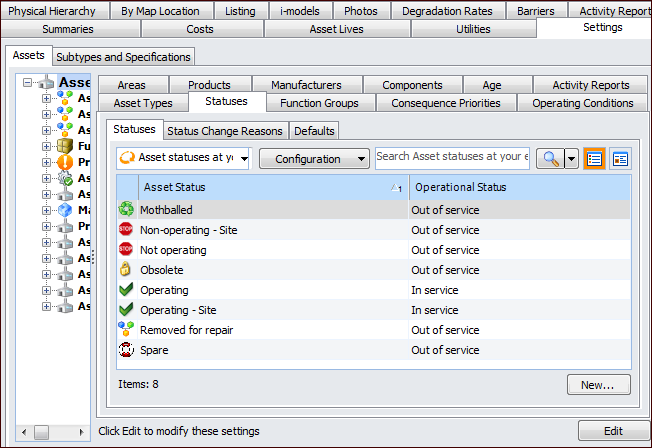
From the Site window, select the Assets view, Settings tab. Select the Assets tab and the Asset management settings node in the tree.
Tip: You can also select the Administration menu, Asset Management Settings, and then Asset Management. The Asset Management Settings dialog appears.
2.
Select the Asset Statuses tab. When viewed in the Settings tab, the tree view and the Statuses tab show the existing asset statuses.
3.
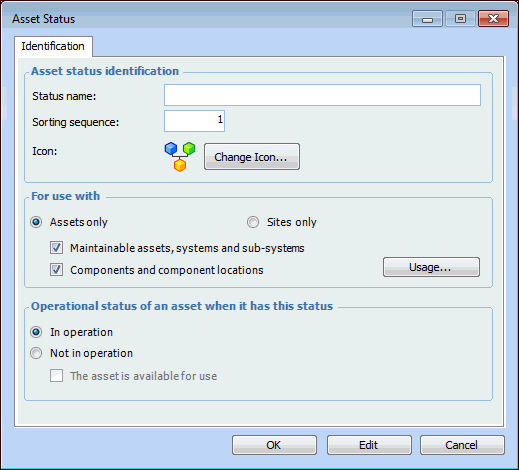
Click New. The Asset Status dialog appears.
4.
To change the icon for this status code, click Change Icon, select the graphic, and click OK.
Select the Sites only option.
In service: the asset or site is currently being used.
Out of service: the asset or site is not currently in use. For example, an asset might out of service when it has failed, or a site might not be in operation when it is still being defined (data entry status).
If you select this option, you can also select The asset is available for use (typically used for components and locations).
5.
6.
Repeat steps 3 to 5 for all of the site status codes that you need to enter.