
|
Creating a Purchase Order for an On-site Contractor
You can also create a purchase order directly from a requisition. See Turning a Requisition into a Purchase Order. If you are using a contract, you can create the purchase order directly from the contract. See Creating a Purchase Order From a Contract.To Create a Purchase Order for an On-site Contractor
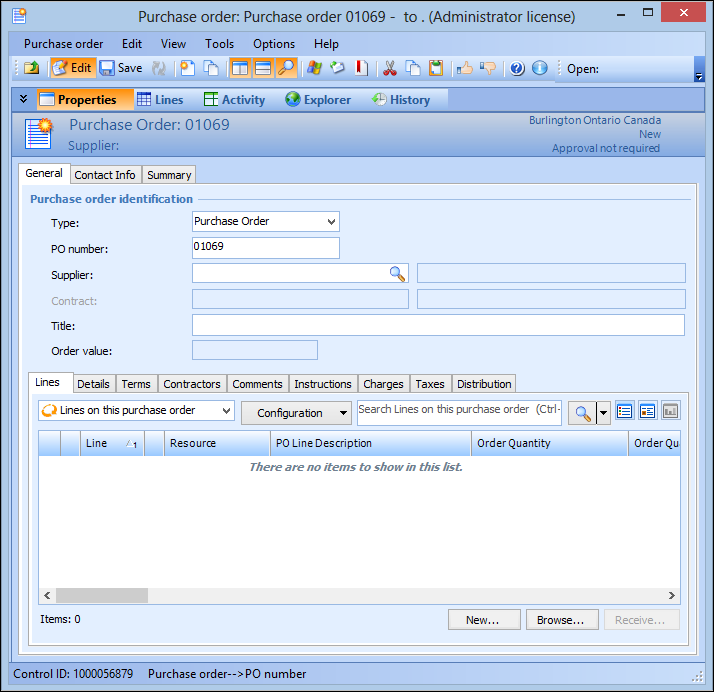
1. Select the site’s Purchasing view, then the Purchase Orders tab, and then the Purchase Orders tab. By default, this tab lists all open purchase orders for the site and below.
2. Click New. The Purchase Order window appears.
3. Enter the Supplier for the purchase order. Browse to search for the supplier, and then select the supplier, and click OK.
4. If you are purchasing items which are listed on a contract, select the contract from the Contract list. Selecting a contract will limit the resources that you can add to the purchase order to those that are listed on the contract.
5. Enter a Title for the purchase order.
6. On the Details tab, select the Requested by employee, and the Buyer responsible for the purchase order, and the Priority.
7. Select the Contractors tab, and enter the on-site contractor settings:
• Invoice lines are matched to individual timecards: select this option to reconcile invoice lines within APM. A purchase liability will be created for each of the on-site contractor timecards.
• Invoice lines are not matched to individual timecards: select this option to reconcile the invoice lines manually. You might want to do this if matching invoice lines to individual timecards is too rigid of a process.
8. On the Terms tab, enter the terms and conditions that apply to this purchase order:
9. Select the Distribution tab. Select whether you want the costs of the purchase order to be charged to a single account or to be distributed by line. If you select by line, you can choose to charge each purchase order line to a separate work order, asset, or GL account number.
10. Select the Comments and Instructions tabs to enter any comments or instructions you would like to appear on the purchase order.
11. You can now add lines to the purchase order. Return to the General tab, Lines tab and click New. The Purchase Order Line dialog appears.
12. On the Details tab, enter the following:
Enter the name of the on-site contractor trade. To search for the trade, click Browse, highlight the trade, and click OK.
Select On site contractor.
13.
15.
16. Select the Contact Info tab. In the Send to box, verify the contact person to whom you will send the purchase order, and the method that you will use to send the purchase order to the supplier.