Creating a New Pricing Agreement for a Contract

Two types of contracts exist with respect to pricing agreements. The first, and more common, is a contract where both the contract and the pricing agreement have the same effective period. In effect, the contract has one pricing agreement. The pricing agreement (i.e. prices) is in effect for the length of the contract.
With the second type of contract, multiple pricing agreements exist over the life of the contract. For example, you may have a 5-year contract with a supplier. While the general contract runs for the full 5 years, the prices are renewed every year.
Renewing a contract’s pricing agreement is different than renewing the contract. When a contract is renewed, an RFQ is created to manage the bid process. Multiple suppliers are asked to bid on the new contract.
Renewing a contract’s pricing agreement does not involve an RFQ. No other suppliers are asked to bid. Only the contract supplier’s new pricing information is entered. When you renew a pricing agreement you can:
If necessary, you can edit individual new prices after they have been created.
This topic explains how to renew a pricing agreement on an existing contract.

To Create a New Pricing Agreement for a Contract

1.
2.
3.
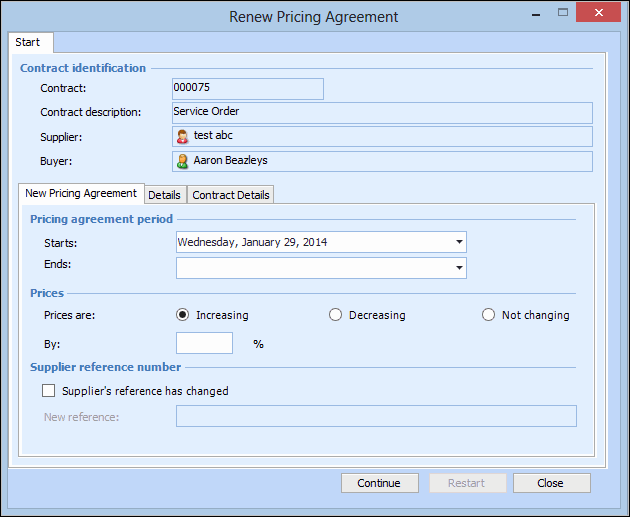
From the Tools menu select New and then Pricing Agreement. The Renew Pricing Agreement dialog appears.
The current pricing and contract information is displayed in the top part of the dialog. You can make changes in the rest of the dialog.
4.
On the New Pricing Agreement tab, make any of the following changes to create the new pricing agreement:
If all of the prices will be changing by the same amount, select whether the prices will be Increasing or Decreasing. If the prices are staying the same, select Not changing. If the prices are changing, enter the percentage increase or decrease in the By box.
5.
On the Details tab, complete the following information:
If the supplier’s discount rate has changed, select the Has changed option and enter the new rate.
If the supplier’s lead time has changed, select the Has changed option, and enter the new lead time.
6.
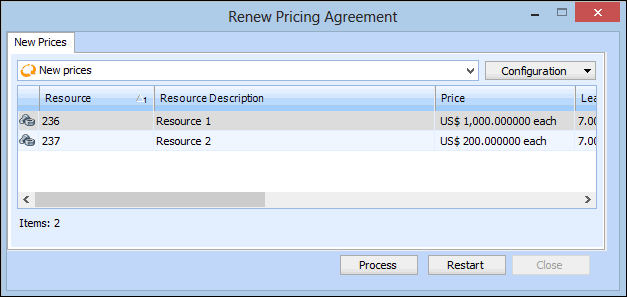
To review the new resource prices, click the Continue button. The new prices are created and shown in the New prices list.
7.
If you need to make a change on the dialog, click Restart. The prices are removed and all of your changes are reset.
8.
When you are finished editing and reviewing the prices, click Process. The system adds the new prices to the contract, and closes the dialog.
9.