Creating an Invoice Template

You can create invoice templates for regularly recurring expenses, such as monthly utility bills. Templates make it easy to enter invoices for regular expenditures.
Invoice templates identify a supplier, invoice number, and basic invoice details. You can give templates descriptive titles and add miscellaneous expense lines. When an invoice is created from a template, the following items are copied from the template to the new invoice:
Note: Extra charge and tax lines can only be added to templates from miscellaneous expense lines.
Tip: You can also create and use templates in the Supplier window.
Tip: You can view the invoices that were created using the template. In the template’s Invoice window, select the Invoices view. The table lists the invoices, beginning with the most recent. Invoice dates, amounts, and statuses are also shown.
This topic explains how:
For information about using the template, see Creating an Invoice from a Template.

To Create an Invoice Template

1.
From the Site window, select the Invoicing view, Invoices tab, then the Templates tab. By default, this table lists all invoice templates by supplier. It also displays information about the most recent invoices created from the templates.
2.
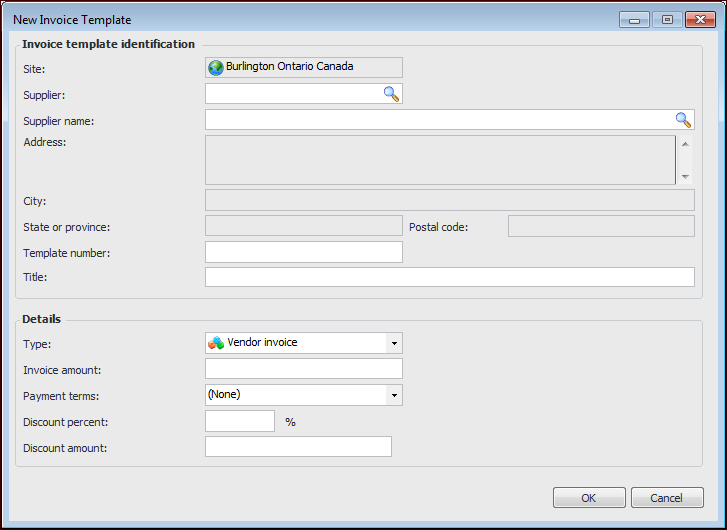
Click New. The New Invoice Template dialog appears.
3.
4.
5.
In the Details area, provide default selections for the invoices created from the template. Select the appropriate invoice type. Note that templates cannot be created for credit memos, so only regular invoice types are available for selection.
6.
7.
When you are finished entering information, click OK. The system creates and opens a new invoice template.
8.

To Add a Miscellaneous Expense Line

1.
2.
3.
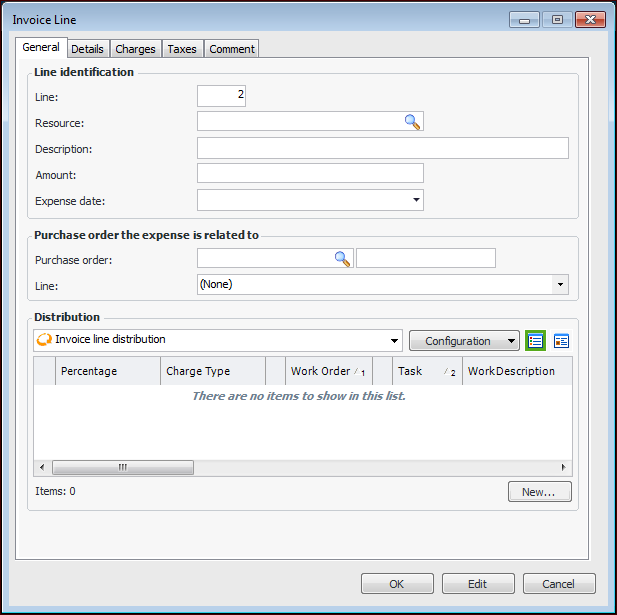
Click the New list and then Miscellaneous Expense Line. The Invoice Line dialog appears.
4.
On the General tab, you can select the resource being invoiced. If the invoice is for a non-catalog item, enter the description of the item being invoiced.
5.
6.
To enter the distribution for the line, click New. In the Invoice Line Distribution dialog, select the work order, asset, or account to charge the line to. If charging to multiple accounts, set the percentage or amount charged to the current account, and then click OK.
7.
8.
Select the Charges tab. You can add any charges that are applicable to this line on this tab.
9.
Select the Taxes tab. You can add any taxes that are applicable to this line on this tab.
10.
When you are finished entering the appropriate information, click OK. The system adds a new line to the invoice template.
11.