Creating a Security Profile

A security profile includes a name and a default security level for the site (Editable, Read-only, Hidden). You can override the default security level for specific classes (for example, Asset or Standard Task) and their views, pages, actions, attributes, relationships, and reports.
The name of a security profile should describe the type of access it provides; a job title often makes a good name. In a multi-site implementation, you might want to name the profile for the site to which it applies, such as the home site or the top site.
Note: When you are securing a class that users are expected to create instances of (for example, assets or alarm acknowledgments), you must start by setting the default access level on that class to “Full Access”. You can then turn off access to individual attributes, relationships, and methods according to your requirements.
This section explains how to create a new security profile.

To Create a Security Profile

1.
2.
Select the Security view and then the Security Profiles tab.
3.
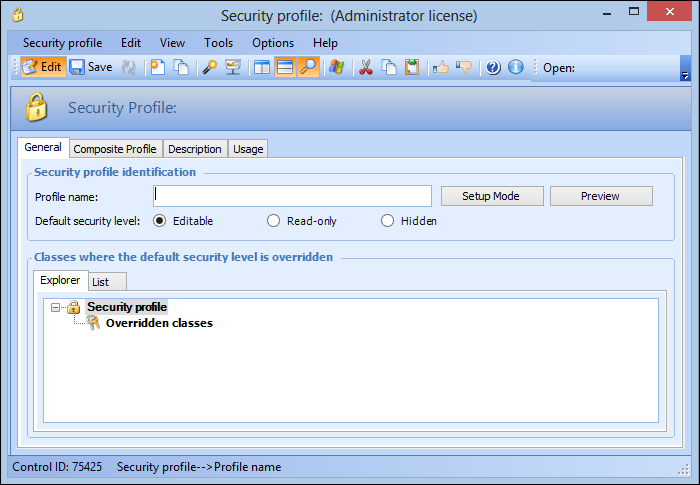
Click New. The Security Profile window appears.
4.
5.
On the Composite Profile tab, you can add other profiles. The profile you are creating will use the settings from its components. The profiles are evaluated at run-time for each element (view, page, attribute, relationship, method or report) and the access level defined in the APM security settings used for that element. For more information about applying security settings, see Applying Composite Profile Security Settings.
6.
On the Description tab, you can enter a detailed description for the profile.
7.
8.
You can now add overrides to the default security level, either using Security Setup mode, or manually. See: