Creating “For Demand” Requests for Quotation

Requests for quotation (RFQs) are documents that allow you to manage the bid process for supplier resources. You can create RFQs for purchase demands on work orders or requisitions (“for demands” RFQ) or to renew supplier resource prices for resources in your resource catalog (“catalog prices” RFQ).
The “for demand” RFQ life-cycle starts when a resource is added to a requisition or to a work order task. In either case, within APM, this is called a purchase demand. Before the purchase demand is added to a purchase order, one or more suppliers are asked to bid on the purchase. This ensures that the requestor receives the best possible price and conditions. The work planner can manually request an RFQ for selected resources, or the system can be set up to automatically request an RFQ.
A buyer can also create an RFQ for demands for which an RFQ was not requested. A buyer can create an RFQ for a purchase demand at any stage before the purchase order line is created, including after the demand has been sent for approval or approved.
Once quotations are requested for purchase demands, the buyer can review the requests through the My Desk view and then create an RFQ document. For each resource, the RFQ identifies the quantity required, delivery requirements, and any special terms or conditions required. The RFQ also defines the bidding process, the deadline by when the bids are required, and contact information.
This topic explains how to create an RFQ document for purchase demands where quotations have been requested.
Note: The My Desk view only displays the tabs described below if you are set up as a buyer on your employee record and the Purchasing Desk option is selected on the My Desk Settings tab.

To Create a “For Demand” RFQ

1.
2.
Select the Purchase Demands tab. This tab lists all of the purchase demands assigned to you that have not yet been reviewed.
3.
From the configuration list, select Assigned to you and require supplier quotes. This table lists purchase demands assigned to you that have quotation requests.
Note: Only purchase demands where you are listed as the buyer will appear in this list. Buyers may be manually assigned to a purchase demand, or the system can assign buyers to purchase demands based on the site’s procurement settings. To view other purchase demands, select another configuration from the list.
4.
To see the RFQ status, select the RFQ Info tab. On this tab you can see the RFQ status for the demand and the reason an RFQ is required.
5.
6.
To add multiple demands to an RFQ, press CTRL + click to select each demand that you want to include.
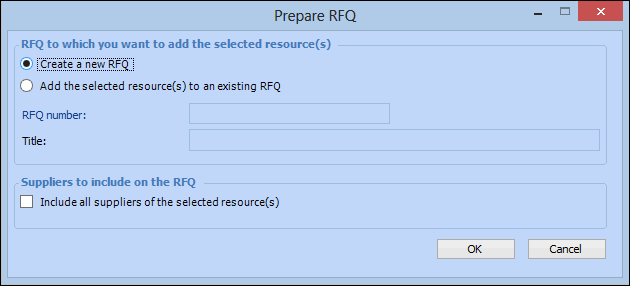
Right-click the selected demand(s) and select Prepare RFQ. The Prepare RFQ dialog appears.
7.
Create a new RFQ: Select this option to create a new RFQ document for this purchase demand. You can add other demands to the document.
Use an existing RFQ: If a compatible RFQ already exists, the system selects this option and displays the details in this dialog. Or, if you know that an RFQ exists, you can select this option and click Browse to select the RFQ.
8.
Click OK. The system creates a new RFQ or opens the selected RFQ and adds the selected purchase demands and any appropriate suppliers.
9.
10.