|
Creating a Catalog Prices RFQ
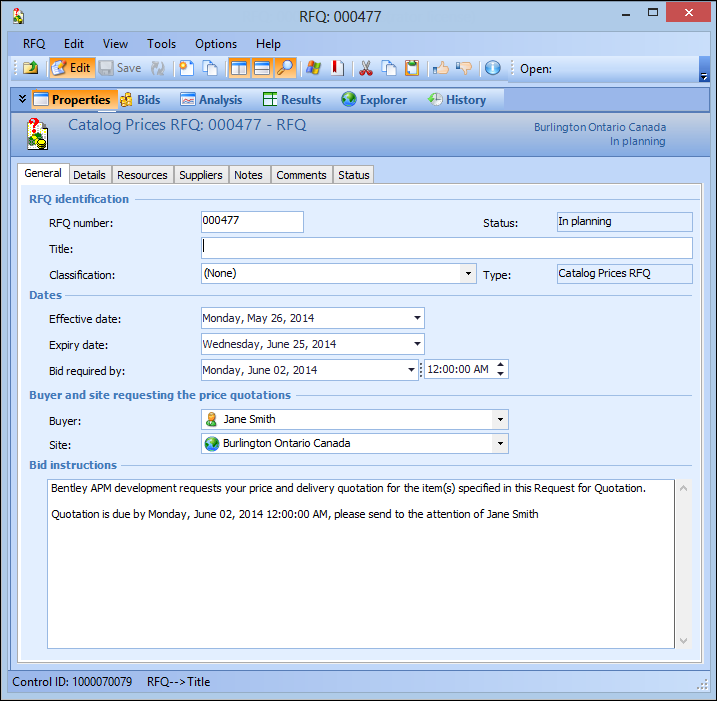
This topic explains how to create a catalog prices RFQ. To create a “for demands” RFQ, see Creating “For Demand” Requests for Quotation.To Create a Catalog Prices RFQ
1.
2.
3.
4.
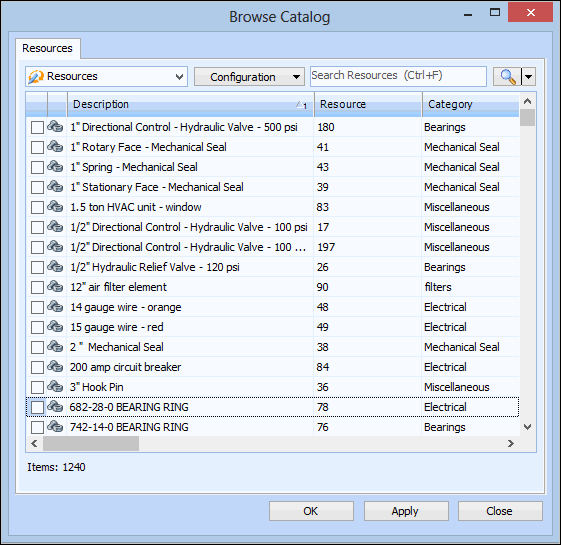
5. Select the Resources tab. To add resources to the RFQ, click the New list and select Browse. The Browse Catalog dialog appears.Tip: You can filter the list of resources shown in the dialog using the Search bar. To see only items that begin with a letter or number use the buttons in the Starts with section. To see the whole list again, click the Clear button.
8. When you have selected the resources, click OK. The selected resources are added to the RFQ.Note: If any of the resources have a quantity of zero, you will not be able to send the RFQ to suppliers.
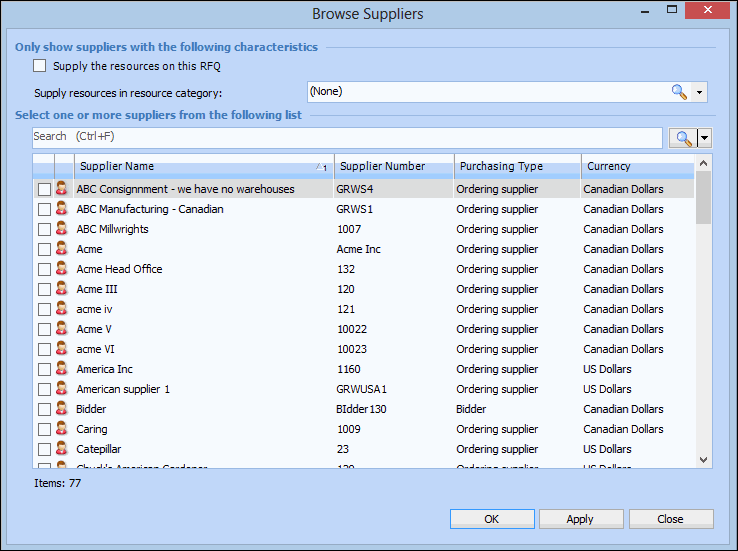
10. To add suppliers to the RFQ, select the Suppliers tab and then click Browse. The Browse Suppliers dialog appears.
You can filter the list of suppliers by resource category. Select a category from the list or click Browse to search for a category.Tip: You can quickly filter the list to see only items that begin with any letter or number using the buttons in the Starts with section. To see the whole list again, click Clear.
12. Select the check boxes beside each supplier that you want to add and then click OK. The suppliers are added to the list.