Creating an Exception Triggering Rule

The standard job’s triggering rule defines the job’s normal triggering frequency or condition. However, sometimes you might need to make an exception to the triggering rule. The most common exception occurs when you first set up the standard job in APM. Unless you have set up the standard job at the start of the triggering cycle, the triggering rule might not be correct for the first triggering cycle.
You can add an exception to the triggering rule for the next cycle by defining either a specific date when the job will be triggered or one or more triggering rules.
For example, you might set up a job to perform pump vibration inspection every 2500 operating hours. At the time that you created the standard job in APM, the asset had been operating for 1000 hours. Because APM does not know this, the standard job is triggered 2500 operating hours from now — 1000 hours too late.
To avoid this problem, you can add an exception to the next triggering cycle. You can set up the job’s triggering values as:
For the next cycle, APM will trigger the job at 1500 hours. Subsequent triggerings occur every 2500 hours.

To Create an Exception Triggering Rule

1.
2.
3.
Select the General tab.
4.
Before you can create a triggering rule, an asset must be selected in the Asset box. The standard job will be part of the reliability program for the selected asset. Browse to select or change the asset. In the selector dialog select an asset and click OK.
5.
Select the Triggering tab, and then the Exception tab.
6.
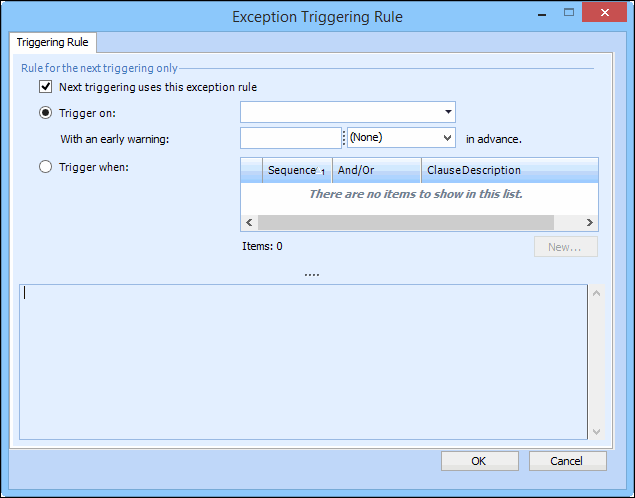
Click Create Rule. The Exception Triggering Rule dialog appears.
7.
Date (the next triggering of this job occurs on): Select the date when you want the work order to be created. You may also select an early warning time.
8.
Enter the date that you want the job to be triggered or click New to create a rule clause for the exception triggering rule. You can create as many rule clauses as necessary.
Follow the appropriate procedure to create either a time- or indicator-based rule clause:
9.
When you are finished, click OK to save the rule and close the dialog.