Creating a Supplier Hierarchy

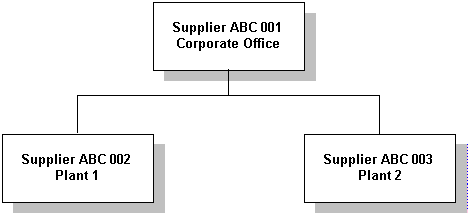
The supplier hierarchy allows you to organize suppliers based on the supplier’s corporate structure. The main use for this feature is to allow you to identify separate invoicing and ordering suppliers for the same order. A supplier is allowed to invoice the transactions associated with their own orders and the orders of their descendants.
Using the example hierarchy shown above:
The supplier hierarchy can have an unlimited number of levels and suppliers, although typically it will only have a few levels and a small number of suppliers per hierarchy. For most suppliers, you will not need to create a supplier hierarchy because you are only dealing with the single supplier location.
Using the supplier hierarchy, you can also view items such as purchase orders that were ordered from a supplier or any of its descendants.

Supplier Hierarchy and Currencies

The suppliers in a hierarchy can have different currencies. For example, the supplier’s head office may be in the USA, while some of the plants are in Canada. However, this does not allow a purchase order to be invoiced in a different currency than the ordering supplier’s currency. The invoice and purchase order currency must be the same.
This means that the invoicing supplier must use the same currency as the ordering supplier.

Limitations to the Use of the Supplier Hierarchy

The supplier hierarchy can only be used for invoicing and to view objects related to suppliers. Other supplier functions, such as supplier resources and prices, contracts, purchase orders, and supplier status are only applicable to individual suppliers. For example, you cannot create a price for a parent supplier and use it for a child supplier.
This topic explains how to set a parent supplier for existing suppliers. To create new supplier records, see Creating a Supplier.

To Create a Supplier Hierarchy

1.
2.
3.
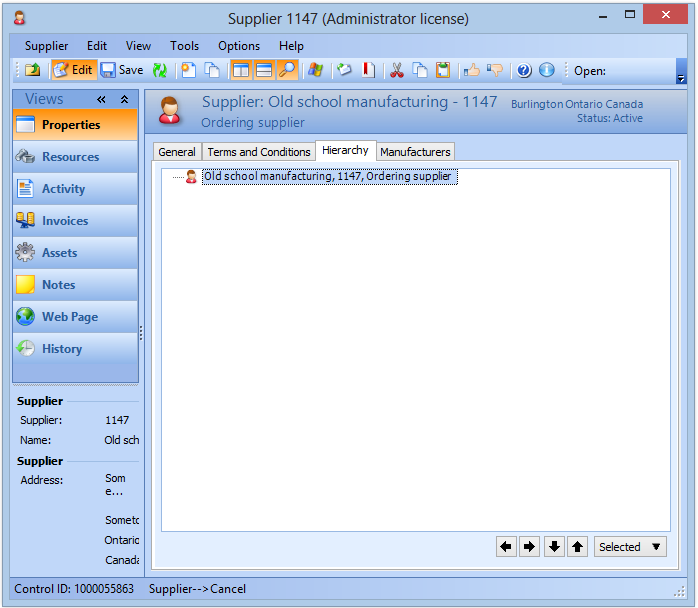
On the Properties view, select the Hierarchy view.
4.
To add an existing supplier to the hierarchy, right-click the parent supplier in the hierarchy and select Insert Existing Child. The Supplier Selector dialog appears. Select the supplier that will be the child supplier in the hierarchy and click OK.
5.
To add a new supplier to the hierarchy, right-click the parent supplier and select New Child. The Supplier window appears. Complete the information for the new supplier and then save and close the window.
6.
7.