
|
Creating a Supplier
To Create a Supplier
1.
2.
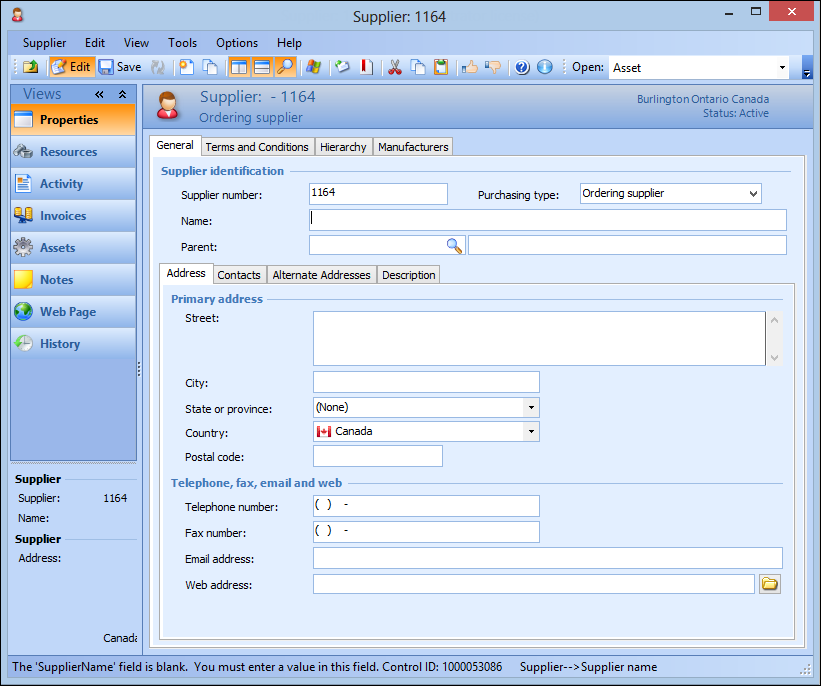
3. Enter the Supplier number and Name. APM automatically enters a default supplier number, but you can change it if necessary. Each supplier must have a unique number.
4. Select the supplier’s Purchasing type:
• Ordering supplier: The supplier is authorized for all purchasing activities (requisitions, purchase orders, and RFQs).
• Bidder: The supplier is only authorized to bid on requests for quotation (RFQs). You can only place a purchase order to a bidder-type supplier if you also send the purchase order for approval through an appropriate procurement approval route.
• Non-ordering supplier: The supplier is not authorized for purchasing activities. The supplier cannot be included on a RFQ or have a purchase order placed with them. Non-ordering suppliers are typically payment vendors in your financial system.
5. If you want to place the supplier in a supplier hierarchy, click Browse to select its parent. The supplier hierarchy allows you to organize suppliers based on the supplier’s corporate structure. The main use for this feature is to allow you to identify separate invoicing and ordering suppliers for the same order. A supplier is allowed to invoice the transactions associated with its own orders and the orders of its descendants.
6. On the Address tab, enter the supplier’s primary address, telephone, fax, and internet information. If necessary, you can add alternate addresses on the Alternate Addresses tab. For more information, see Adding Alternate Addresses to a Supplier Record.
7. Select the Contacts tab. On this tab, you can enter the primary contact person for the supplier, as well as any additional contact or address information. For more information, see Adding a Contact for a Supplier.
8. If necessary, you can add notes or a detailed description to the Description tab.
9. Select the Terms and Conditions tab, then the Terms and Conditions tab. Enter the following information where applicable:
10. Select the Invoicing tab to enter invoicing information: