Creating a Standard Task from a Template

A standard task is a plan for maintenance work that is performed repeatedly on a piece of equipment over the course of its lifetime. For example, a pump and motor assembly inspection might be performed at regular intervals. The work typically involves inspection, corrective, scheduled restoration, or scheduled discard tasks.
You can create standard tasks in APM from a template or from scratch in the following locations:
Site or asset’s Reliability Program view
Site or asset’s Inspection Management view, Inspection Tasks tab
Maintenance Action Plan window, Implementation view for strategy development analyses (MTA2, RCM2, RBI, HAZOP, or SIF)
Indicator window, Tools menu, New Inspection Task option
This topic explains how to create a standard task from the site’s Reliability Program view using a template. When you create a standard task from a task template, the standard task contains all of the planning information that was included on the template.

To Create a New Standard Task from a Template
1.
From the Site window, select the Reliability Program view, Program tab, and then the Tasks tab.
2.
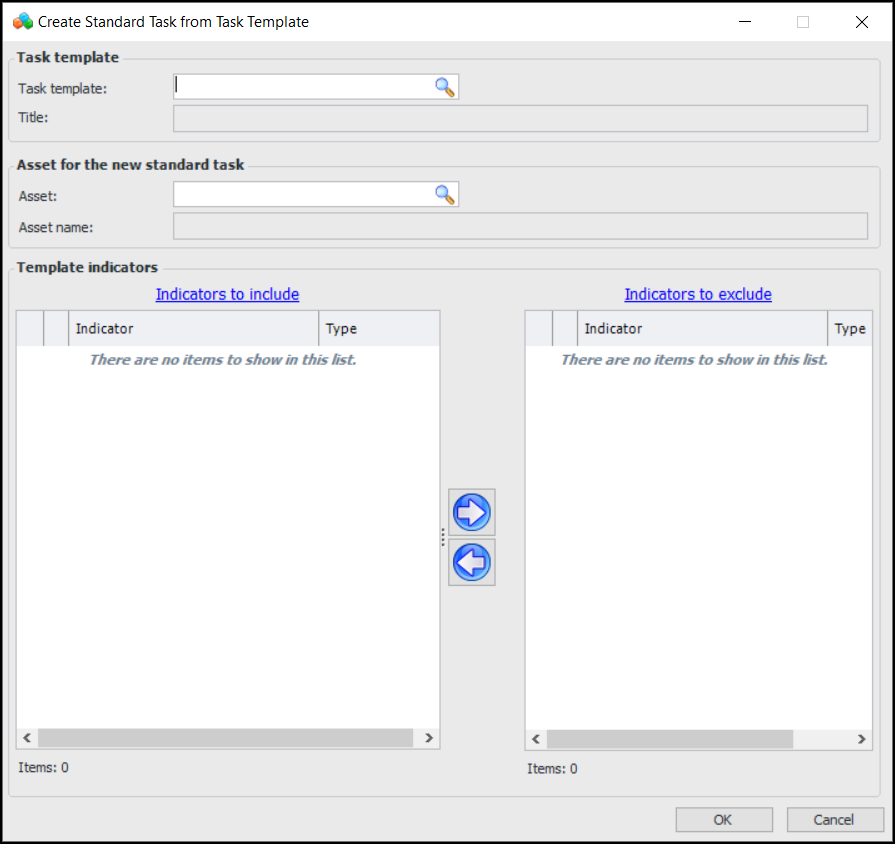
Click the New list and then From a Template. The Create Standard Task from Task Template dialog appears:
3.
Note: The Has Checksheet column shows a check mark for templates that require data collection.
4.
Select a task template and click OK. The task template appears in the Create Standard Task from Task Template dialog. Its indicators, if any, are listed in the Indicators to include list.
5.
Click the browse icon to select an asset. The Asset Selector dialog appears. Select the Asset Listing tab to view assets whose types are allowed for the task template.
6.
Select an asset and click OK. The asset is added to the Create Standard Task from Task Template dialog. APM uses the asset that you select here as the asset to work on and the asset to charge for the task.
Note: If the selected asset is an installed component or a component location, Component and Location options appear in the dialog. You can switch to the component or location by clicking the appropriate option. For example:
7.
You can move them back again using the corresponding arrow icon.
Tip: You can also restore them to the standard task after it is created. See Editing a Standard Task that is Based on a Template.
APM tries to match the template’s indicators to indicators on the selected asset. If APM cannot match an indicator, it creates one for the asset.
8.
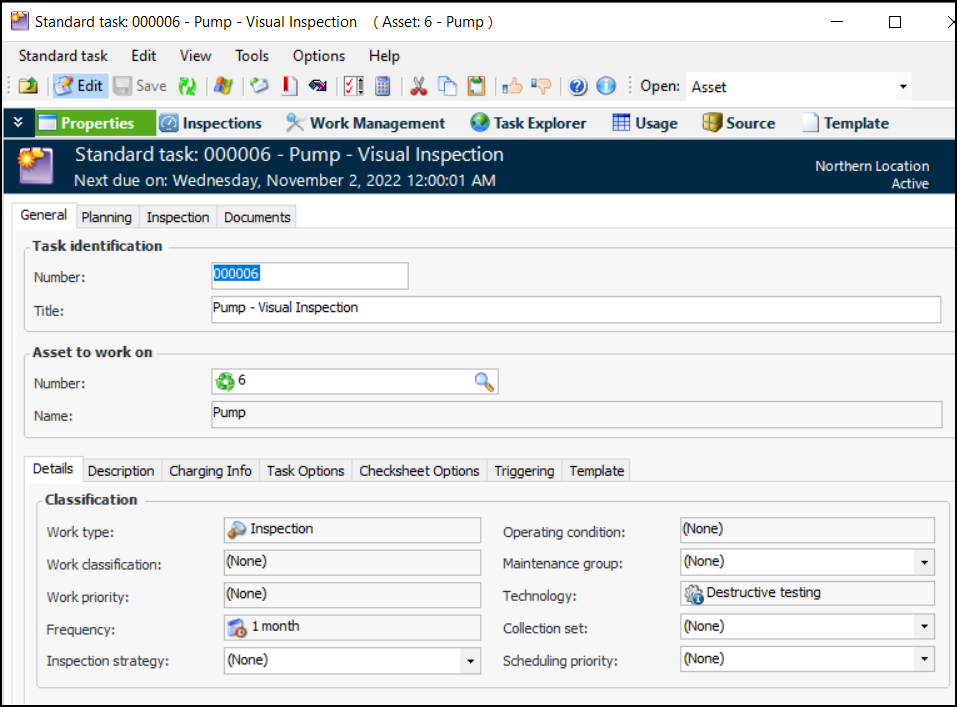
Click OK. The Standard Task window opens, showing the Properties view, General tab. For example:
9.
Note: Standard tasks and task templates share a numbering system and each must have a unique identifying number. A standard task cannot have the same number as a task template.
10.
Note: You can change any of the information for the standard tasks; however, your change might override the task template information and affect how the task is updated from the template. See Editing a Standard Task that is Based on a Template.
Tip: On the General tab, select the Template tab to view the standard task’s source.
11.