|
Creating a Purchase Order
To Create a Purchase Order from Scratch
1. Select the site’s Purchasing view.
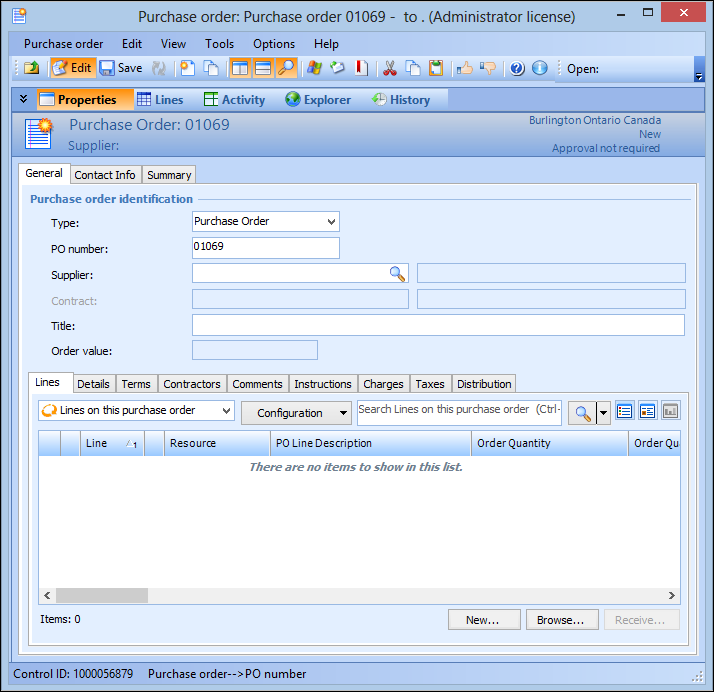
2. Click New. The Purchase Order window appears.
3. Enter or browse to search for the Supplier for the purchase order.
4. If you are purchasing items which are listed on a contract, select the contract from the Contract list. Selecting a contract will limit the resources that you can add to the purchase order to those listed on the contract.
5. Enter a Title for the purchase order.
6. On the Details tab, select the Requested by employee, and the Buyer responsible for the purchase order.
7.
8. On the Lines tab, you can add lines to the purchase order by clicking New or Browse. For detailed instructions, see Adding Lines to a Purchase Order.
9. Select the Terms tab to enter the terms and conditions that apply to this purchase order, and if this is a consignment order.
10. Select the Contact Info tab. In the Send to box, verify the contact person to whom you will send the purchase order, and the method that you will use to send the purchase order to the supplier.
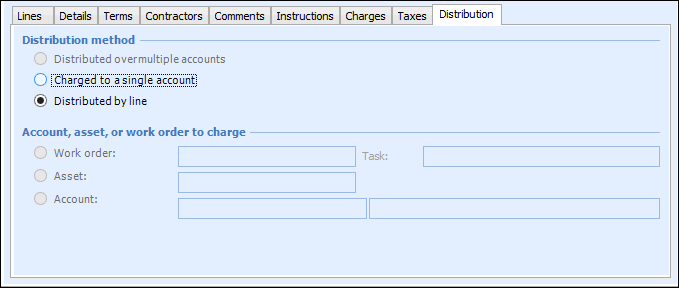
11. Select the Distribution tab.
13. Select the Comments and Instructions tabs to Enter any comments or instructionsyou would like to include with the purchase order.
15.