Creating a Job Template

Job templates are reusable plans that can be used for more than one asset. For example, you might create a job template for the scheduled maintenance for a particular make and model of truck. If the same standard tasks are performed at the same intervals for each of the trucks, using a job template simplifies the creation of the individual standard jobs.
A job template is a means of grouping indicator and task templates so that you do not have to create indicators and standard tasks on each asset. You can use job templates to set up a reliability program framework for use with a number of assets. Job templates are not asset-specific; they are used with a number of different assets. Therefore, only task templates can be referenced by the job template. Asset-specific standard tasks cannot be referenced by a job template. Similarly, only asset-specific standard tasks can be referenced by a standard job.
The job template contains much of the same information that is defined on the standard job, including a list of tasks and the triggering cycles for the tasks. However, triggering rule clauses can refer to specific asset indicators and, therefore, cannot be included on job templates. Once you create a standard job from the template, you can add the triggering rules.

To Create a Job Template

1.
From the Site window, select the Reliability Program view, Program tab, and then the Job Templates tab.
2.
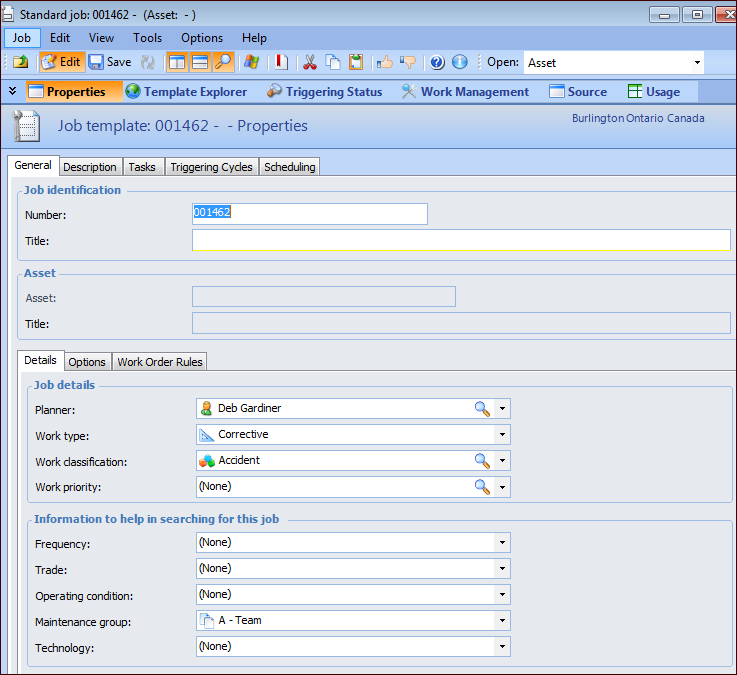
Click New. The Standard Job window opens, and the banner displays “Job template”. For example:
3.
Note: PM routes, standard jobs, and job templates share a numbering system and must have unique identifying numbers from each other. A job template cannot have the same number as a standard job or a PM route.
4.
Enter a template title that describes the work and select the template planner.
5.
6.
Select a work type from the list. If work order approvals are being used, the work type entered here controls whether or not work orders created from this template’s jobs must be sent for approval.
7.
8.
9.
10.
Select the Description tab to provide information about the template’s purpose.
11.
Now that you have entered the basic information on the job template, you can: