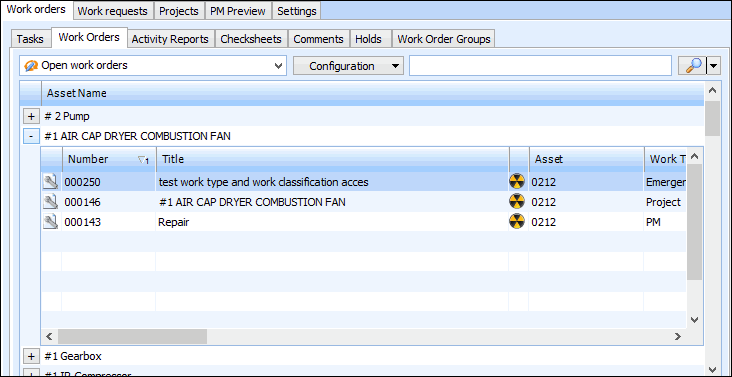
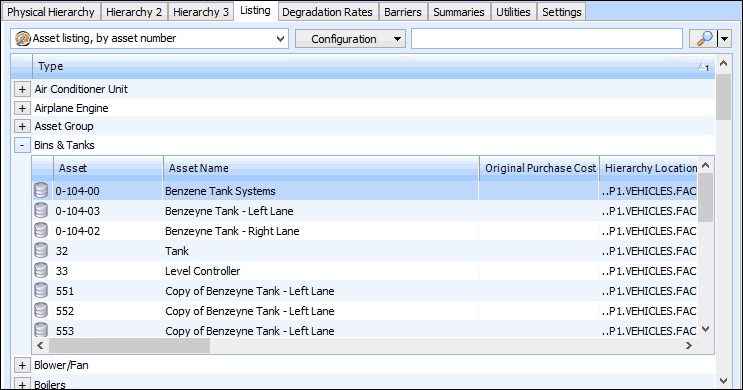
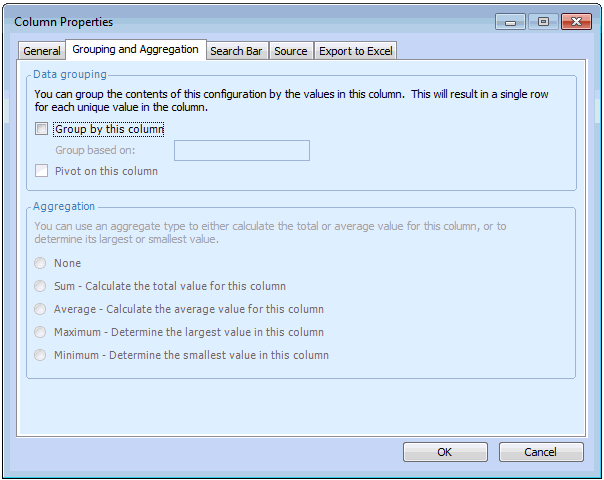
Create the data group from the column that has data you want to see combined. For example, to RCM analyses by status, you would create a data group from the
Status column. To group analyses by facilitator, you would create a data group from the
Facilitator column. To view work orders according to planned completion dates, create the data group on the
Planned Completion Date column and specify the unit of measure (for example, day, hour, month, or year).
You can include multiple data groups in one table configuration. For example, you could group analyses by facilitator and then by status. The order of the data groups is determined by the sequence of the columns. In this example, the
Facilitator column must be to the left of the
Status column. If the placement of the columns is reversed, the data would be grouped by status and then by facilitator.
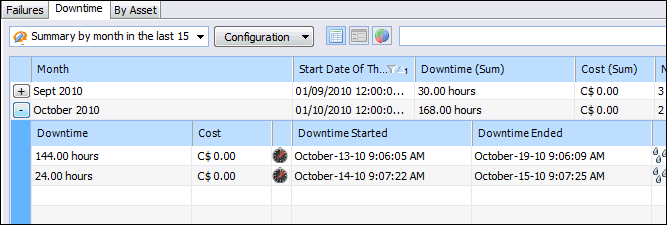
Once you have created a data group, you can include a summary of any numeric data available for the items in the group. For example, in a table configuration of downtime incidents, you might group the incidents by date. If you include the
Downtime and
Cost columns in the configuration, you could then include the totals for each in the group summary.
You can also add a Count column to a table configuration that includes grouped data. This column displays the number of items in each group. You can apply the usual sort and filter properties to a
Count column.