Creating a Triggered Calculation Record

Calculations are computations that can be simple or complex. Each calculation can be composed of multiple calculation variables; for example, a simple calculation could determine the age of the asset at the time the calculation was triggered. Another could determine how many times an asset has received a specific indicator alarm within the past year.
Each calculation can include multiple variables that support the use of minimum and maximum limits, factor tables, and weighting.
Each calculation can have multiple states that apply descriptive conditions to numeric ranges. This allows each calculation to have its own definition of what is considered good, fair, bad, and so on. The value of the calculation result determines the state of the object. For example, one calculation that results in the range of zero to 10 could be assigned a state of “poor”, and another calculation must have a result of zero to 50 to be considered “poor”.
Calculations can also be assigned to groups and classifications to assist in organizing or arranging the calculations.
Triggered calculations are reusable calculations that are triggered based on a user-defined event such as when an object is saved or deleted. Others can include date and time-based triggers.
Note: Calculations can be complicated and resource-intensive. The trigger option to calculate “On the execution of events or user actions” should be selected with careful consideration of the impact on interactive use, as well as on batch processes. Be sure to test impact thoroughly.
Note: Once a triggered calculation has been saved, you will not be able to assign a different class or attribute to the calculation. If you want to change either of these fields, a new calculation must be created.
To create a triggered calculation, you must first be logged on as an APM administrator.
This topic describes how to create a triggered calculation record and directs you to related topics.

To Create a Triggered Calculation

1.
2.
Select the Customization Center view.
3.
Select the Calculations tab and then the Calculations tab.
4.
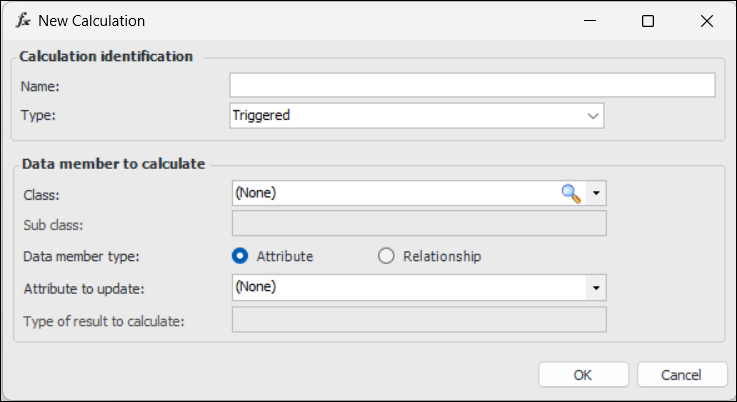
Click New. The New Calculation dialog appears:
5.
6.
In the Type list, ensure that “Triggered” is selected.
7.
8.
Attribute – Select the attribute to update. For example, if you selected Asset as the class and Manufacturer’s information as the subclass, you can select from a list of Manufacturer’s information attributes such as Year of Manufacturer as the attribute that will be updated
Relationship – Select the relationship to update and then the ID to use for related objects, for example, ID or name.
9.
10.
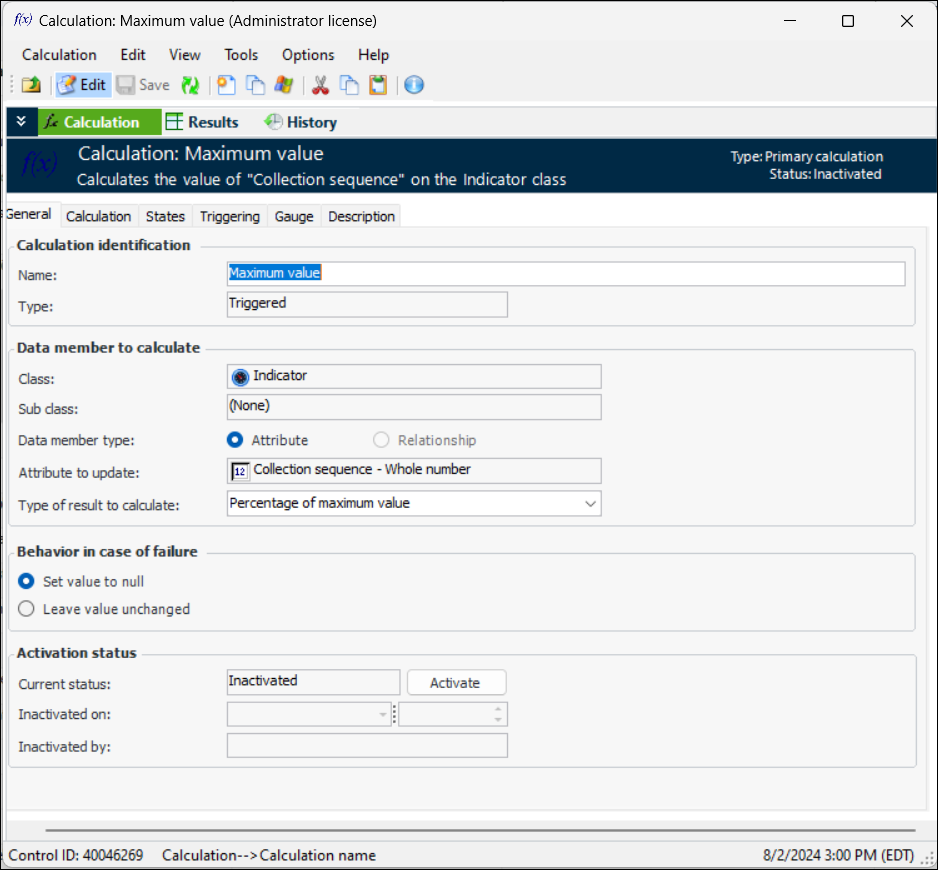
Click OK. The Calculation window appears, showing the information you entered in the New Calculation dialog. For example:
11.
Select the Calculation tab to define the VB.NET, C#, or VB script, or stored procedure to be used in the calculation. For more information, see Defining the Calculation.
12.
Select the States tab to add a state to the calculation. For more information, see Creating a Calculation State.
13.
Select the Triggering tab to define the triggering method and recurrence pattern for the calculation. For more information, see Assigning Triggering to a Calculation.
14.
Select the Gauge tab to define and preview a gauge type for the calculation. For more information, see Assigning a Gauge to Calculation Results.
15.
Select the Description tab to enter a description about the calculation.