
Creating Purchase Orders from a Work Order

This section explains how to create a purchase order from an existing work order.
Planners can specify all of the requirements needed to complete the work order, including trades, stocked and non-stocked materials, and services. Any of these requirements can be selected from the resource catalog.
If the materials or services required for a work order need to be purchased, you can generate purchase orders from the work order. However, if the site’s Unplanned Work Order Policy has been set to “do not allow activity on unplanned work orders,” you may not be able to create a purchase order. If this is the case, you will only be able to create a purchase order after the work order has been approved or marked as planned.
If the required materials are available in inventory, you can generate a pick list directly from the work order.

Overriding GL Accounts

APM automatically derives a GL account for charges to an asset or work order task based on the site’s accounting settings. You can override the derived maintenance GL account for labor, direct purchases, and inventory usage charged to an asset or work order. When the account number is overridden, the replacement account number is used on subsequent documents and transactions (work order requirements, timecards, issue transactions, purchase order lines, and receipts). The option to override a GL account is available only if the work type has been set up to allow the override.
To override the GL account, you can edit the account on the requirement before creating the purchase order, or you can open the purchase order and edit the purchase order line.

To Create a Purchase Order from a Work Order
1.
2.
To create purchase orders for the entire work order: Open the Work Order window, click the Tools menu and then Create Purchase Order(s). The confirmation message informs you that purchase order lines will be created for all resources that need to be purchased. Click Yes. This will create purchase orders for all of the work order’s tasks that are not marked “Closed”.
To create purchase orders for the open work order task: Open the Work Order Task window, click the Tools menu, Requirements, Create Purchase Order(s), and then For Task’s Requirements.
Note: If these options are not available, you might need to either approve the work order or mark it as planned before creating purchase orders.
APM asks you to confirm the creation of the purchase orders. Click Yes. APM creates purchase orders for all of the work order task’s requirements that need to be purchased.
3.
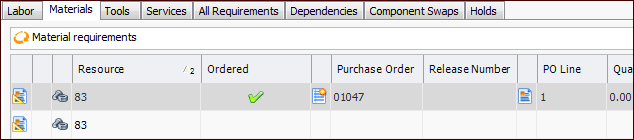
Select the Planning tab and the appropriate tab. Scroll to the Purchase Order column in the table. This column shows the numbers of the purchase orders that were created for the requirements. For example:
