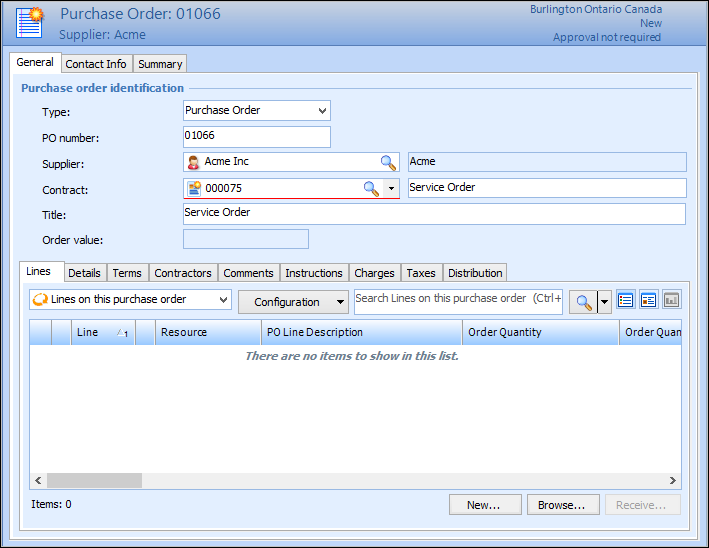
Creating a Purchase Order From a Contract

You can create a purchase order to place an order for resources covered by a contract. When you create a purchase order from a contract, only resources and prices from the contract can be included. Likewise, contract resource prices cannot be used on a non-contract purchase order.
You can only create purchase orders for approved and open contracts. You cannot create a purchase order while the contract is:
When you create a purchase order from a contract, the contract’s supplier information, and terms and conditions are defaulted onto the purchase order. You may or may not be able to change the terms and conditions, depending on the terms and conditions rule selected on the contract.
You must add the purchase order lines for the resources that need to be purchased. You may or may not be able to change the resource prices for the purchase order lines, depending on the purchase order rule selected on the contract.

To Create a Purchase Order From a Contract
1.
Open the contract from either the My Desk or the Purchasing view on site.
2.
3.
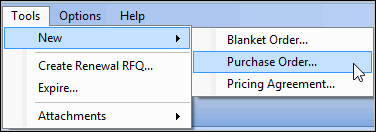
From the Tools menu, select New and then Purchase Order. A confirmation message appears.
4.
Click Yes. The system creates a new purchase order and opens the purchase order window.
5.
To add a line, on the General tab, Lines tab, click New. The Purchase Order Line dialog appears.
6.
The contract’s supplier resource price is defaulted into the Price reference box.
7.
Enter the Quantity required, and verify the Delivery information.
Note: If the contract’s price rule is set to ‘guideline only’, the Price and Discount rate, boxes will be open for editing.
If the contract’s price rule is set to ‘fixed, the Price and Discount rate cannot be edited. However, if you need to make an exception for this line you can open these boxes by clicking Price and then Change Price. This action will also open the Extra Charges section for editing.
8.
Complete the information on the Instructions, Taxes, Charges, and Distribution tabs as with any purchase order line.
For more information about adding purchase order lines, see Adding Lines to a Purchase Order.
9.
When you are finished, click OK. The line is added to the purchase order.
10.
11.
On the Details tab, enter any appropriate purchase order details.
12.
On the Terms tab, enter any terms and conditions.
Note: If the contract’s terms and conditions rule is set to ‘guideline only’, the FOB point, Freight term, Shipping mode, and Payment terms boxes will be open for editing.
If the rule is set to ‘fixed’, these items cannot be edited. However, if you need to make an exception for this purchase order you can open these boxes by selecting the Tools menu and then Change Terms and Conditions.
13.
Select the Contact Info tab to enter contact information and the method of delivery.
14.