Creating a Join Path Type Variable

Calculation variables are used in calculations and can be derived from four sources. These sources are:
Join path variables allow you to navigate the object model (through classes and relationships) to insert a value or values into the variable. If you are collecting information from a single value of an attribute such as the age of an asset, the join path to an attribute option is selected. If you are collecting multiple values from a collection relationship such as the readings from an asset’s indicators, the join path to a collection option is selected.
Note: To create join path variables, you should have some familiarity with the APM object model. To learn more about the object model, see Object Model Overview.
This topic describes how to create a calculation join path type variable to an attribute and a collection.

To Create a Join Path Type to an Attribute

1.
On the Calculation window, Calculation view, select the Calculation tab.
2.
3.
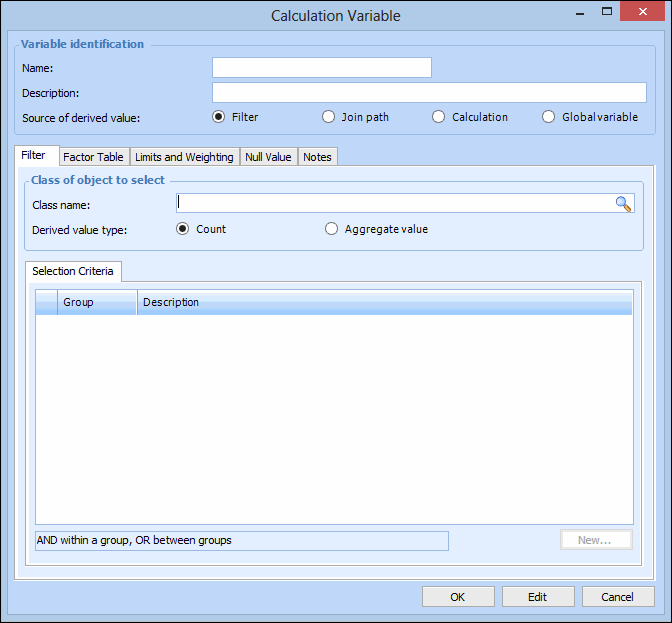
Click New. The Calculation Variable dialog appears.
4.
Note: The calculation variable name can only contain letters and numbers, must not contain spaces or special characters, or start with a number.
5.
6.
In Source of derived value, select Join path.
7.
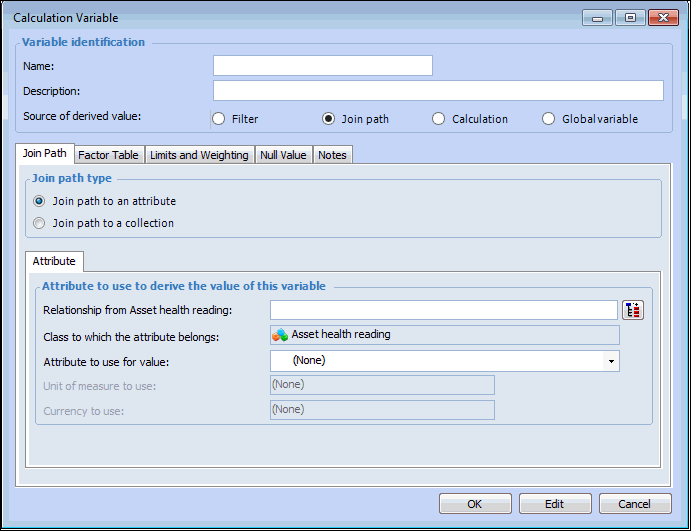
On the Join Path tab, select Join path to an attribute.
8.
On the Attribute tab, enter the following information:
9.
Select the Unit of measure to use and Currency to use from the list if available.
10.
If the attribute selected in step 8 is numeric (for example, an integer, duration, or currency), you can select the Factor Table tab and complete the factor table information. For more information, see Defining a Factor Table for a Variable.
11.
If the attribute selected in step 8 is numeric (for example, an integer, duration, or currency), you can select the Limits and Weighting tab and complete the limits and weighting information. For more information, see Assigning Calculation Variable Limits and Weighting.
12.
On the Null Value tab, select the behavior when the value for the variable returns a null value. For more information, see Assigning a Calculation Variable Null Value Behavior.
13.
On the Notes tab, you can enter any additional information about this calculation variable.
14.
When you are finished, click OK to save and close the Calculation Variable dialog.

To Create a Join Path Type to a Collection

1.
On the Calculation window, Calculation view, select the Calculation tab.
2.
3.
Click New. The Calculation Variable dialog appears.
4.
Note: The calculation variable name can only contain letters and numbers, must not contain spaces or special characters, or start with a number.
5.
6.
In Source of the derived value area, select Join path.
7.
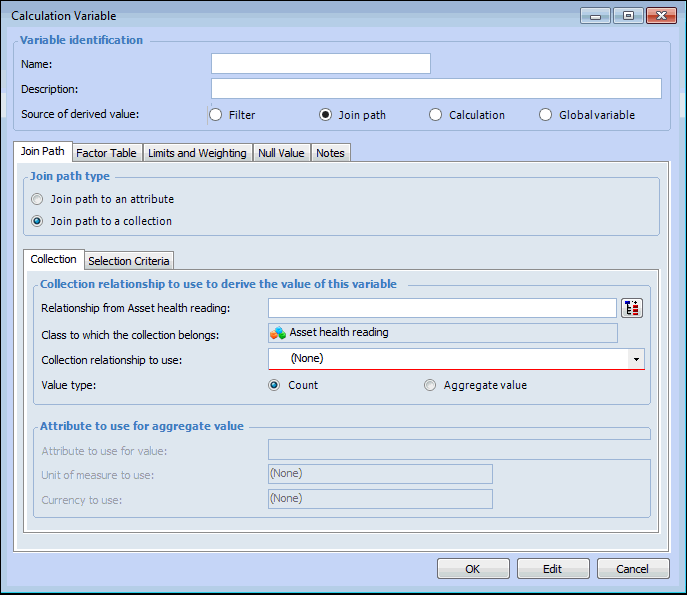
On the Join Path tab, select Join path to a collection.
8.
Select the Collection tab and enter the following information:
9.
In Value type, choose Count or Aggregate value.
10.
If Aggregate value was selected in step 9, enter the following information:
On the Aggregation tab, select the following:
Sum: The total value is calculated for the selected items.
Average: The average value is calculated for the selected items.
Median: The median value is calculated for the selected items.
Maximum: The largest value is calculated for the selected items.
Minimum: The minimum value is calculated for the selected items.
Array: A list of values is provided. You can also specify a maximum value for this list.
First: The first value is selected from the list.
Last: The last value is selected from the list.
Note: If Array, First, or Last is selected, you must select the join path that relates to an asset, the attribute to use to order the selected items, and a sort direction.
11.
On the Selection Criteria tab, select OR within a group, AND between groups, or AND within a group, OR between groups from the list.
12.
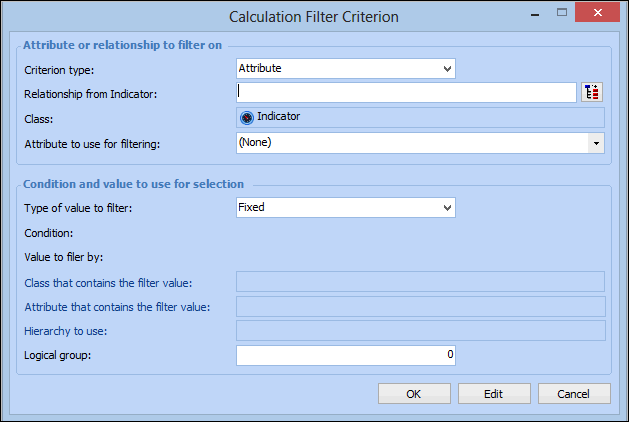
On the Selection Criteria tab, click New to create a new selection criteria. The Calculation Filtering Criterion dialog appears.
13.
Select either Attribute or Relationship from the Criterion type list.
14.
15.
Select an Attribute to use for filtering from the list.
16.
Select the Type of value to filter, Condition, and Value to filter by.
17.
If you selected Is not and is not a child of or is not and is not a parent of Condition, you must select a Hierarchy to use from the list.
18.
Enter a Logical group.
19.
Click OK to save and close the Calculation Filtering Criterion dialog.
20.
Repeat steps 11 to 19 for each selection criteria.
21.
Select the Factor Table tab to convert the derived value using a factor table. For more information, see Defining a Factor Table for a Variable.
22.
On the Limits and Weighting tab, enter any maximum or minimum values applied to this variable, and weighting factors, if needed. For more information, see Assigning Calculation Variable Limits and Weighting.
23.
On the Null Value tab, select the behavior when the value for the variable returns a null value. For more information, see Assigning a Calculation Variable Null Value Behavior.
24.
On the Notes tab, you can enter any additional information about this calculation variable.
25.
When you are finished, click OK to save and close the Calculation Variable dialog.