Creating an Inspection Report

Inspectors typically write reports for the inspections performed on the assets for which they are responsible. The analysis can include performing a holistic, detailed analysis of the equipment or system to understand the whole picture regarding the health of the assets. The inspection report summarizes the findings from one or more checksheets.
There are two ways to create an inspection report:
Note: The checksheet’s status determines whether an inspection report can be created from, or linked to, the checksheet.
Note: Each checksheet can link to only one inspection report, although a report can contain many checksheets. If you need to analyze the checksheet on a different report, open the Checksheet window and select the Properties view, General tab. Click to break the link. You can then link to another report.
This topic explains how:

To Create an Inspection Report from a Checksheet

1.
2.
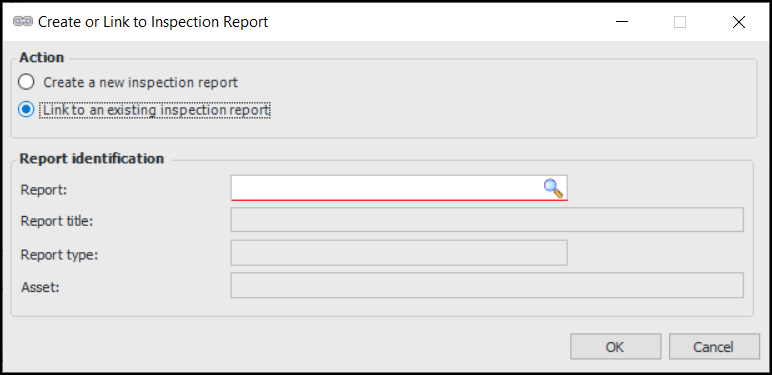
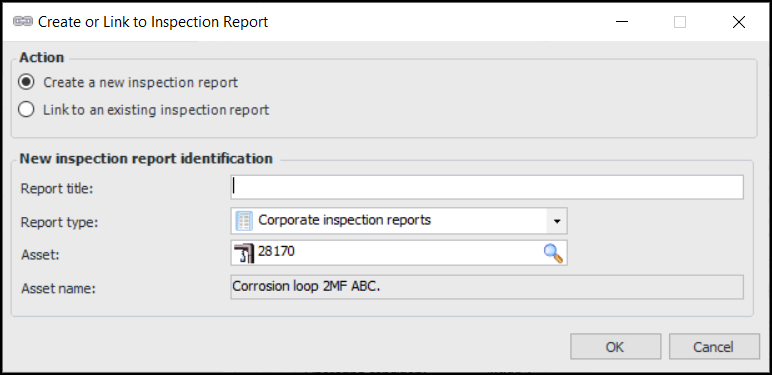
Click the Tools menu and then Create or Link to Inspection Report. The Create or Link to Inspection Report dialog appears:
3.
4.
If a default report type has been selected for the site, it is displayed in the Report type box. You can select another type if appropriate.
Note: The report type sets the default approval and report status values. It also determines what checksheet information is copied to the inspection report.
5.
6.
Click OK. The Inspection Report window appears, displaying the Inspection Report view.

To Link a Checksheet to an Existing Inspection Report

1.
2.
Click the Tools menu and then Create or Link to Inspection Report. The Create or Link to Inspection Report dialog appears.
3.
Select Link to an existing inspection report. The dialog changes as follows:
4.
5.
Select the report and click OK. The dialog shows the report’s number, title, type, and asset.
6.
Click OK. The Inspection Report window appears, showing the Inspection Report view.

To Create an Inspection Report from Scratch

1.
On the Site window, select the Inspection Management view and the Inspection Reports tab.
Note: You can also open the Asset window, select the Inspection Management view, Inspection Reports tab, and click New. In this case, the asset is selected in the New Inspection Report dialog.
2.
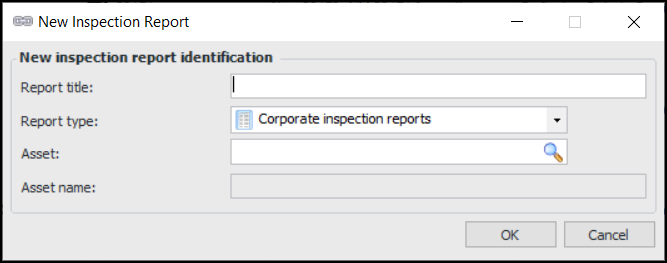
Click New. The New Inspection Report dialog appears.
3.
4.
If a default report type has been selected for the site, it is displayed in the Report type box. You can select another type if appropriate.
Note: The report type sets the default approval and report status values.
5.
6.
Click OK. The Inspection Report window appears, displaying the Inspection Report view.
7.
Tip: To add checksheets to the report, select the Checksheets tab and click Browse. The Browse Checksheets dialog lists all of the checksheets for the site. Select one or more checksheets and click OK. The checksheets are added to the Checksheets tab.

To Set Properties for the Inspection Report
1.
2.
3.
4.
5.
6.
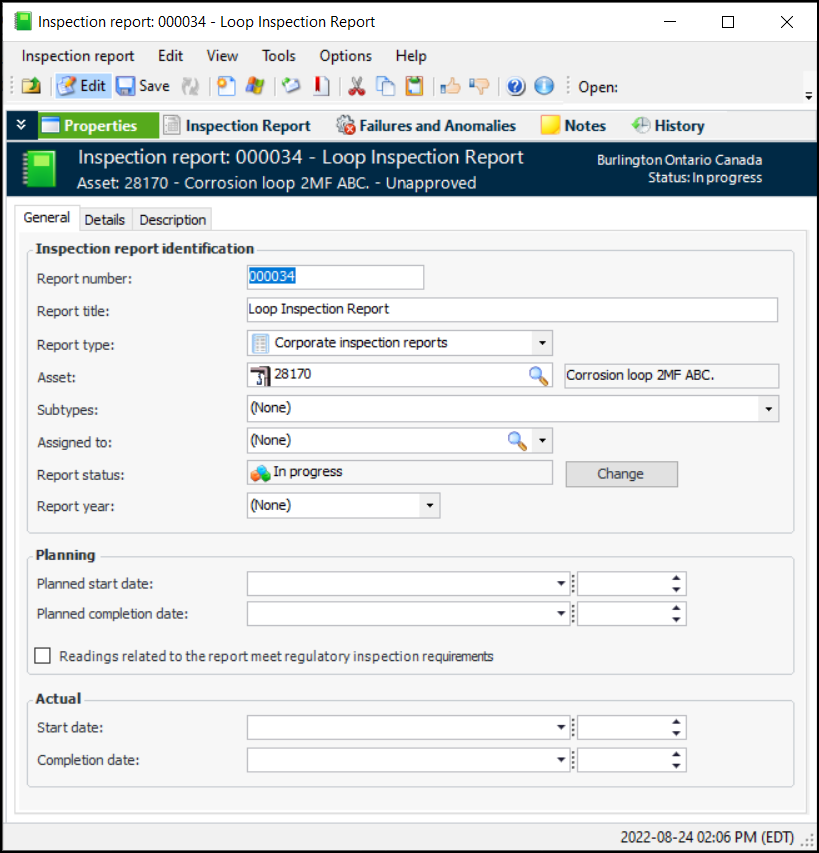
In the Assigned to list, select the employee who will perform the inspection analysis. The list contains employees with the inspection planning and analysis role. If your organization uses the APM approval process, this employee is considered the person responsible for having the report approved.
7.
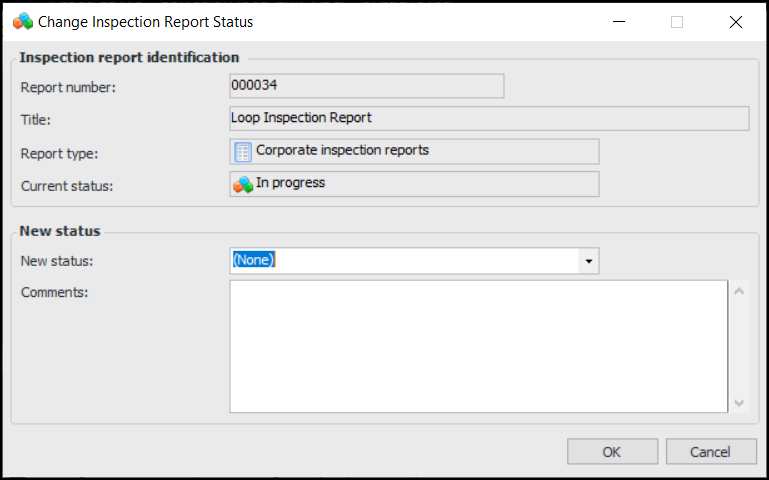
To change the report’s status, click Change. The Change Inspection Report Status dialog appears. For example:
The New status list contains statuses that can be assigned manually. Select the status.
Click OK. The dialog closes and the new status is displayed in the Report status box and the banner.
8.
Note: For information about Readings related to the report meet regulatory inspection requirements, see Designating Readings as Regulatory.
9.
During the course of the analysis, you can return to the General tab to record the actual start date. The completion date can be set manually or by the report status.
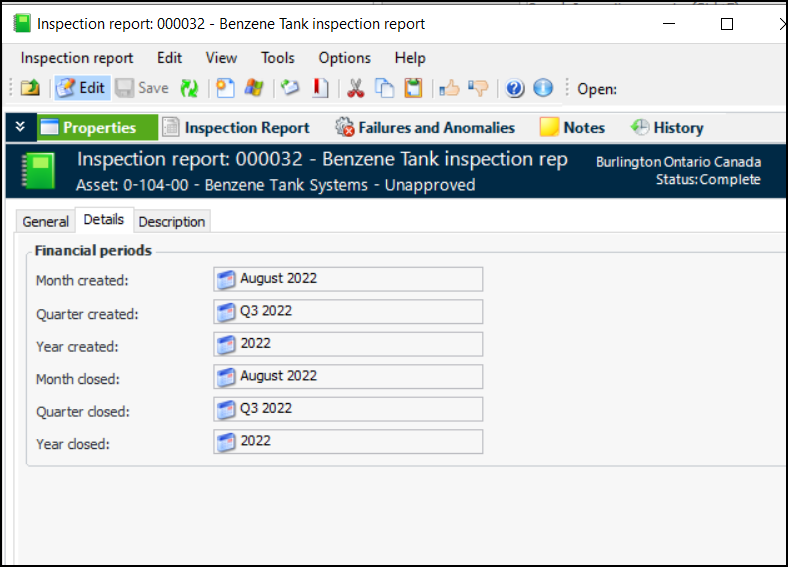
Tip: The Details tab displays the financial periods in which the report is created and completed. For example:
10.
Select the Description tab to add more information about the report.