Creating Find Bar Sets

Use the Find bar at the top of an APM windowto quickly access a specific object when you know its number. The list of objects (classes) in the Open list can seem confusing, even irrelevant. APM provides options that do not require customization for simplifying the experience of using the Find bar. You can:
This topic explains how:

To Create a Find Bar Set

1.
2.
Select the Customization Center view.
3.
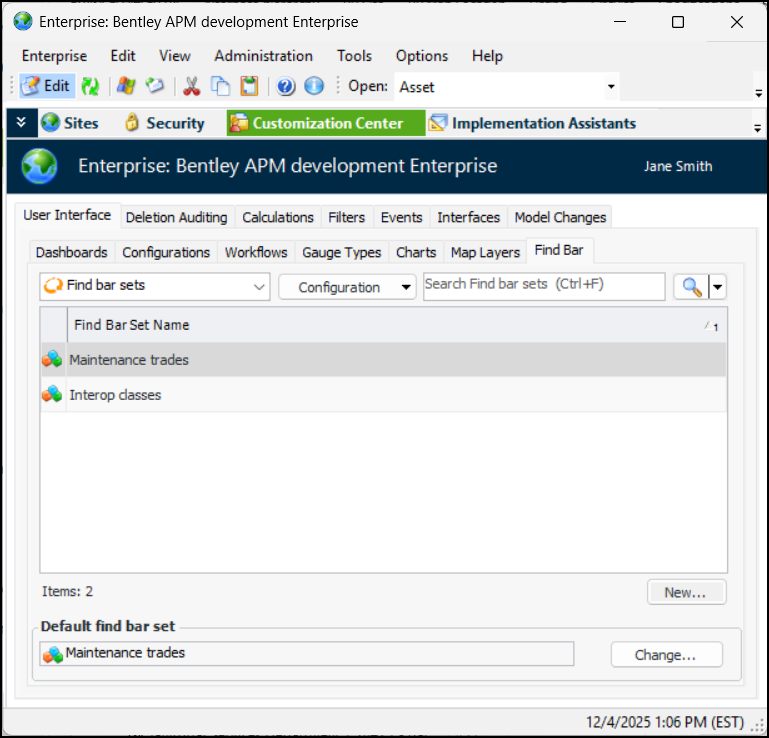
Select the User Interface tab and the Find Bar tab:
4.
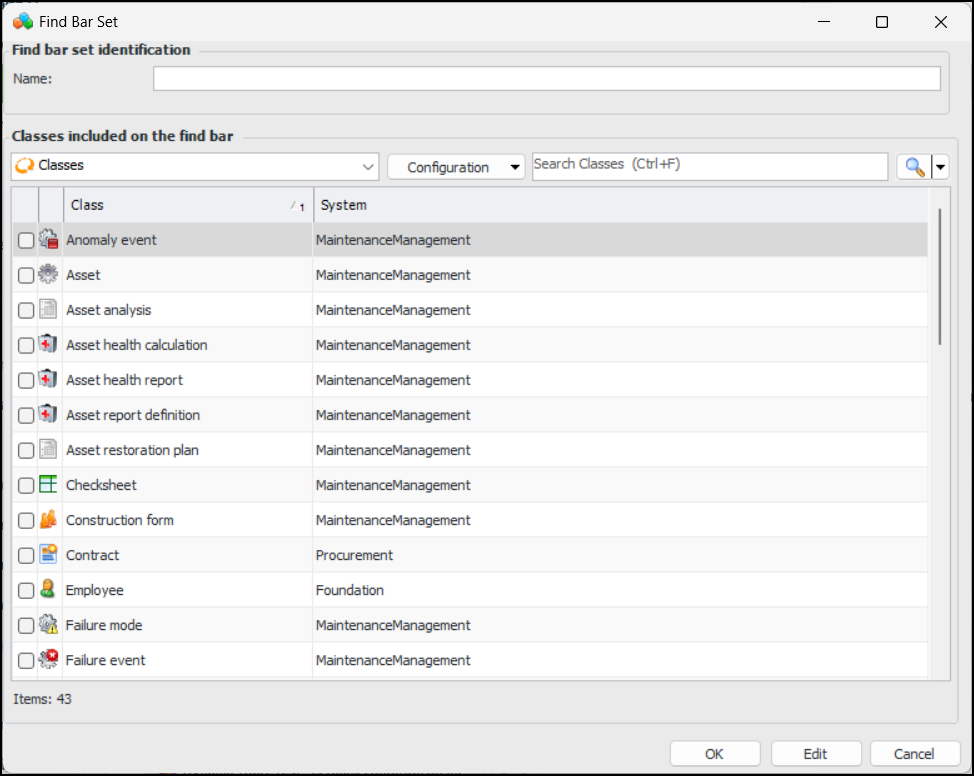
Click New. The Find Bar Set dialog appears:
5.
6.
7.
Click OK. The find bar set is added to the table.

To Define the Default Find Bar Set for the Enterprise

1.
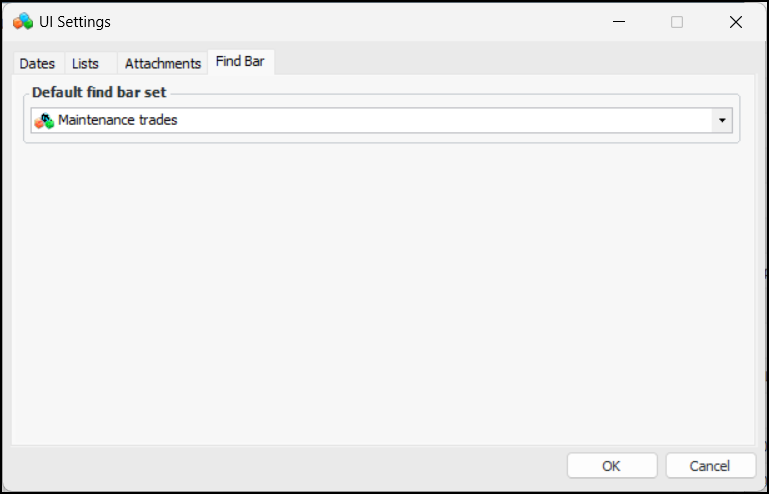
At the bottom of the Find Bar tab, click Change. The UI Settings dialog appears.
2.
Select the Find Bar tab.
3.
In the Default find bar set list, select the find bar set that will become the new default.
4.
Click OK. The dialog closes and the new default is shown.

To Assign a Find Bar Set to a User

1.
2.
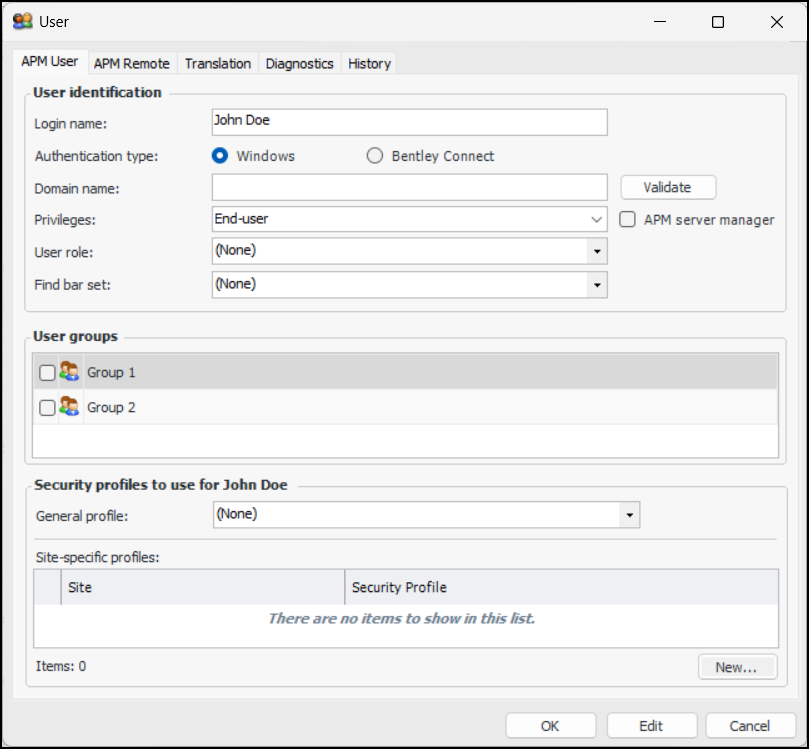
Select the Security view and the Users tab.
3.
4.
In the Find bar set list, select the find bar set for the user.
5.
Click OK. When the user clicks the Open list, only objects in the find bar set are available for selection.