|
|


Creating Filters for Table Configurations
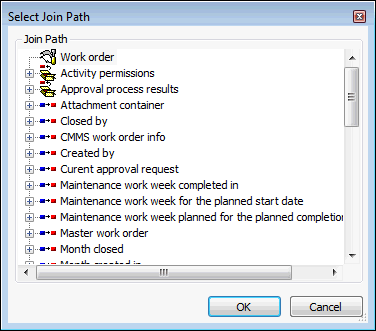
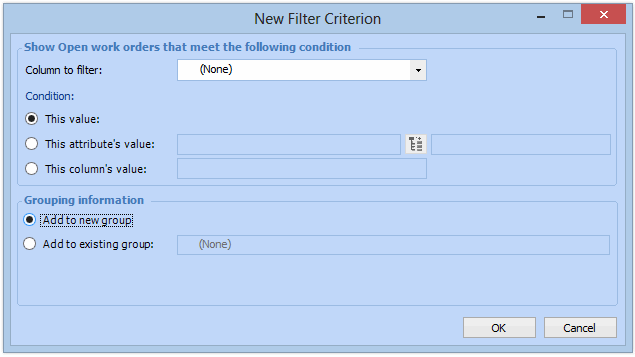
A filter based on a value allows you to filter a group of items based on an explicit value that you enter. Most of the filters you create will be this type of filter. For example, you could create a table configuration on a list of assets that shows only assets with the type “Tank”. To do this, you would create a filter on the column Asset Type, and select “Tank” as the filter value. Or, you could find assets with a specific string in their name (such as “engine”) by adding a filter based on a value to the Description column.A filter based on an attribute’s value (join-path) allows you to filter a group of objects based on a variable value. The value used in the filter is only determined at the time the filter is used by looking up the current value of the selected attribute or relationship. A specific, fixed value cannot be selected. For example, you might want to filter employee names based on the name of the employee currently logged in, rather than a specific employee name.To do this, you can filter the Work Request class’s Requestor attribute by the Current Employee. Since this data is not part of the Work Request class, you would use a relationship (or join path) to capture that data. In this case, you would select the relationship Enterprise.CurrentEmployee, and the attribute EmployeeName.To do this, you can filter the Facilitator attribute by the login name of the current user. Since this data is not part of the RCM2 Analysis class, you would use a relationship (or join path) to capture that data. In this case, you would select the relationship ObjectQuest.CurrentUser, and the attribute Login name.You can also apply two or more filters on one column or more and assign them to groups. For more information, see Creating Filter Groups for Table Configurations.You can view filters that are already applied to table configurations. For more information, see Viewing Filters for Table Configurations.To Create a Filter
 . The Select Join Path dialog appears.