Creating a Filter Type Variable

Calculation variables are used in asset health report calculations and can be derived from four sources. These sources are:
Filter type variables allow you to gather data about objects in any class in APM. For example, you could extract information on or from work order tasks. In order for this data to be meaningful for the asset you are working with, you will need to filter the objects using filter criteria. For example, work order tasks with the work type “Corrective” that are related to the asset or to one of its child assets.
You can select either to count the group of objects (for example, a count of the work order tasks), or return aggregated values for the group of objects such as the total estimated duration for the group of work order tasks.
Note: To create filter-based calculation inputs, you should have some familiarity with the APM object model. To learn more about the object model, see Object Model Overview.
This topic describes how to create a filter type variable.

To Create a Filter Type Variable

1.
On the Calculation window, Calculation view, select the Calculation tab.
2.
3.
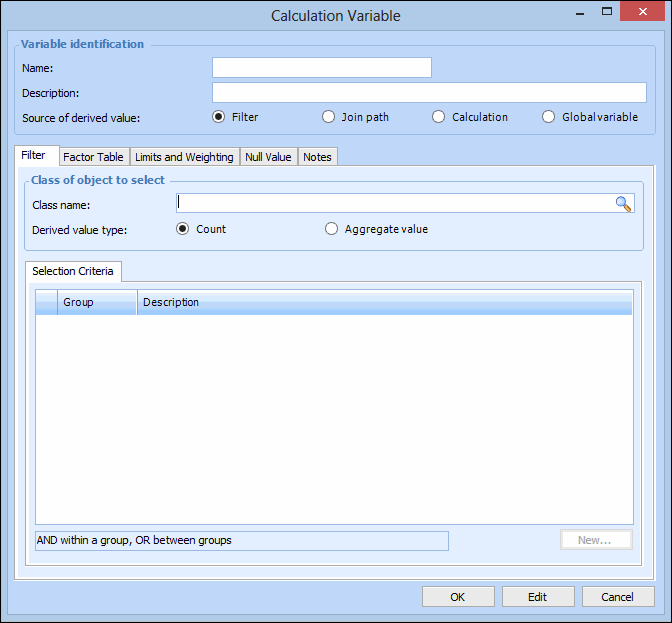
Click New. The Calculation Variable dialog appears.
4.
Note: The calculation variable name can only contain letters and numbers, must not contain spaces or special characters, or start with a number.
5.
6.
In Source of the derived value, select Filter. For example, if your input is based on the current value of an asset, you would select the Asset object.
7.
In the Class of object to select area, click Browse and select a class name from the list.
8.
In Derived value type select one of the following:
Count: A simple count of the items that satisfy the filtering criteria.
Aggregate value: If you select this option, two additional tabs are displayed called Value Attribute and Aggregation. You can use these tabs to select the attribute that should be aggregated and the type of aggregation.
9.
10.
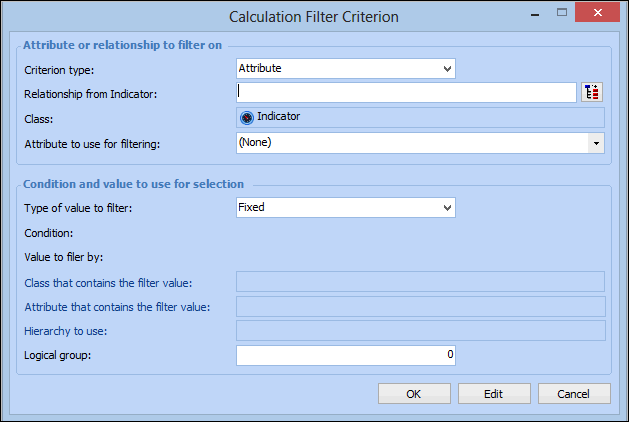
Click New to create a selection criterion. The Calculation Filter Criterion dialog appears. For example:
-
11.
If the attribute is owned by a related class, first identify the class in the Relationship box. Click . The Join Path dialog appears. Select the class in the hierarchy that owns the attribute you want to filter on and click OK. For example, to pick an attribute from the Asset Type on an Asset, open the Asset class and select AssetType. The attributes for the selected class now appear in the Attribute list.
12.
13.
14.
Click OK to save and close the Calculation Filtering Criterion dialog.
15.
Repeat steps 9 to 14 for each additional selection criteria.
16.
If you selected a derived value type of Aggregate value, select the Value Attribute tab and enter the following information:
17.
If you selected a derived value type of Aggregate value, select the Aggregation tab and enter the following information:
Sum: The total value is calculated for the selected items.
Average: The average value is calculated for the selected items.
Median: The median value is calculated for the selected items.
Maximum: The largest value is calculated for the selected items.
Minimum: The minimum value is calculated for the selected items.
Array: A list of values is provided. You can also specify a maximum value for this list.
First: The first value is selected from the list.
Last: The last value is selected from the list.
Note: If Array, First, or Last is selected, you must select the join path that relates to an asset, the attribute to use to order the selected items, and a sort direction.
18.
Select the Factor Table tab to convert the derived value using a factor table. For more information, see Defining a Factor Table for a Variable.
19.
On the Limits and Weighting tab enter any maximum or minimum values applied to this variable, and include weighting factors if needed. For more information, see Assigning Calculation Variable Limits and Weighting.
20.
On the Null Value tab, select the behavior for variables that return a null value. For more information, see Assigning a Calculation Variable Null Value Behavior.
21.
On the Notes tab, you can enter any additional information about this calculation variable.
22.
When you are finished, click OK to save and close the Calculation Variable dialog.