Creating a Degradation Minimum Value Calculation

A degradation minimum value calculation determines the smallest allowable measurement for an asset, for example, the minimum wall thickness of a tank, that falls within acceptable parameters. The formulas that are used to create calculations are provided by industry standards organizations, such as API (American Petroleum Industry), ASME (American Society of Mechanical Engineers), BS (British Standards), and ANSI (American National Standards Institute).
APM provides several calculations (using ANSI, API, ASME, BS, and EEMUA design codes), as well as panels to support them. You can use these as examples when setting up calculations for your own asset types. A generic Minimum Calculation panel is available for customization for the calculation you wish to set up.
Tip: Degradation minimum value calculations that come with APM are listed below. See Degradation Minimum Value Calculations Provided.
This topic explains:
Note: This topic assumes that you are knowledgeable about customizing the APM object model and user interface.

How the Calculator is Used

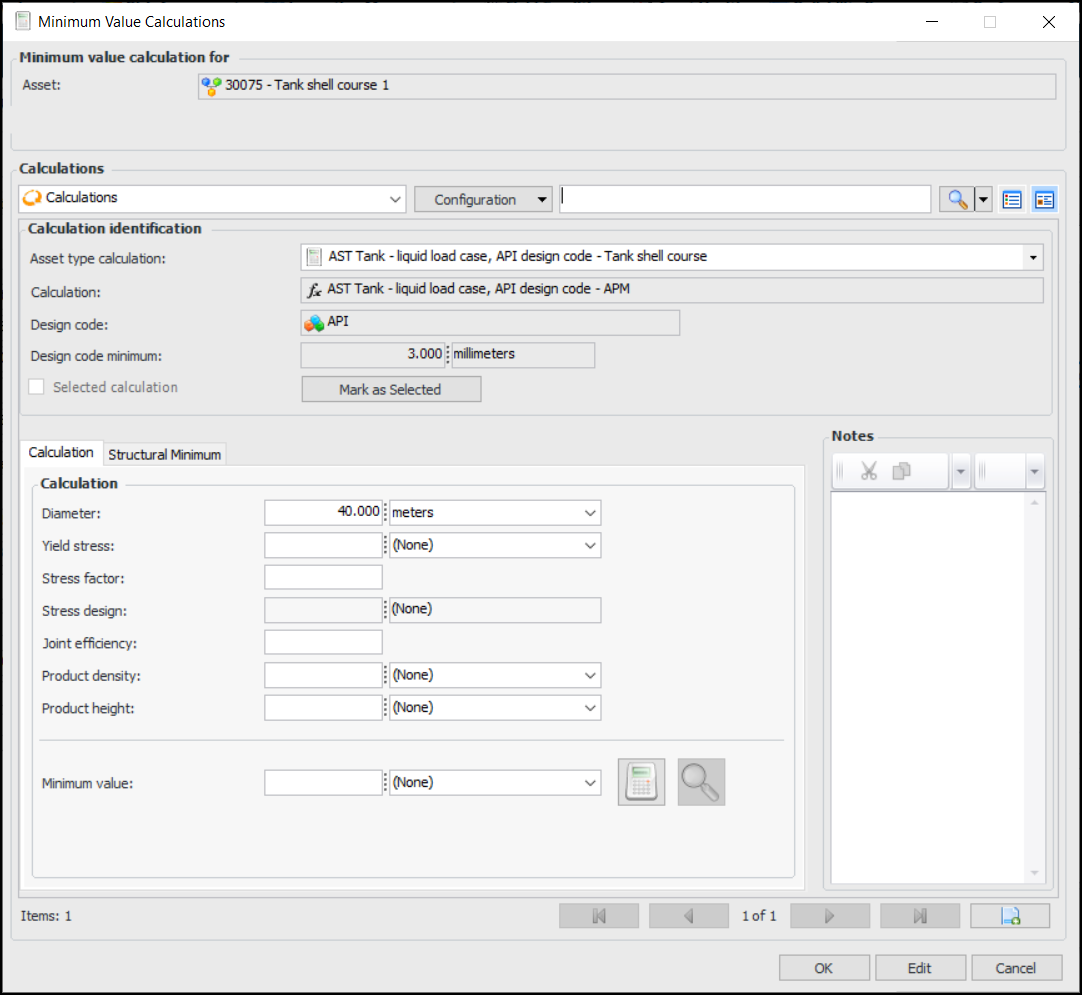
For assets that support it, the Minimum Value Calculator is available on the asset’s design rate, indicator’s rate, and failure mode’s degradation rate. You can open the calculator by clicking the Calculate button. For example:
You can enter values, calculate a minimum degradation value, and view the results of the calculation. Add calculation pages as required to try other formulas and inputs. Finally, mark a calculation as selected and click OK to return the result to the degradation rate. For more information about using the calculator, see Adding Degradation Information to an Asset.

Steps to Set up a Minimum Value Calculator

The calculator is available by asset type, and you can assemble its components in the asset type’s Degradation tab. Setting up a Minimum Value Calculator involves these steps:
1.
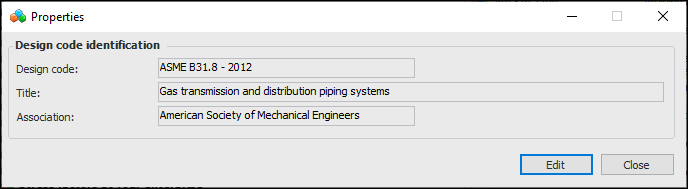
To do this, select the site’s Assets view, Settings tab, and Subtype and General Specifications tab. Select the Design codes node in the tree and click New at the bottom of the table. Here is an example of a design code:
For more information, see Adding Values for Asset Subtypes and Specifications.
2.
For more information, see Customizing the Object Model and Customizing the User Interface (UI).
3.
4.
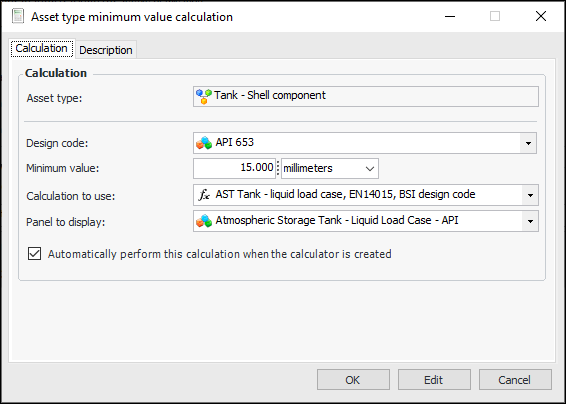
On the asset type’s Degradation tab, select Assets of this type support minimum value calculation and click New to assemble the components. For example:
Note: The Minimum value box records the minimum degradation value specified by the design code standard. This value is assigned to the asset if the calculator returns a lower value.
5.
Click OK.
For more information, see **Setting up Asset Types.

To Create a Degradation Minimum Value Calculation

Note: To create a degradation minimum value calculation, you must first be logged on as an APM administrator.
1.
2.
Select the Customization Center view.
3.
Select the Calculations tab and then the Calculations tab.
4.
Click New. The New Calculation dialog appears.
5.
6.
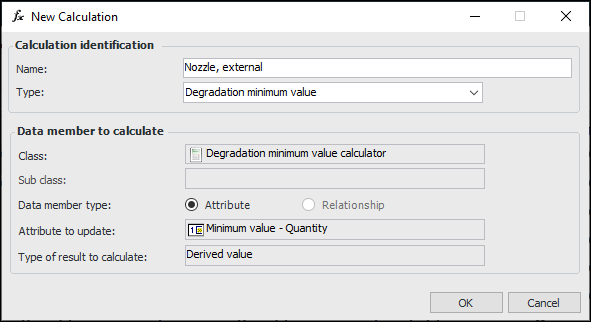
In the Type list, select “Degradation Minimum Value”. The dialog looks similar to this:
7.
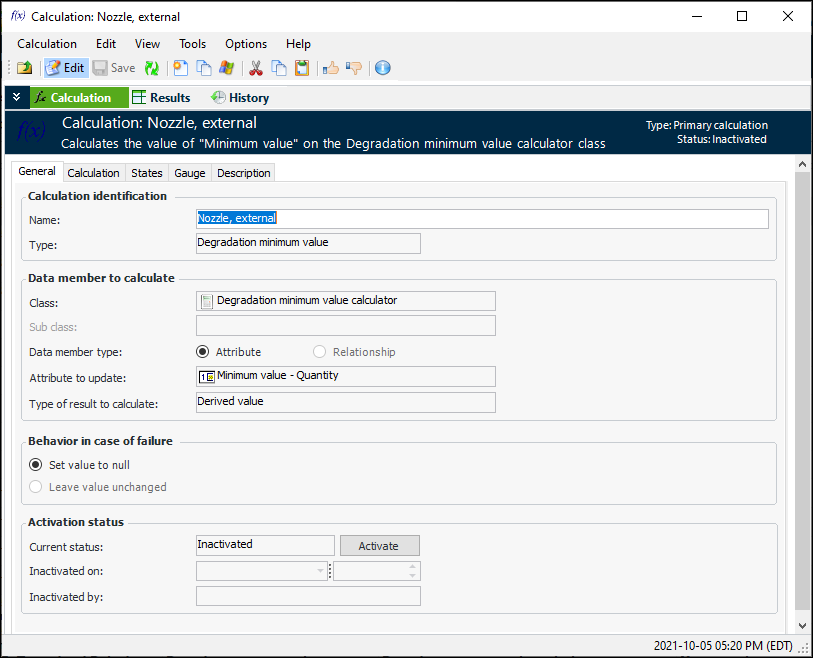
Click OK. The Calculation window appears, open to the Calculation view. For example:
8.
On the General tab, enter the following information:
Note: When a calculation is created, its activation status is automatically set to “Inactive” to prevent it from being used before it is complete. After you have defined a calculation, you must activate it before it can be used.
9.
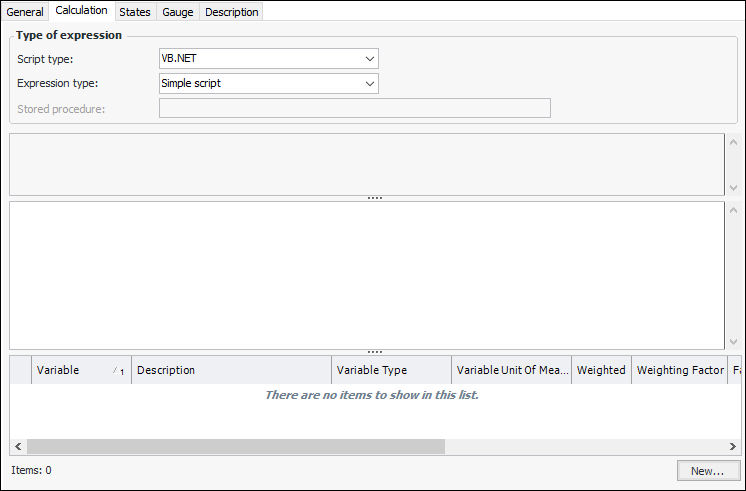
Select the Calculation tab. For example:
10.
11.
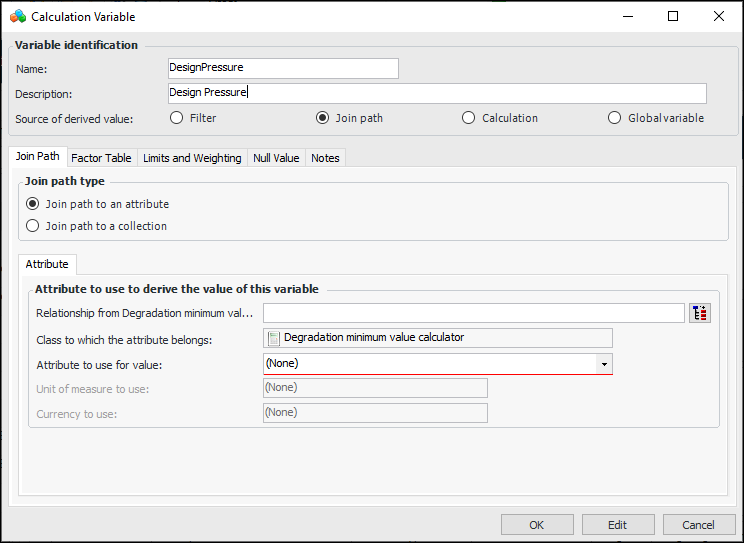
For each variable in the expression, click New. The Calculation Variable dialog appears.
12.
Note: The calculation variable name can only contain letters and numbers, must not contain spaces or special characters, or start with a number.
13.
14.
In the Source of derived value list, select Join Path. The window changes accordingly. For example:
15.
16.
17.
Click OK. The variable is added to the table.
18.
On the Description tab, enter information and select settings:
19.
On the General tab, click Activate to make the calculation available in asset types.
Note: The Evaluate (Test Mode) feature in the Tools menu is not available for degradation minimum value calculations.

Degradation Minimum Value Calculations Provided

As of version 7.19, the following calculations are included in the APM install database. View them with an Admin license in the Enterprise window, Customization Center view, Calculations tabs.