Creating Count Columns for Table Configurations
You can add a count column to a table configuration. The count column can reference a relationship to a data element in a table. For example, on an indicators table configuration, you can add a usage count column that shows the number of standard tasks on which the indicator is included. Likewise, on a standard jobs table configuration, you can provide a count of the number of standard tasks that are not on a standard job, and so on.
This topic describes how to create a new count column for a table configuration.

To Create Count Columns for Table Configurations

1.
2.
Click Configuration and then Open. The Configuration dialog appears, open to the Columns tab.
3.
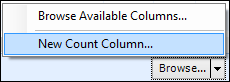
Click the arrow beside Browse and then select New count column.
4.
5.
6.
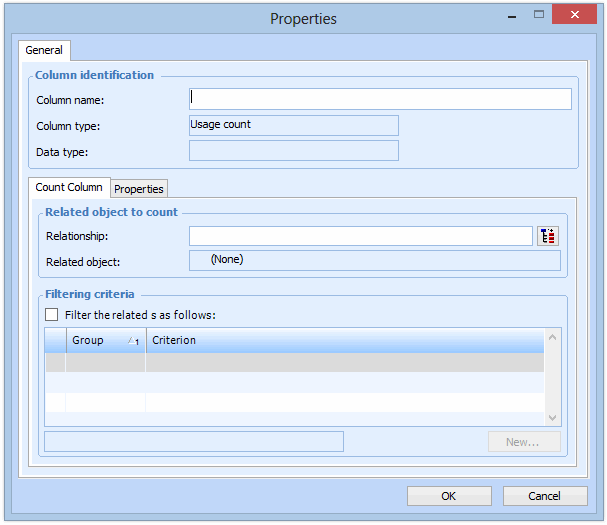
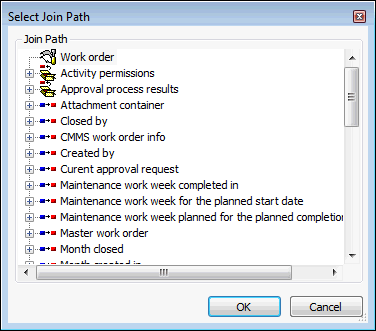
In the Related object to count area, click . The Select Join Path dialog appears.
7.
Navigate to the class, select it, and click OK. The relationship and related object are entered for you.
8.
To apply a filter to the related object, select Filter the related [objectname] as follows.
9.
Click New. The Filter Criterion dialog appears.
10.
Attribute – The objects will be filtered using the value of an attribute owned by either the base class or a related class. For example, when filtering assets, you can use the Asset class’s Classification attribute. Most filter criteria are based on an attribute.
Relationship – The objects will be filtered using the value of a relationship from the base class to another selected class. For example, when filtering assets, you can use the Asset class’ relationship to the Asset Type class.
For example, to filter a list of tasks based on the asset, you would select the Work Order Task class’ Asset to work on relationship. Or, you could select a relationship from the Work Order Task class to the Maintenance Group class. You could then use the Maintenance Group Name attribute to filter the group of tasks.
For example, if you are filtering a group of work order tasks, you might select the Task status attribute. You can then select one of the task statuses (for example, Planned) as the value to filter on.
Fixed: Select this option to filter a group of items based on a specific value that you enter.
Variable: Select this option to filter a group of objects using a relative value. The value used in the filter is only determined at the time the filter is used by looking up the current value of the selected attribute or relationship. You can use any attribute or relationship that can be reached through a join path starting from the Site class. A specific value cannot be selected.
For example, to select work requests created by the employee currently logged in, you would base the filter on the Created by attribute, and select Enterprise.CurrentEmployee.EmployeeName as the variable value. The requests will then be filtered based on the name of the employee who is currently using the filter.
The list contains attributes that are owned directly by the specified class. However, it only includes attributes that are of the same type as the attribute identified in the Attribute to use for filtering box. For example, if the attribute to filter by is a string, then only string attributes appear in this list. Similarly, if the attribute to filter by is a date, then only date attributes are available.
11.
Click OK to save the filter criterion options. The Filter appears in the list.
12.
AND within a group, OR between groups: filter criteria within the same group are evaluated with AND; criteria in different groups are evaluated with OR.
OR within a group, AND between groups: filter criteria within the same group are evaluated with OR; criteria in different groups are evaluated with AND.
13.
Repeat steps 9 to 12 for each filter criterion that you want to add.
14.
Select the Properties tab.
15.
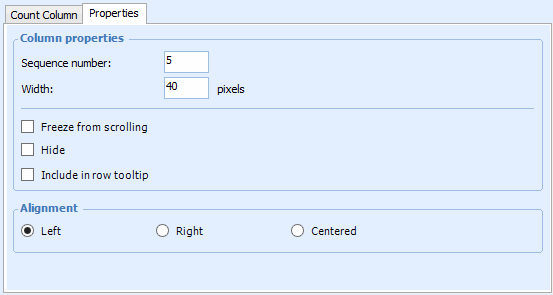
In the Column Properties section, you can accept the default values or enter a different sequence number and width.
16.
When the Freeze option is selected, the column appears frozen at the left of the table configuration. Freezing the column enables you to see the information it contains as you scroll across to view other columns. Any column to the left of the frozen column will also be frozen.
17.
In the Alignment section, select either Left, Right, or Centered for the column’s alignment.
18.
Click OK to save the settings for the new count column.
19.