|
|


Creating a Capital or Operational Project
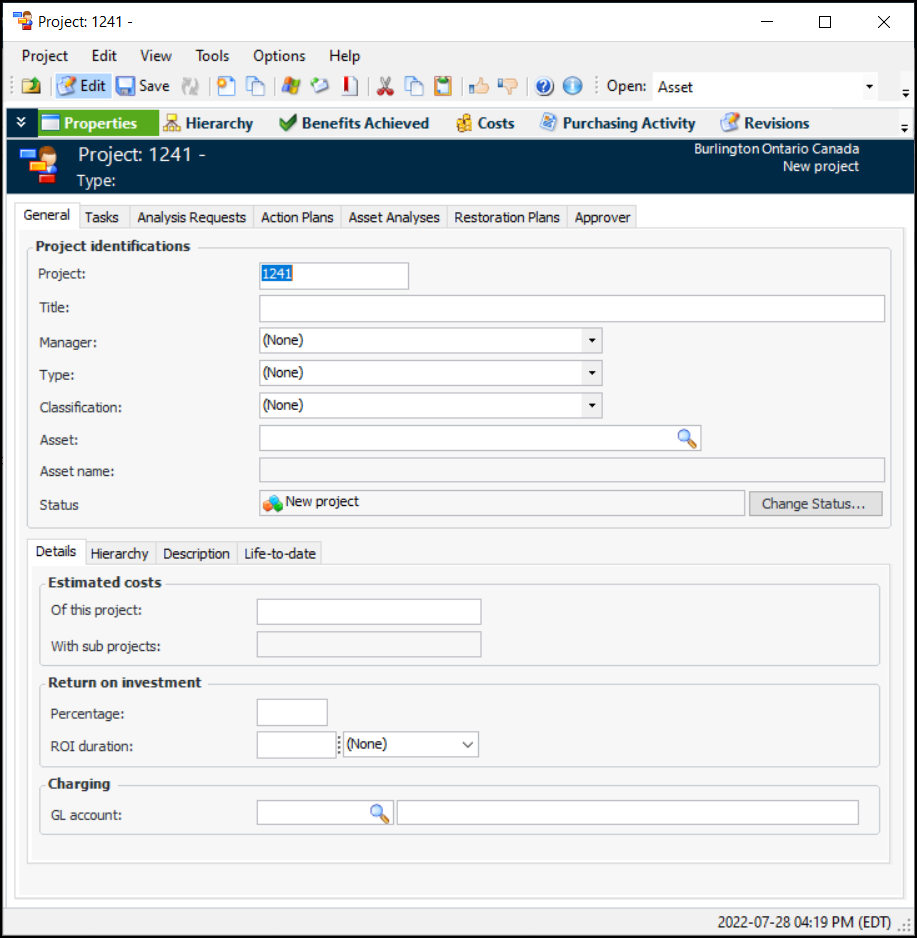
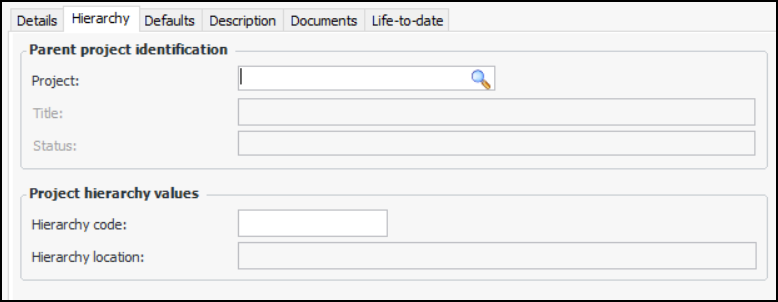
APM project functionality allows you to track your organization’s projects with respect to costs, hierarchy relationships, and status. The costs and completion status of a project are tracked through the work orders charged to the project. Most project work is done through work requests and work order tasks. Your projects are tied to GL account segments that are applicable to the particular cost types within the project, such as materials, labor, and parts.APM supports both capitalized and expensed or operational projects. The difference between a capital project and an expensed project lies in the project type and the GL account you assign to the project. For more information on setting up project types and cost tracking, see Setting up Project Types and Capital and Operational Project Management.Projects can also be created to track strategy development and reliability strategy selection analyses. They can also be created for asset restoration plans and failure containment. For related information, see Creating a Reliability Project.You can create projects in the site’s Work Management, Strategy Development, Reliability Program, or Performance Management views. This topic explains how to create a project from the site’s Work Management view.To Create a Project