Creating a Work Order from Scratch

There are many ways to create work orders in APM. This section explains how to create work orders from the site. You can also create a work order from a standard job, a standard task, and an asset.

To Create a Work Order

1.
From the Site window, select the Work Management view, Work Orders tab, and then the Work Orders tab. By default, this tab lists open work orders for the site.
2.
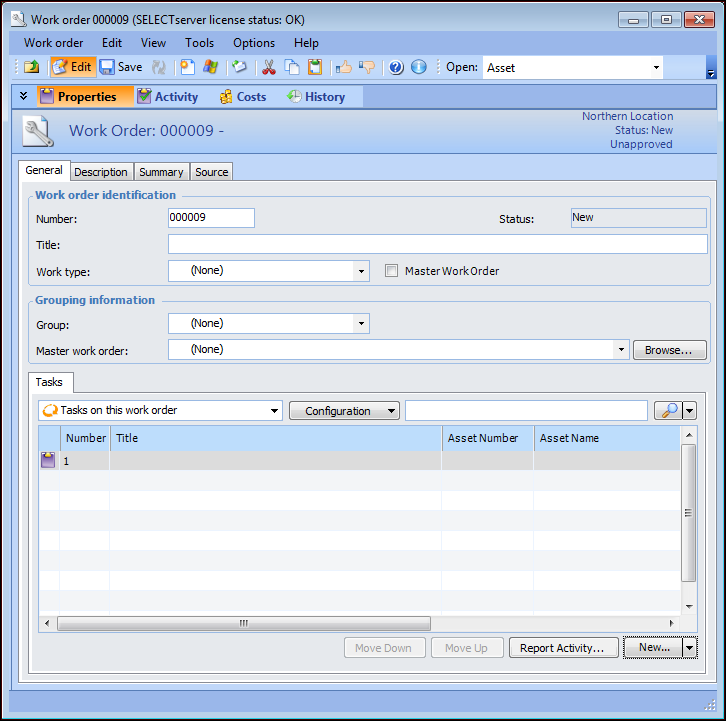
Click New to open a work order. The Work Order window appears and its first work order task is created.
 
3.
The current status of the work order. At various stages in the life cycle, APM may assign the following statuses to a task or work order: New, Work in Progress, Scheduled, Completed, Canceled, or Closed. Work planners may also select an appropriate status for the task or work order: In Planning, Planned, Rejected, or Work in Progress.
4.
Double-click the first task in the Tasks tab. The Work Order Task window appears.
5.
6.
7.
Select the Description tab to view or enter a description of the work order.
8.