
Creating a Master Work Order

A master work order allows you to group related work orders. You can use master work orders to view, sort, and filter lists of work orders.
You can set an existing work order to be a master work order, or you can create a new master work order from scratch. This topic explains how:
Note: Work orders can also be grouped using work order groups. See Grouping Work Orders.

To Create a Master Work Order from a New Work Order

1.
From the Site window, select the Work Management view and then the Work Orders tab.
2.
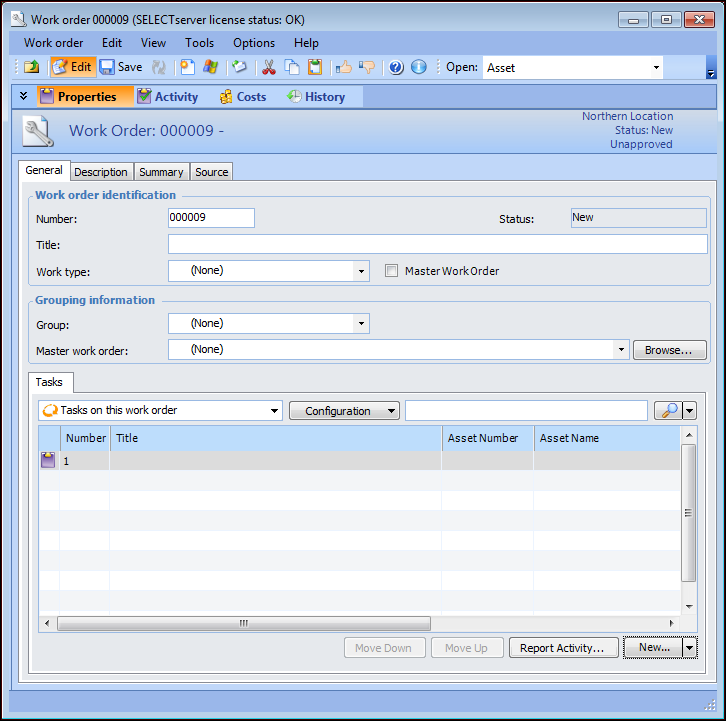
Click New. The Work Order window appears.
3.
Enter the title, select a work type, and click Master Work Order. The work order is now a master work order.
4.
In the Tasks tab, double-click the work order task to open it.
5.
6.
Back in the Work Order window, select the Sub Work Orders tab and then click Browse. The Browse Work Orders dialog appears.
Tip: To create a new sub-work order, click New. The Work Order Task window appears. Enter the information for the new work order and then save and close it.
7.
Click OK. The work orders are now linked to the master work order.
8.

To Create a Master Work Order from an Existing Work Order
1.
From the site’s Work Management view, select the Work Orders tab.
2.
Select the Work Orders tab and double-click a work order from the list to open it. The Work Order window appears.
3.
4.
Select Master Work Order. The Sub Work Orders tab is added to the General tab.
5.
Select the Sub Work Orders tab. Click Browse to open the Browse Work Orders window. Select each work order that you want to add to the master work order. You can add any open work order from the site that owns the master work order or from any of its child sites.
Tip: To create a sub-work order, click New. The Work Order Task window appears. Enter the information for the new work order and then save and close it.
6.