|
Adding Tasks to a Work Order
To Add a New Task to an Existing Work Order
1.
2. Select the Work Orders tab. This tab lists the site’s work orders.
5.
6. In the Title box, enter a name for the work order task.To Add Standard Tasks to an Existing Work Order
3.
4.
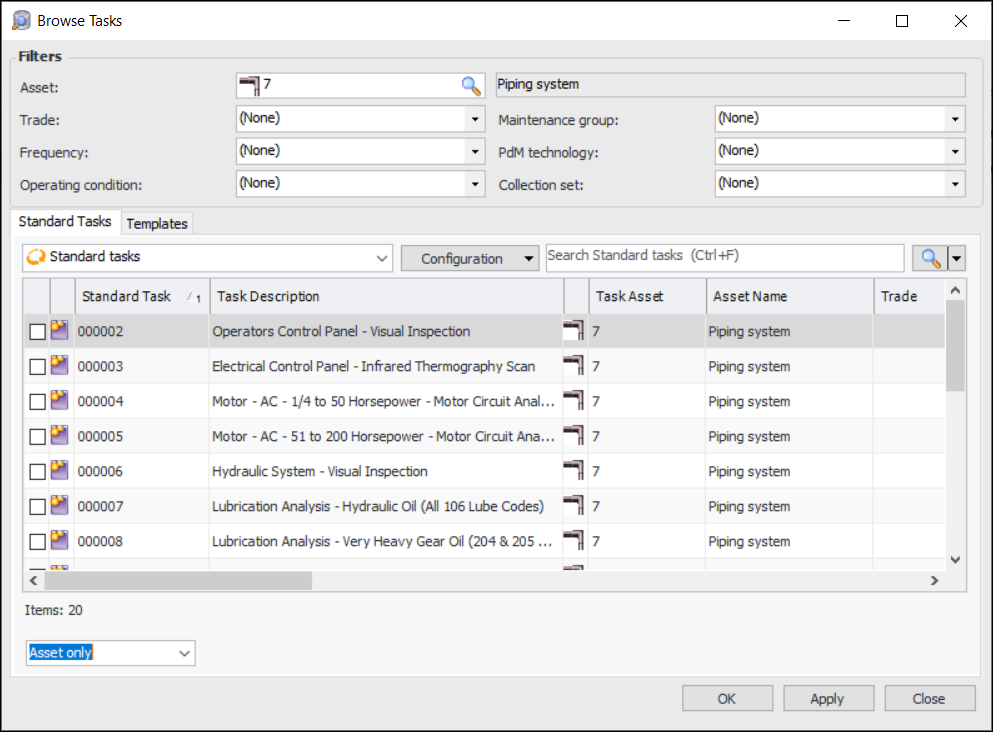
5. Select the standard tasks or task templates that you want to add to the work order and click OK. APM adds the tasks to the work order.To Add Tasks from Standard Jobs or Job Templates
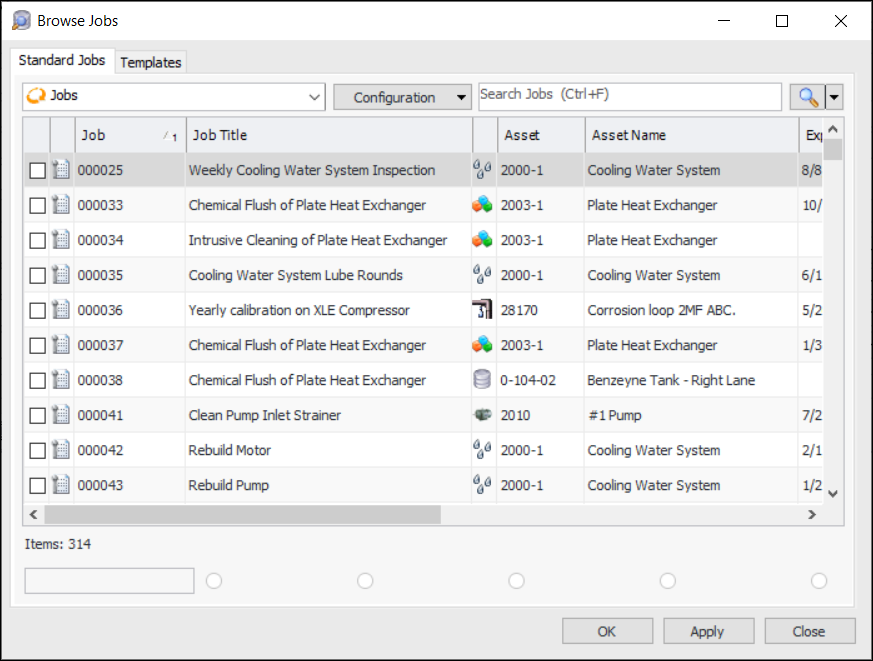
4. From the Task menu, select Create, then New from Standard Jobs. The Browse Jobs dialog appears. The dialog shows lists of standard jobs and job templates. For example:
6. Click OK. APM adds the tasks contained on the selected jobs and templates to the work order.To Copy Tasks from an Existing Work Order
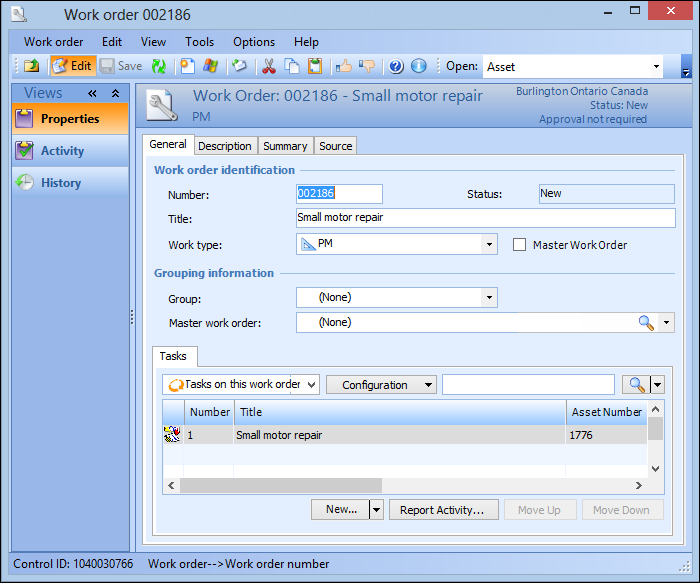
3. On the Properties view, select the General tab. This tab shows a list of all tasks currently on the work order.
4.
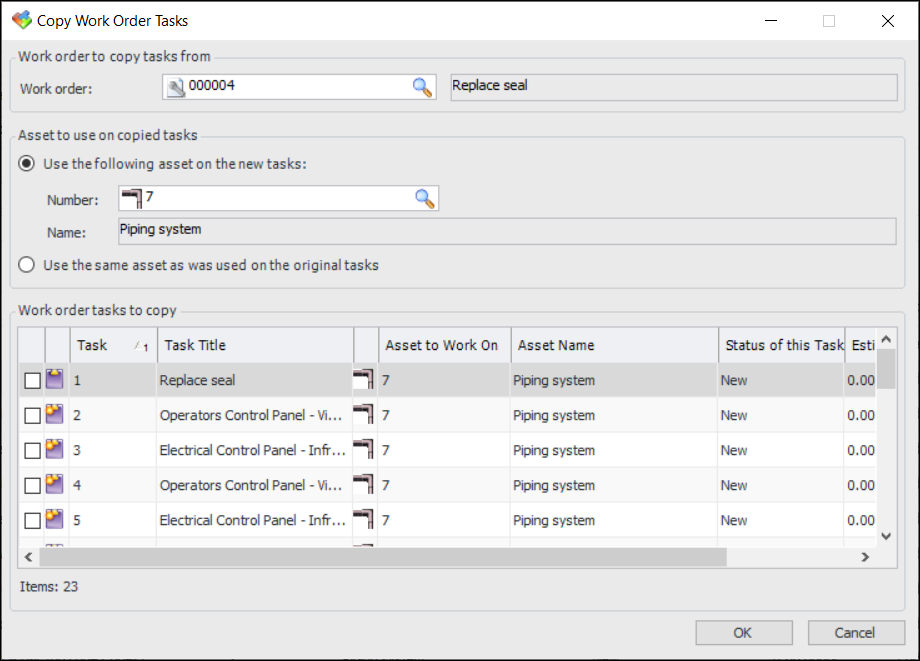
6. Select the work order that you want and click OK. The tasks available on the work order appear in the Copy Work Order Tasks dialog.
• To select an asset for the new tasks, select Use the following asset on the new tasks and click. Select the asset and click OK.
• To use the asset already listed on the tasks you are copying, select Use the same asset as was used on the original tasks.
9. When you are finished, click OK. APM creates the new tasks on your work order.